
Introduction
Direct Dialing in IVR allows callers to enter an extension number while the IVR greeting or menu is playing. This lets them reach a specific user or department directly, without navigating the IVR menu. It helps speed up call routing and makes it easier for frequent callers to contact the desired extension. Important: To use the Direct Dialing feature, a DID (Direct Inward Dialing) number must be assigned to the IVR or call flow.
Assign a DID Number
1. Login to your RingQ Admin dashboard. 2. Navigate to Settings → Call Flow.
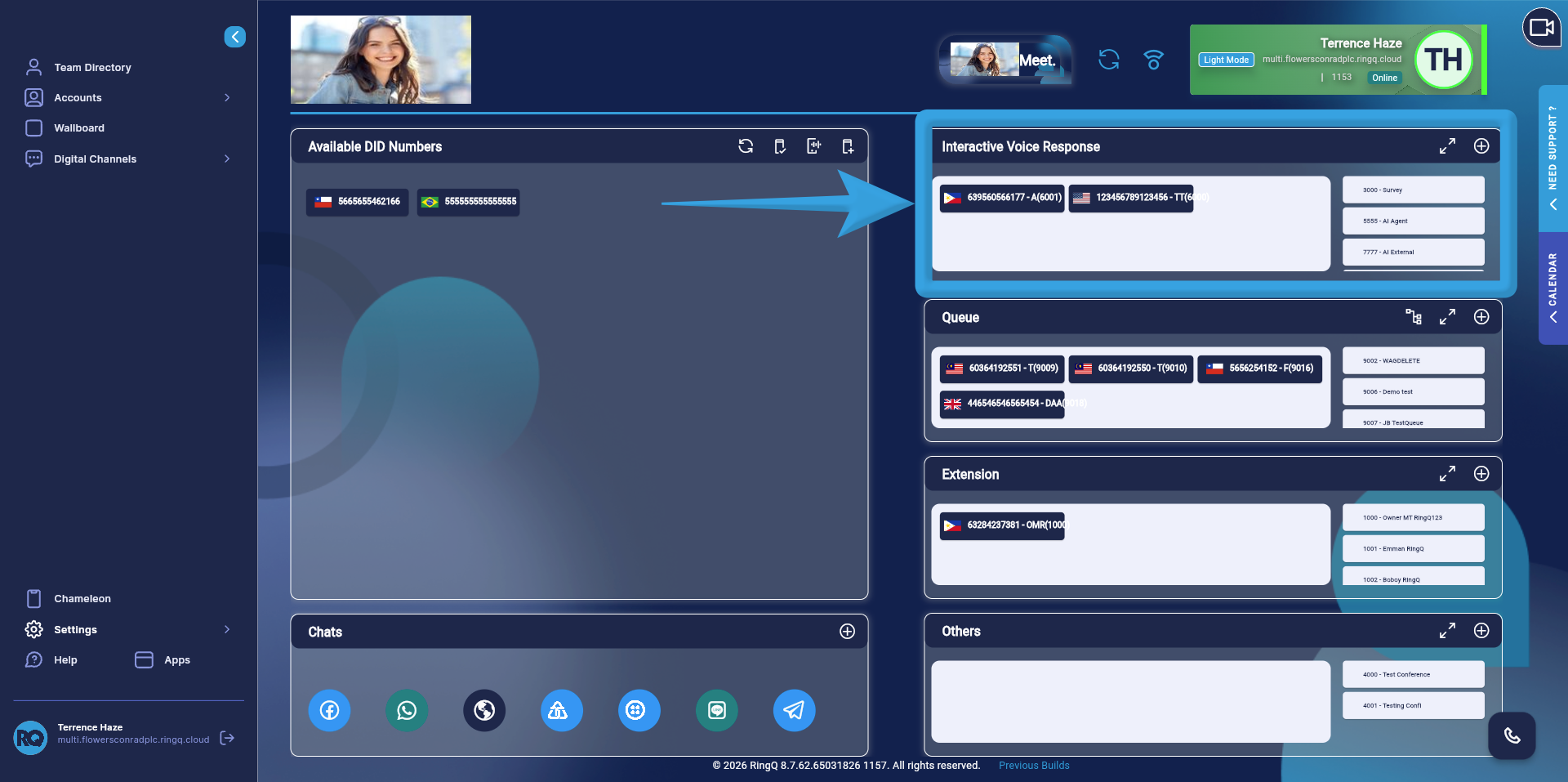 3. Locate the IVR section.
4.Drag and drop the selected DID to assign it to the IVR.
3. Locate the IVR section.
4.Drag and drop the selected DID to assign it to the IVR.
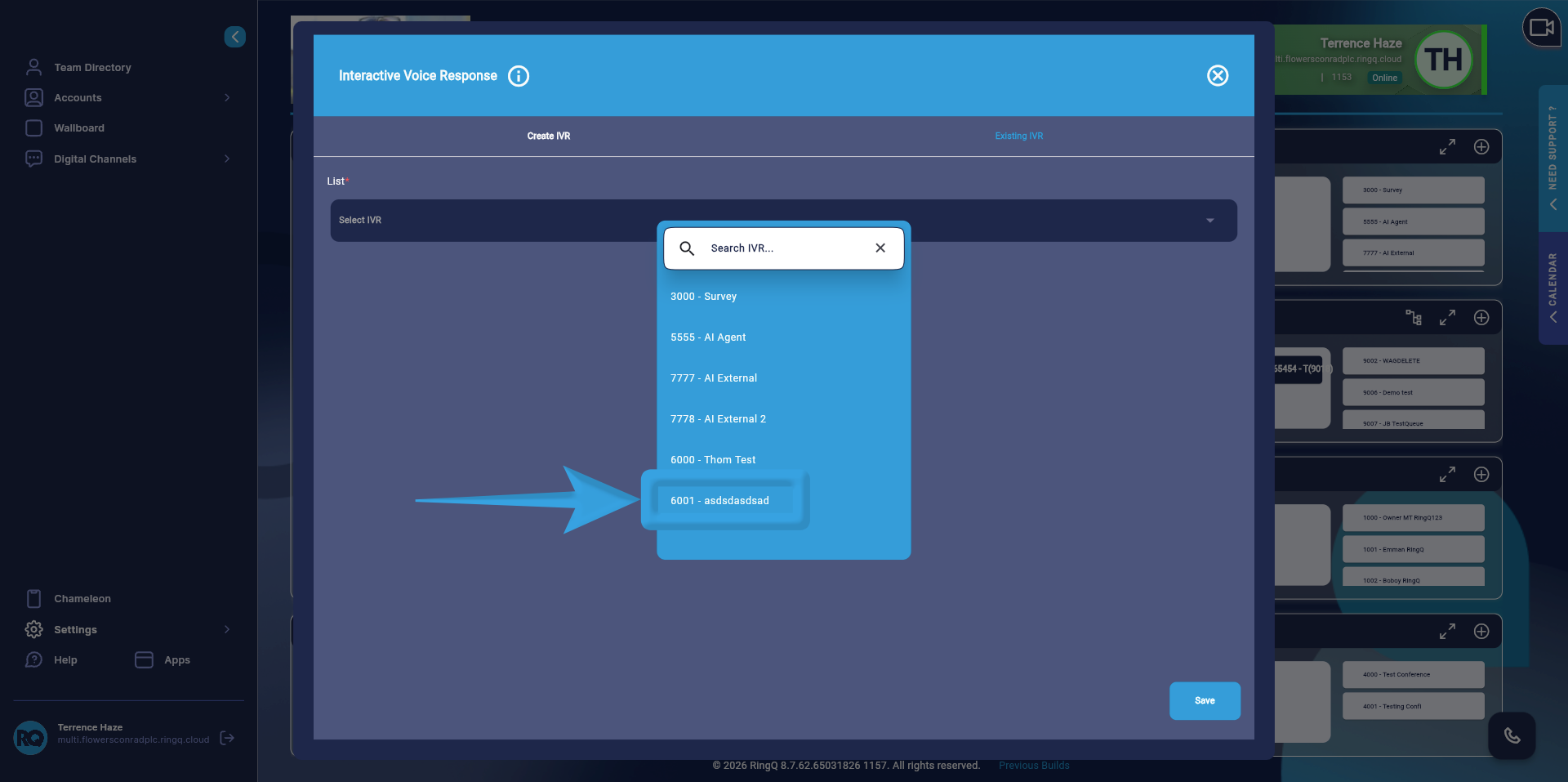 5. Assign the DID to the Existing IVR.
6. Click ‘Save’.
5. Assign the DID to the Existing IVR.
6. Click ‘Save’.
Enable Direct Dialing in IVR
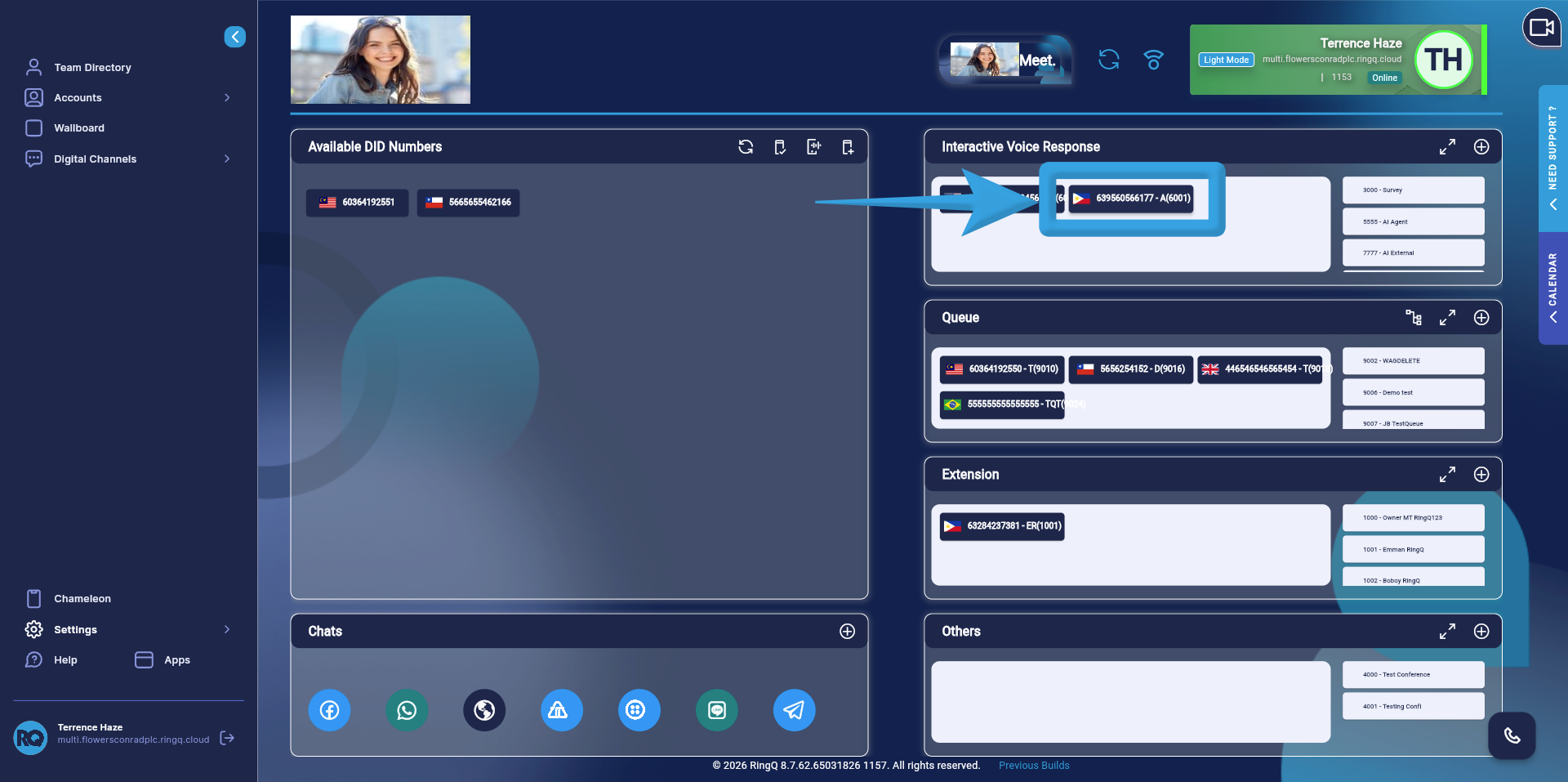 1. Click on the IVR you want to edit to open the configuration settings.
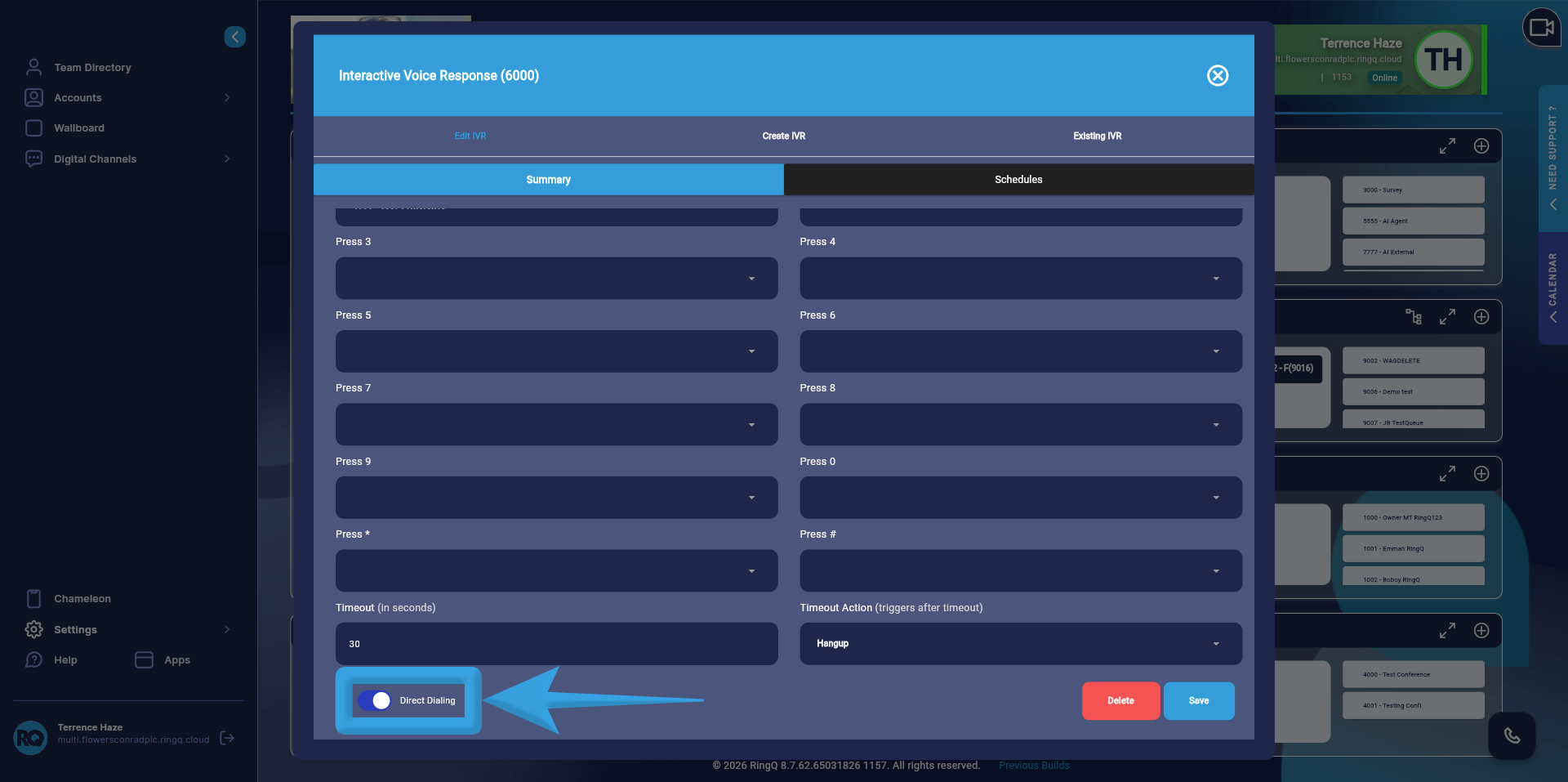 2. In the IVR configuration panel, locate the Direct Dial enable/disable toggle. Enable the Direct Dialing option.
3. Click ‘Save’.
2. In the IVR configuration panel, locate the Direct Dial enable/disable toggle. Enable the Direct Dialing option.
3. Click ‘Save’.
How Direct Dialing Works
1. A caller dials the assigned DID number. 2. The call is routed to the IVR menu. 3. While the IVR greeting is playing, the caller can enter the extension number directly. 4. The system will automatically route the call to the corresponding extension. Example IVR Greeting “Welcome to RingQ. For Sales press 1, for Support press 2. If you know the extension number of the person you wish to reach, you may dial it at any time.”