
Introduction
An IVR (Interactive Voice Response) system helps route calls efficiently by allowing callers to interact with a menu using their keypad. This guide will walk you through how to configure your IVR in RingQ to create a smoother, more professional caller experience.
Adding an IVR
1. Login to your RingQ web app. 2. On the left-hand menu navigate to “Settings” > “Call Flow”.
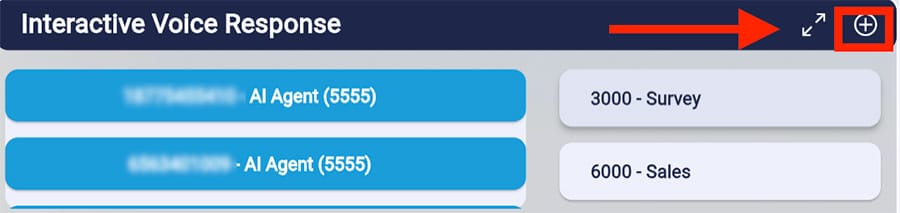 3. On the “Interactive Voice Response” click on the “+” to create a new IVR.
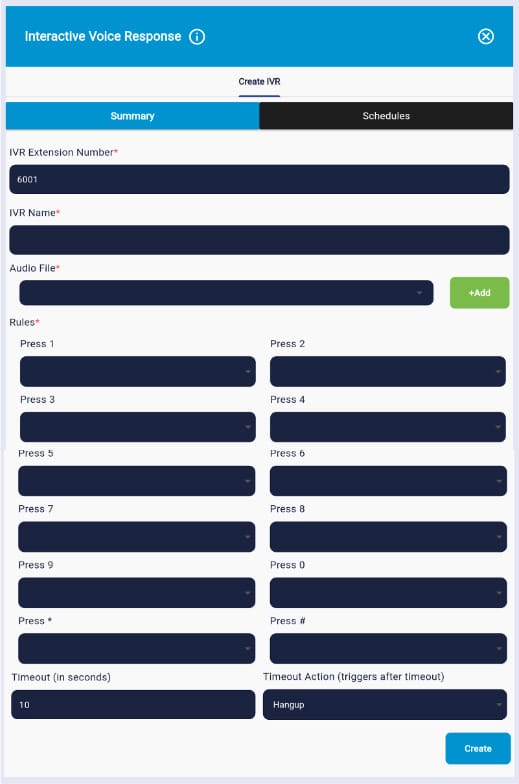 4. Fill in the fields to create your IVR:
- Name the IVR
- Upload an audio file to be played to callers
- Enter the rules i.e. press 1 for sales, press 2 for accounts etc. From here you will select the extension the caller should be directed to if they select that option. The extensions are listed in the dorpdown.
- Enter the timeout duration and the time out action, ie. After 30secs replay the audio file.
- Click “Create” to save your IVR.
Editing an IVR
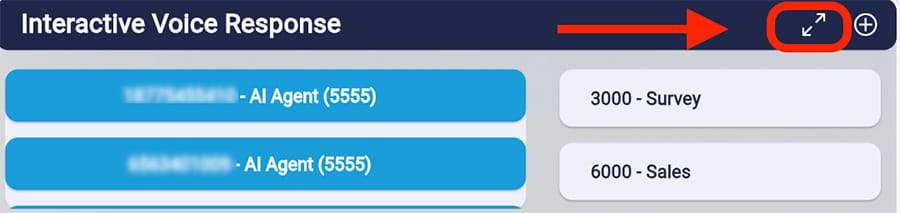 1. Click on the expansion button as shown above.
2. Click on the IVR you want to edit.
3. A new window will appear for you to make your edits.
4. Click “Save”.
1. Click on the expansion button as shown above.
2. Click on the IVR you want to edit.
3. A new window will appear for you to make your edits.
4. Click “Save”.