
Introduction
RingQ’s call control features include call forwarding and relay as well as parallel ringing and call screening. This guide explains how to set up these features to enable more efficient and effective call control and handling.
Call Forwarding
1. Log into your RingQ web app. From the side menu, navigate to “Accounts” and then select “Extensions”.
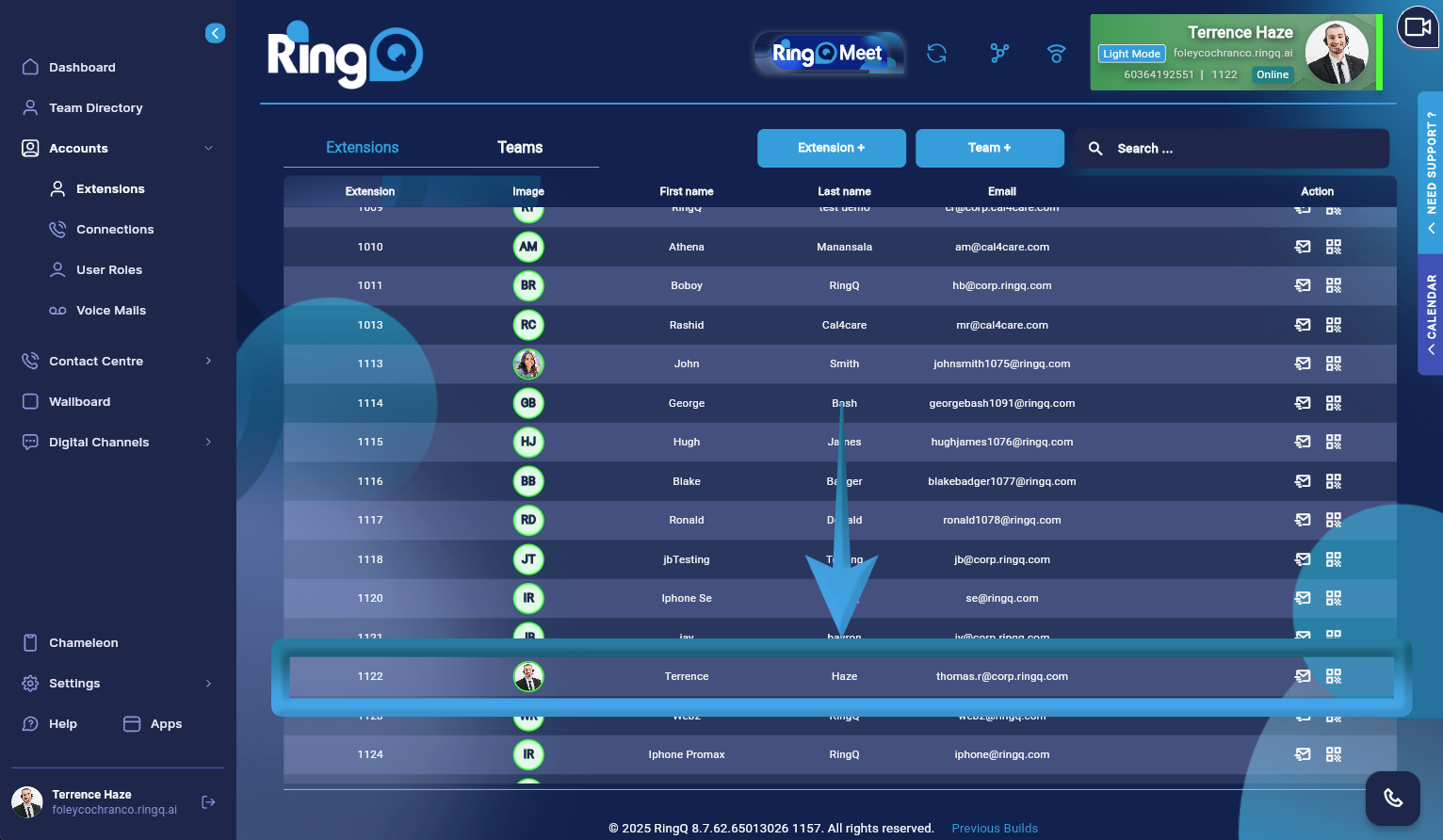 2. Choose the extension you want to configure call forwarding settings for.
 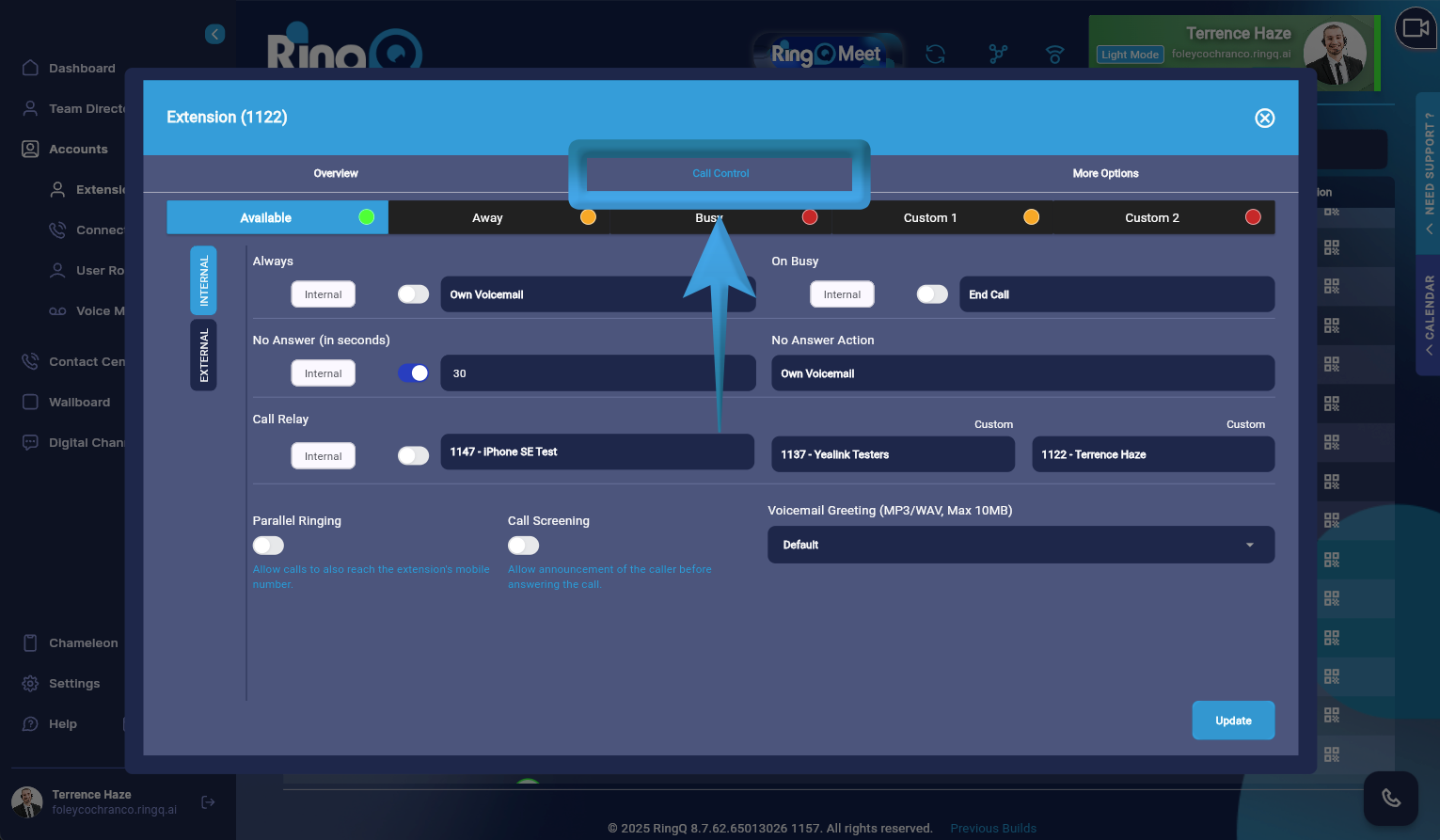 3. Click on call control.
 4. Select “External” or “Internal” according to the type of calls you want to forward.
 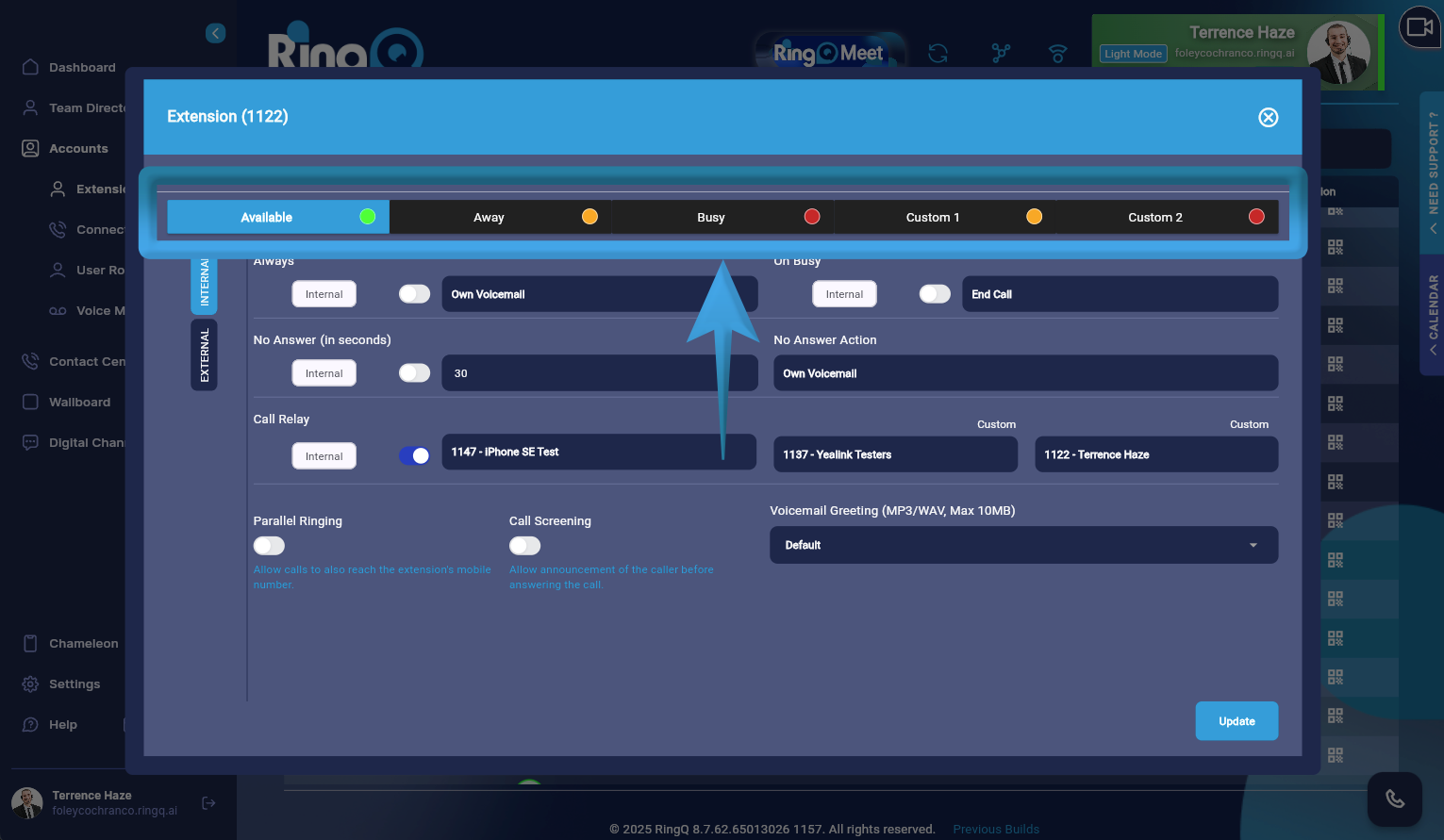 5. Select a Status (Available, Away, Busy, Custom 1, or Custom 2).
 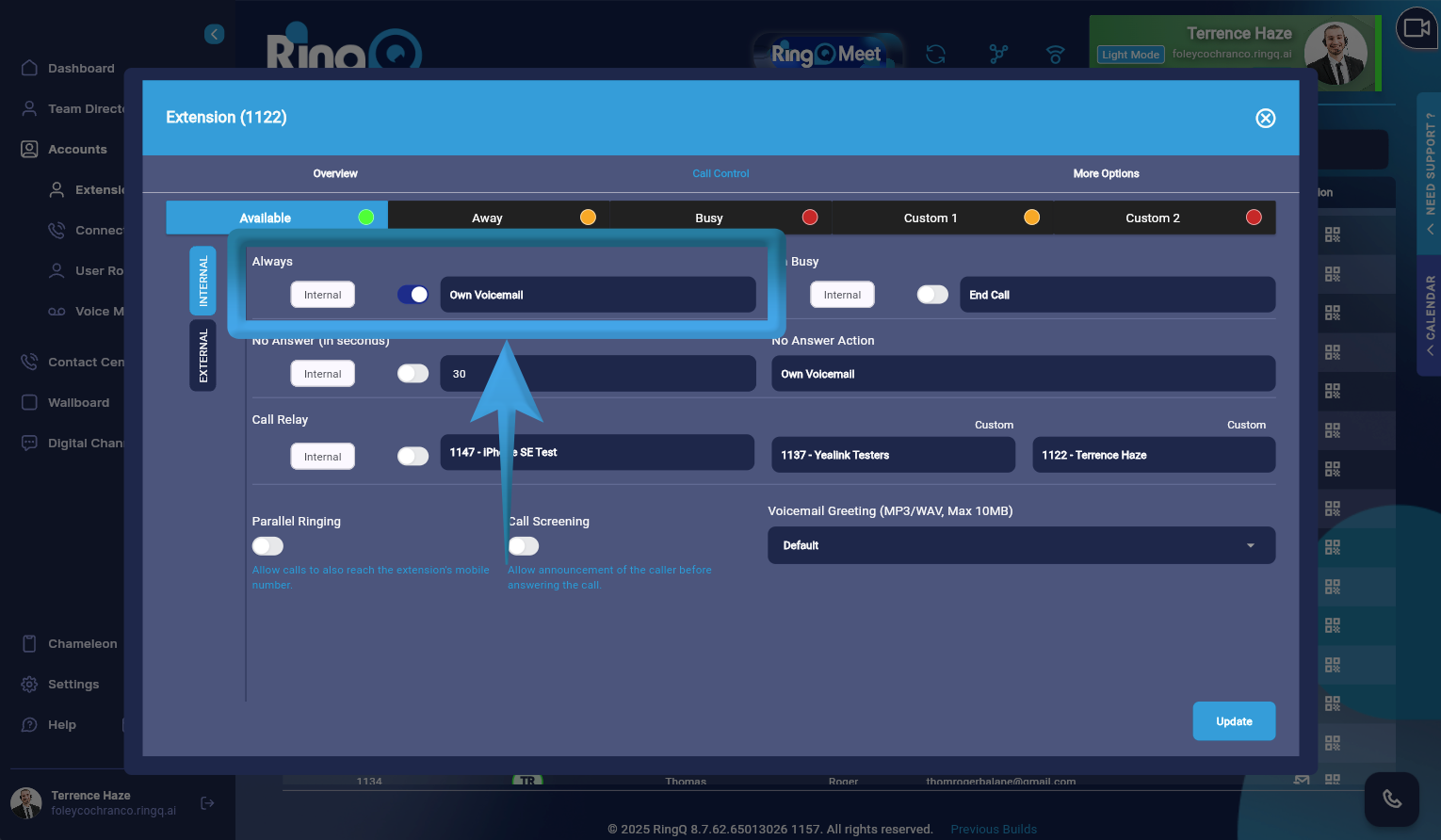 6. Within the Call Profile settings, enable the “Always” option to activate continuous call forwarding from external calls.
Specify the action you want to take for forwarded calls from external sources:
6. Within the Call Profile settings, enable the “Always” option to activate continuous call forwarding from external calls.
Specify the action you want to take for forwarded calls from external sources:
- Choose an extension within your organization to forward calls.
- Select a custom external number where calls will be directed.
- Or assign to IVR extension, Queue extension, or Conference extension
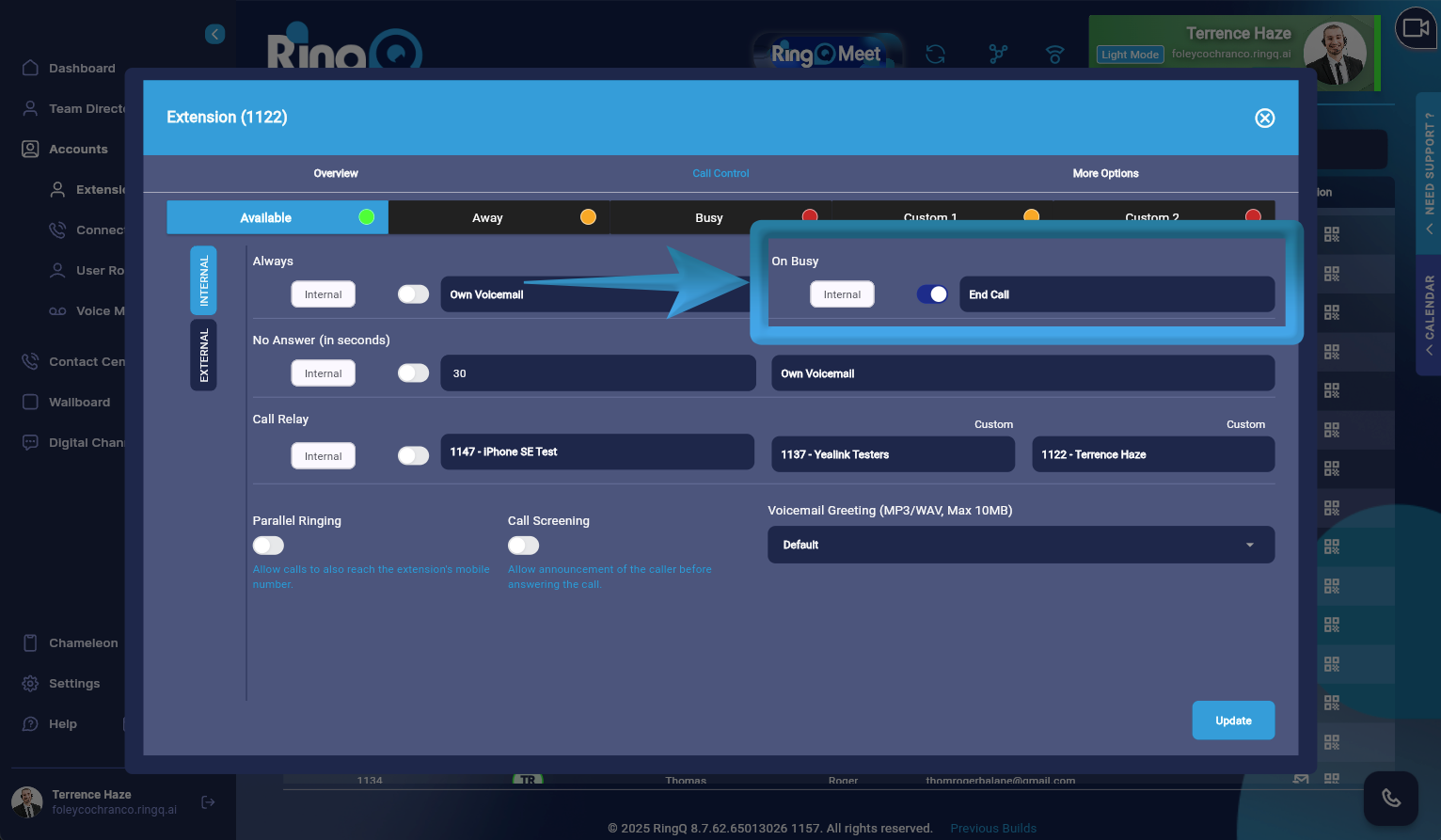
- Choose an extension within your organization to forward calls.
- Select a custom external number where calls will be directed.
- Or assign to IVR extension, Queue extension, or Conference extension
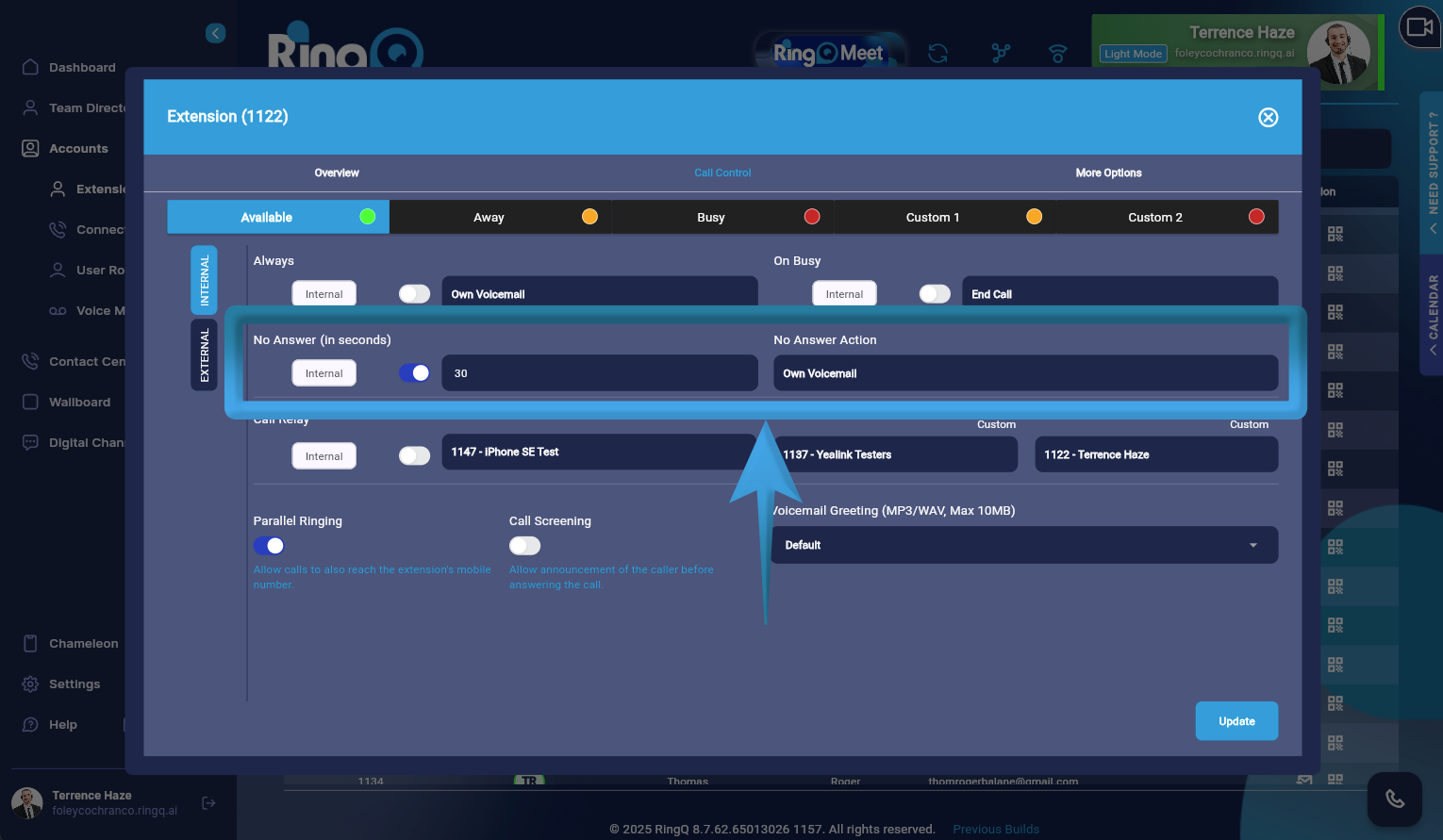 8. When the “No Answer and No Answer Action” feature is enabled, it allows you to automatically forward incoming calls to a designated action or destination if a call goes unanswered after a specified duration.
Specify the action you want to take for forwarded calls from external sources:
8. When the “No Answer and No Answer Action” feature is enabled, it allows you to automatically forward incoming calls to a designated action or destination if a call goes unanswered after a specified duration.
Specify the action you want to take for forwarded calls from external sources:
- Choose an extension within your organization to forward calls.
- Select a custom external number where calls will be directed.
- Or assign to IVR extension, Queue extension, or Conference extension
Configuring Call Relay
When Call Relay is enabled, RingQ routes incoming external calls to the configured slots in a sequential order.
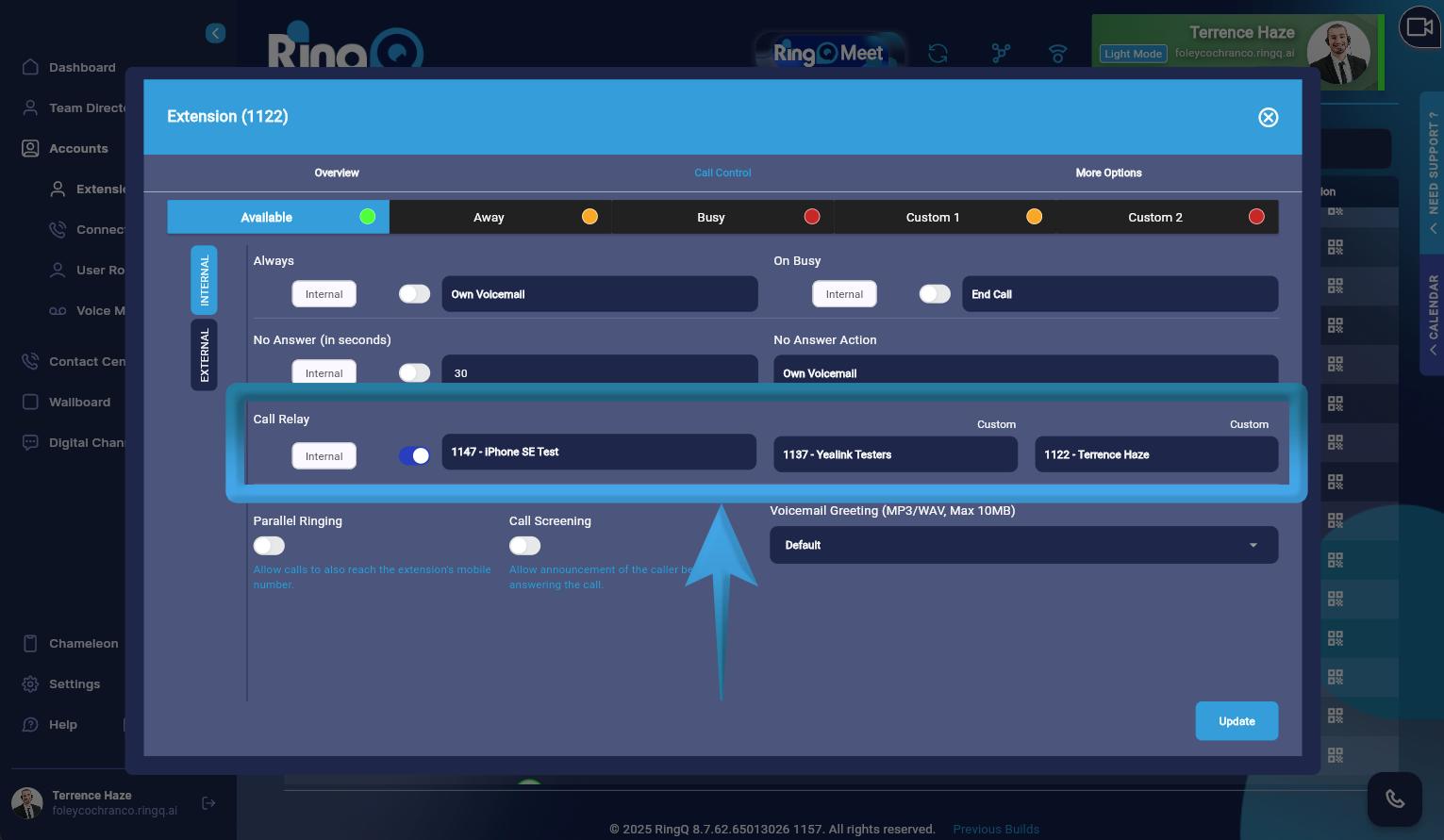 If a call is not answered in Slot 1 within the defined ringing duration, it is automatically forwarded to Slot 2, then continues through the remaining slots until the call is answered, or the sequence is completed.
Call Screening
When enabled, call screening activates when you assign a custom number to a forwarding action regardless of the status it’s set for, i.e. “Always,” “On Busy,” “Away,” “Custom 1,” or “Custom 2”.
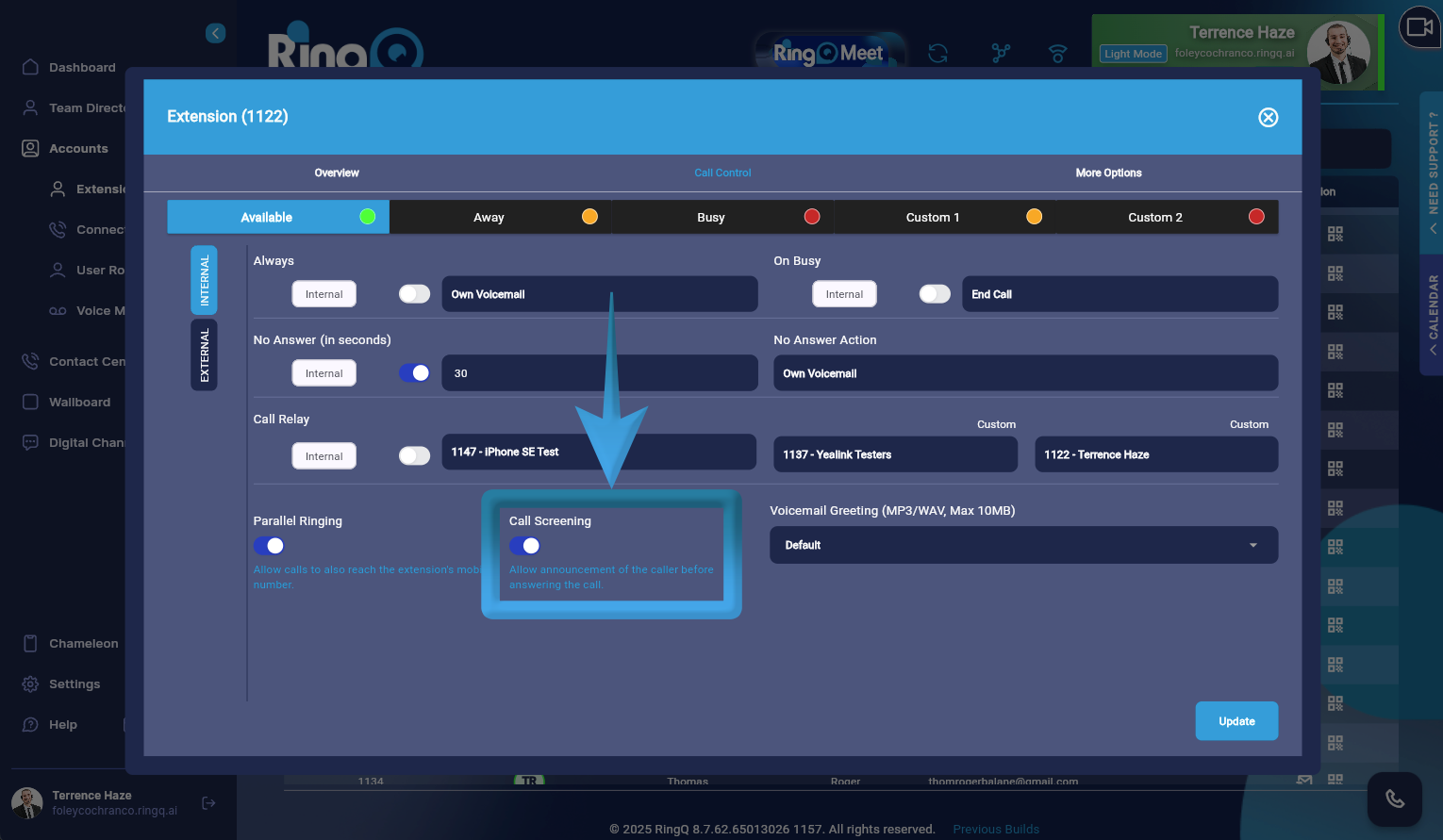 Call Screening allows users to filter incoming calls based on specific criteria or caller information before deciding how to handle them. This setup ensures that calls are screened according to your specified criteria, providing flexibility in managing incoming calls based on different conditions or forwarding scenarios.
Parallel Ringing
When enabled, “Parallel Ringing” enables incoming calls to simultaneously ring on multiple destinations.
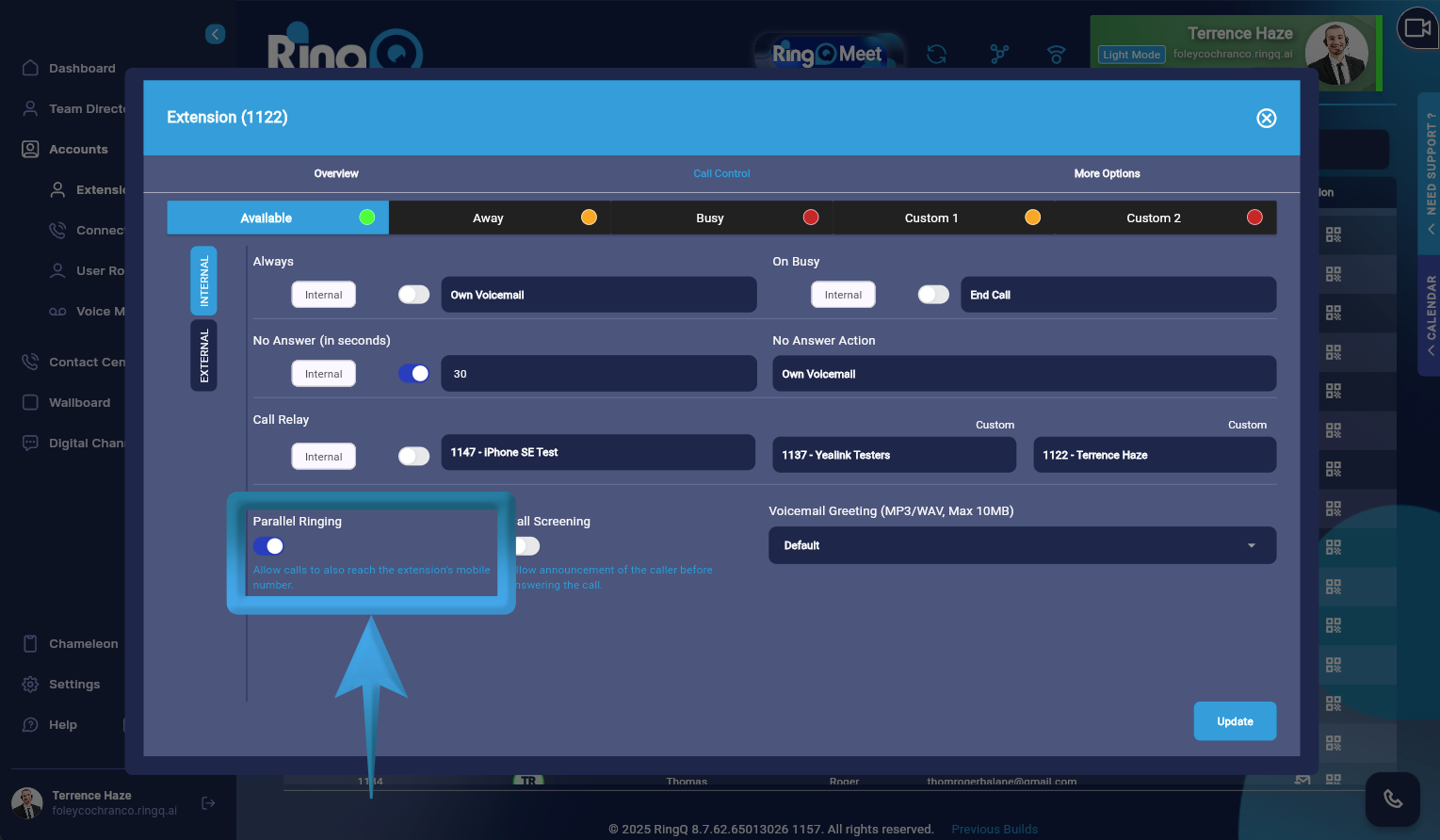 Parallel Ringing ensures that calls are efficiently managed and promptly answered across multiple devices or extensions.