
Introduction
This guide walks through the steps required to configure an MPLS SIP trunk on the RingQ platform. MPLS (Multiprotocol Label Switching) connectivity provides a dedicated, private network path for voice traffic, offering improved reliability and call quality compared to standard internet-based SIP trunks.
The configuration process covers three main stages: setting up the MPLS network interface and static routing on the RingQ server, creating a SIP profile tied to the MPLS line, and building the SIP trunk with the appropriate authentication method provided by your MPLS carrier. Once complete, you’ll be able to assign DID numbers and route inbound and outbound calls over the MPLS connection.
Overview
MPLS SIP trunk configuration is included in 3 steps:
- IP address configuration
- SIP Profile creation
- SIP Trunk creation
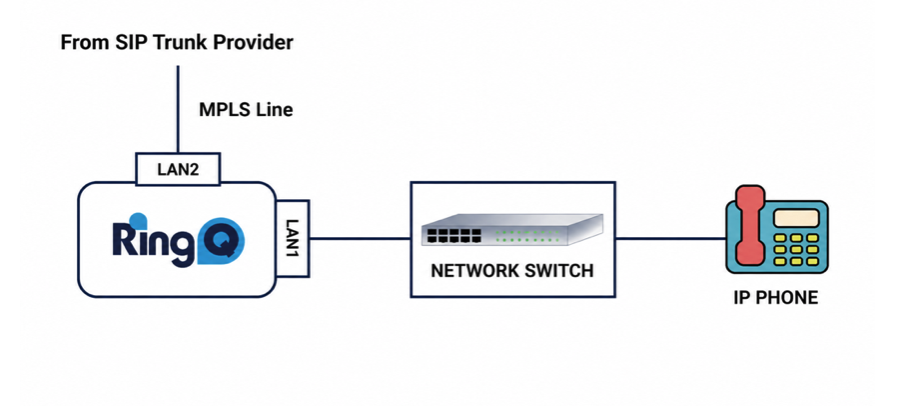
IP address Configuration
The RingQ Server has more than one interface to connect an MPLS cable. The MPLS provider will provide IP details to configure the second interface. Once the IP address is configured on the interface you will need to create a static route based on SIP/RTP Server IP address.
Use the command to create static route:
ip route add / via dev
Example

ip route add 192.168.100.0/24 via 172.16.8.1 dev enp3s0
Check routes “ ip route show”
Once the static route is created you can ping SIP/RTP server IP address and check the reachability via MPLS.
SIP Profile Creation
To create a SIP Profile login to your RingQ Admin dashboard and go to Settings>Global settings > SIP Profile.
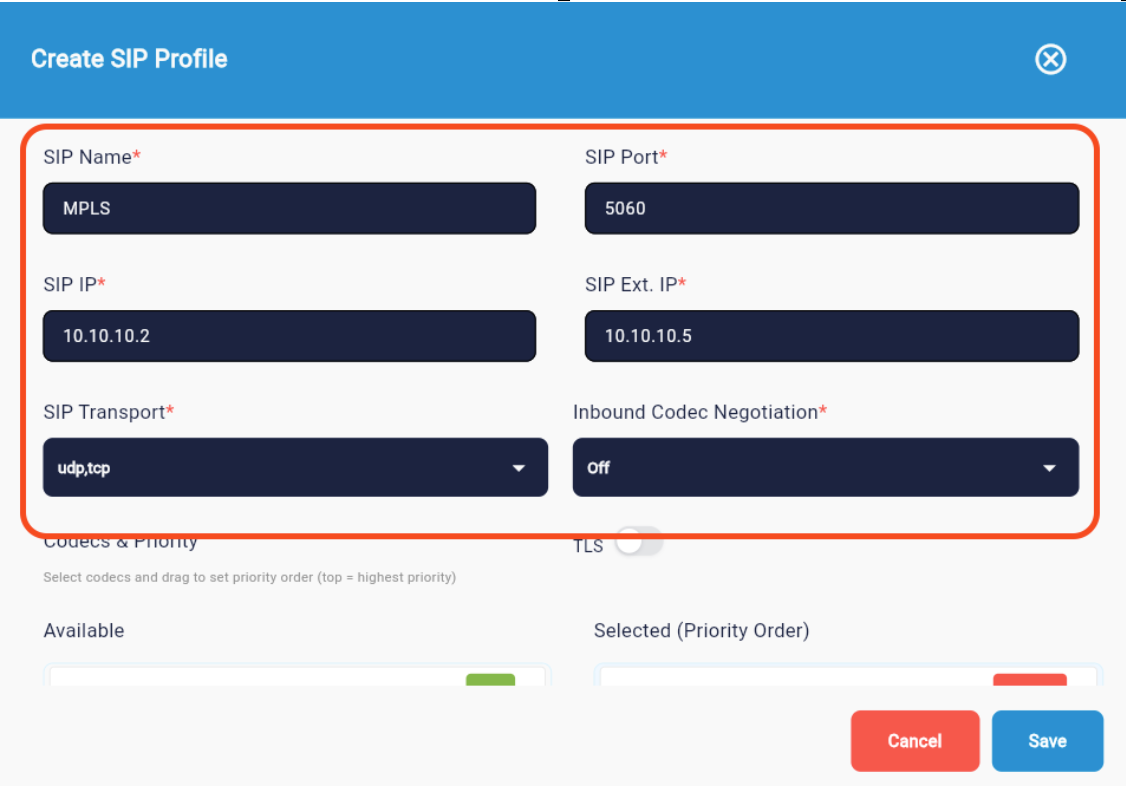
- Enter the SIP profile name,
- SIP port(default 5060),
- SIP IP & SIP EXT IP which is the interface IP address of the MPLS line
- SIP Transport – UDP,TCP are supported. Select based on the MPLS line
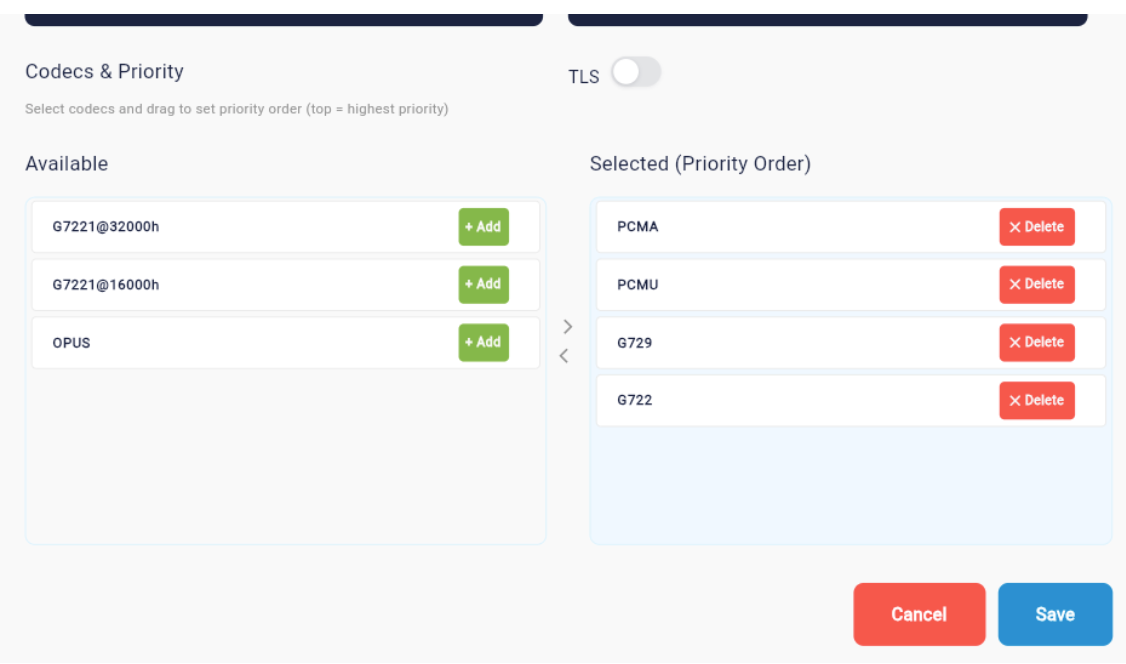
- Select the codec based on MPLS trunk Support
SIP Trunk Creation
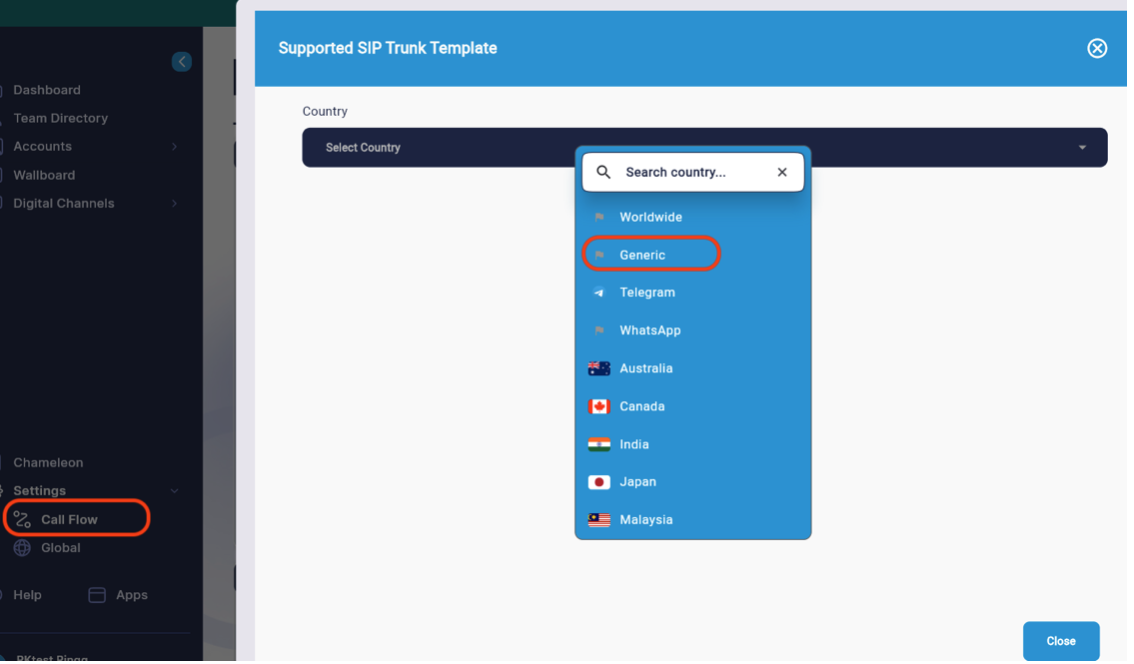
- Navigate to Settings > Call flow > Create SIP Trunk > Select Generic. Select the authentication type.
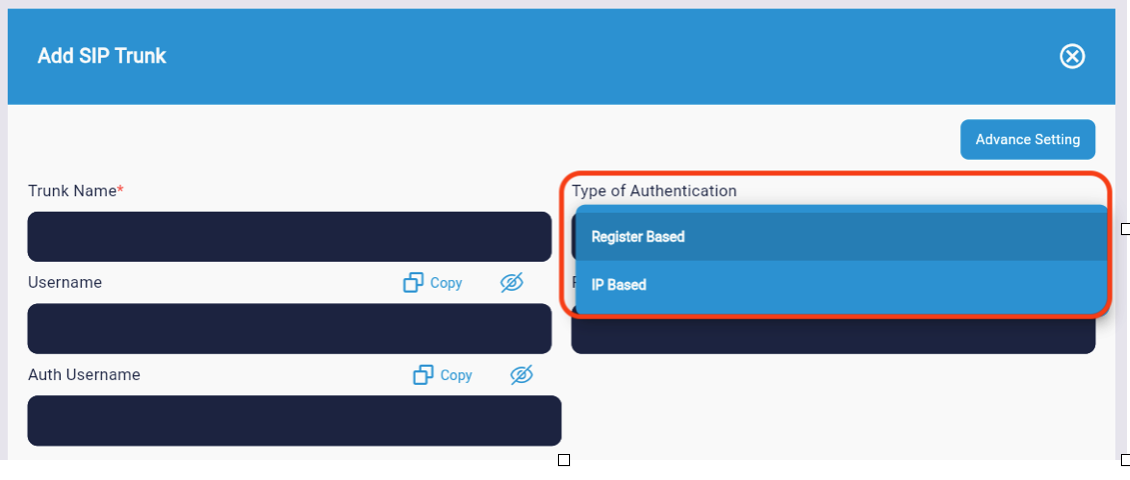
- Registered Based (Provider will provide the username and password to registered via MPLS )
- IP Based (Connectivity based on IP authentication no username and password)
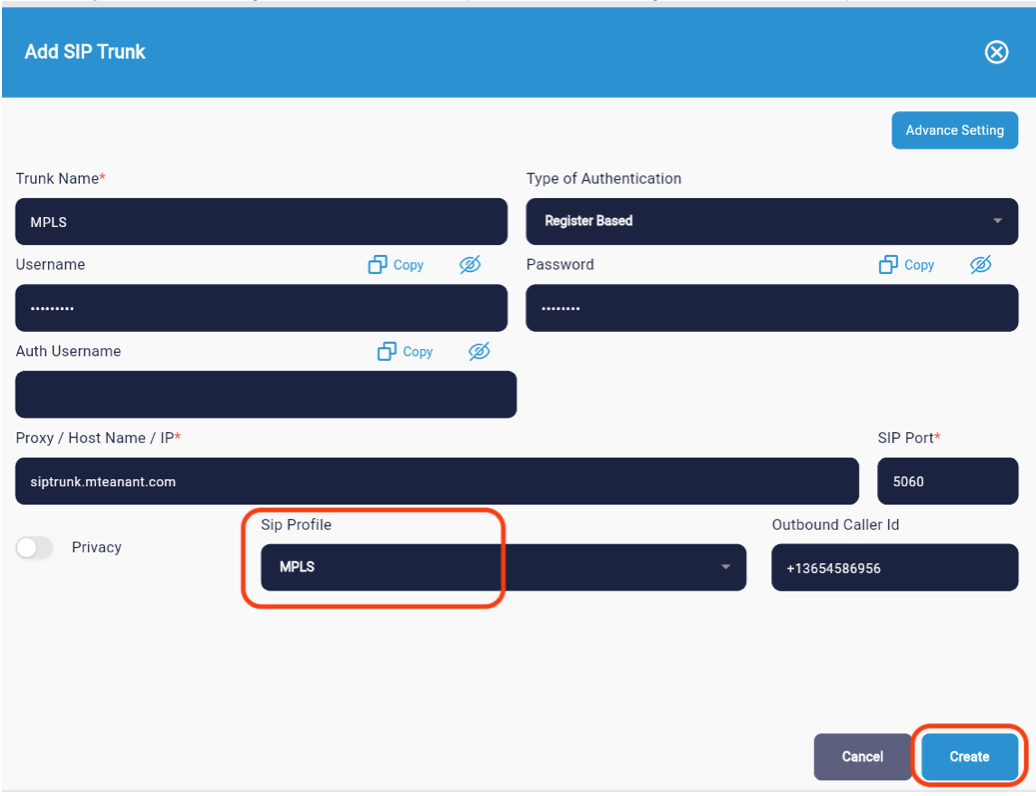
- Trunk Name: Enter the trunk name
- Select type of authentication based on MPLS account type
- Username, password & authentication (optional) will be provided by your MPLS provider. Type in the details. (Not mandatory for IP based)
- Enter the host name or IP address of the SIP server
- Select the correct SIP profile based on MPLS connection
- Create the trunk
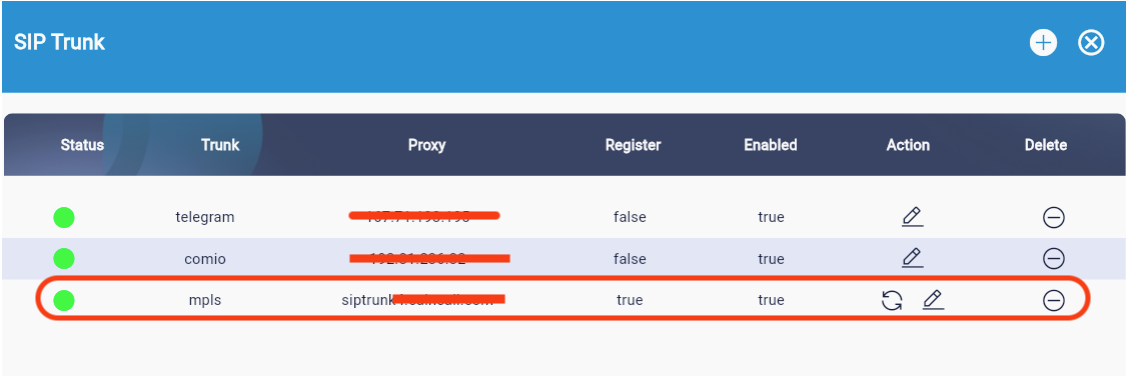
The SIP Trunk status should now appear green.
You can now start adding DID numbers and creating outbound rules based on an MPLS provider dial format.