
Introduction
This guide explains how to add a new tenant instance using the RingQ Customer Access Portal. Creating a tenant allows you to deploy a new RingQ environment under your multi-tenant license, providing a dedicated and isolated PBX instance for each customer. This ensures that users, configurations, and resources remain separate while being managed from a single platform.
Access the License Page
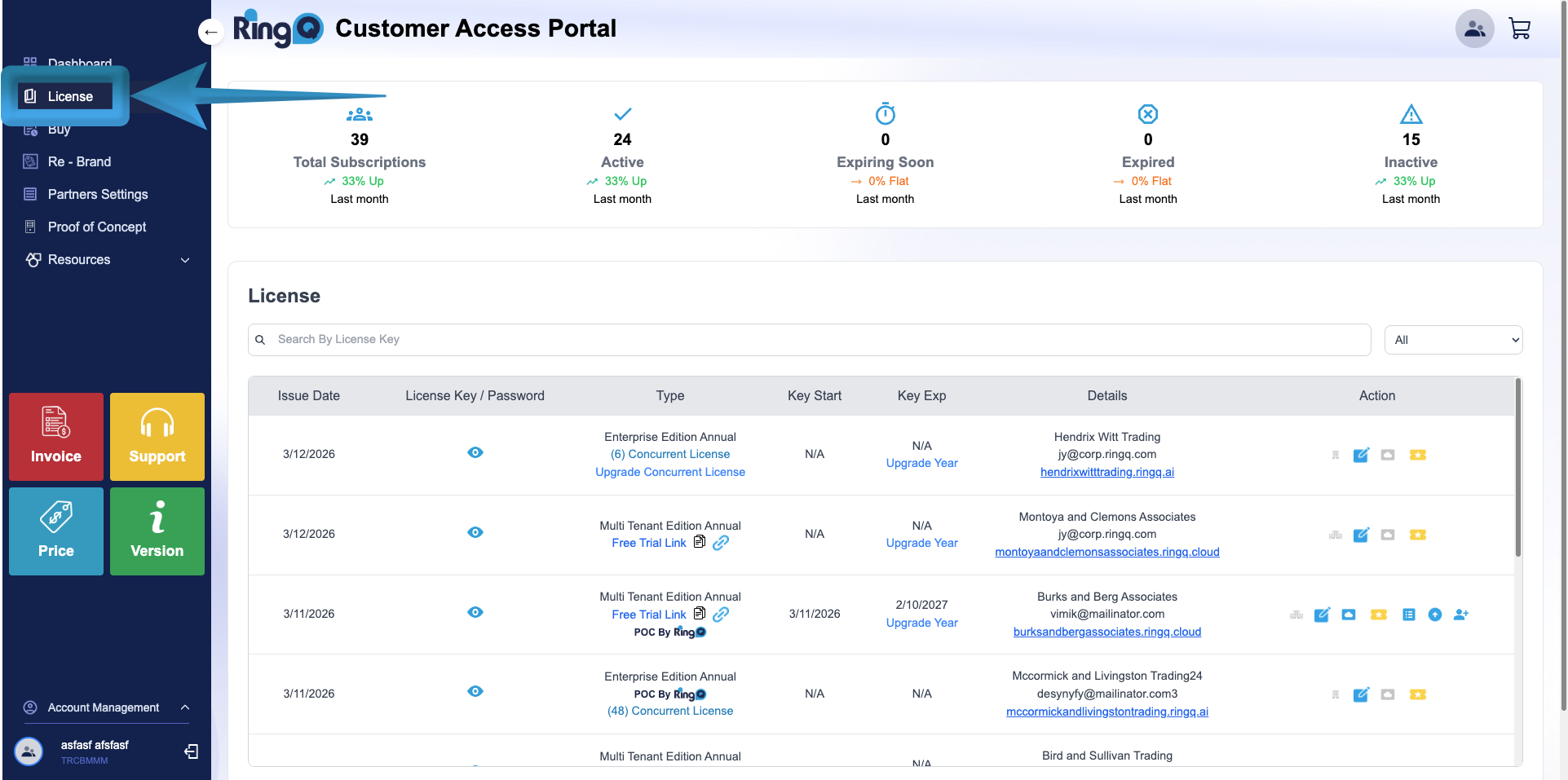 1. Log in to your RingQ Customer Access Portal Dashboard.
2. From the side menu, click the arrow icon to expand the menu options.
3. Select License.
1. Log in to your RingQ Customer Access Portal Dashboard.
2. From the side menu, click the arrow icon to expand the menu options.
3. Select License.
Filter the Multi-Tenant License
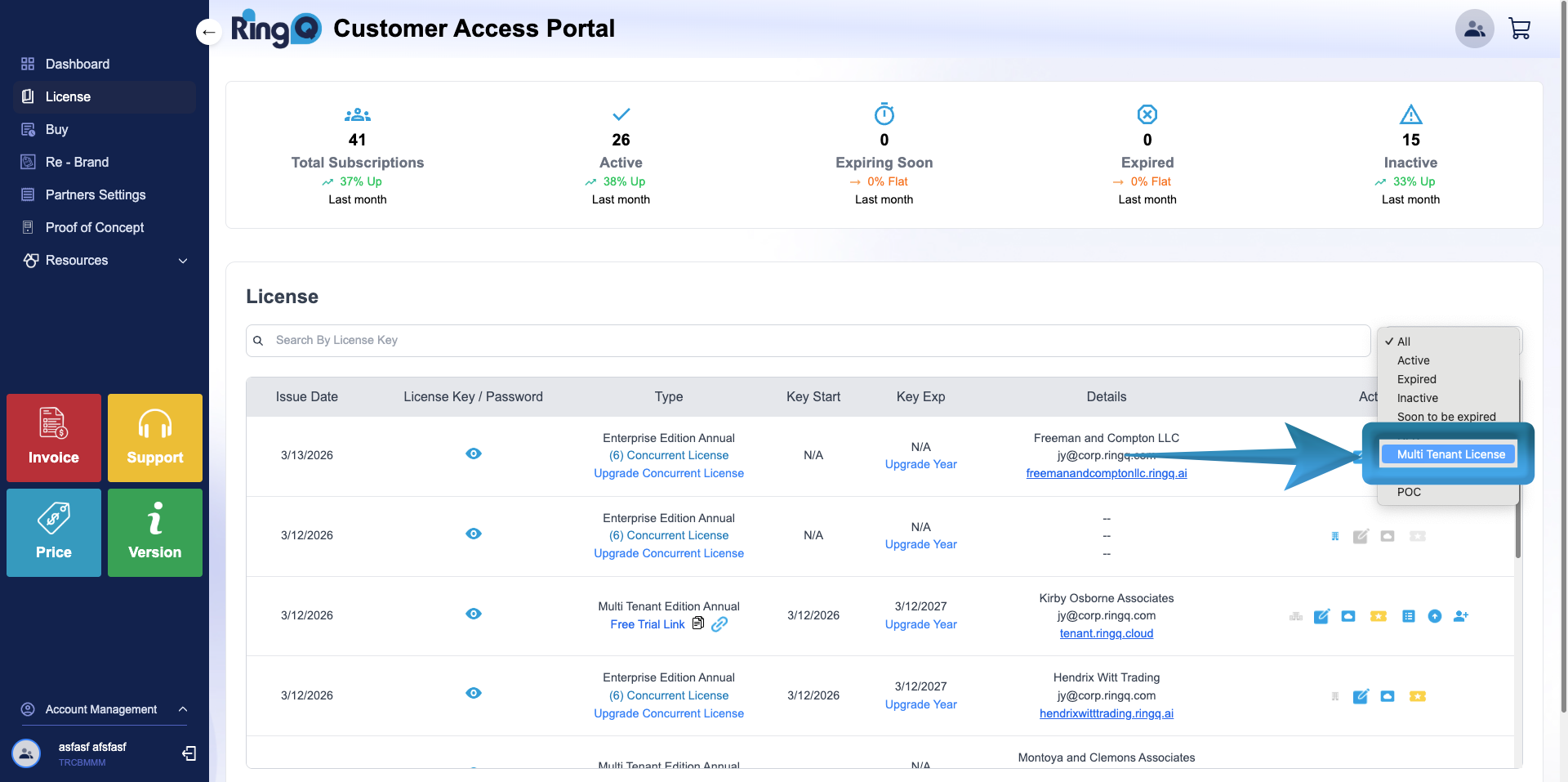 1. On the License page, locate the dropdown menu in the upper-right corner.
2. Select Multi-Tenant License from the dropdown list (shown above). The page will automatically filter and display only the available Multi-Tenant license accounts.
1. On the License page, locate the dropdown menu in the upper-right corner.
2. Select Multi-Tenant License from the dropdown list (shown above). The page will automatically filter and display only the available Multi-Tenant license accounts.
Select the License Account
1. Click on the multi-tenant account you want to add a tenant to.
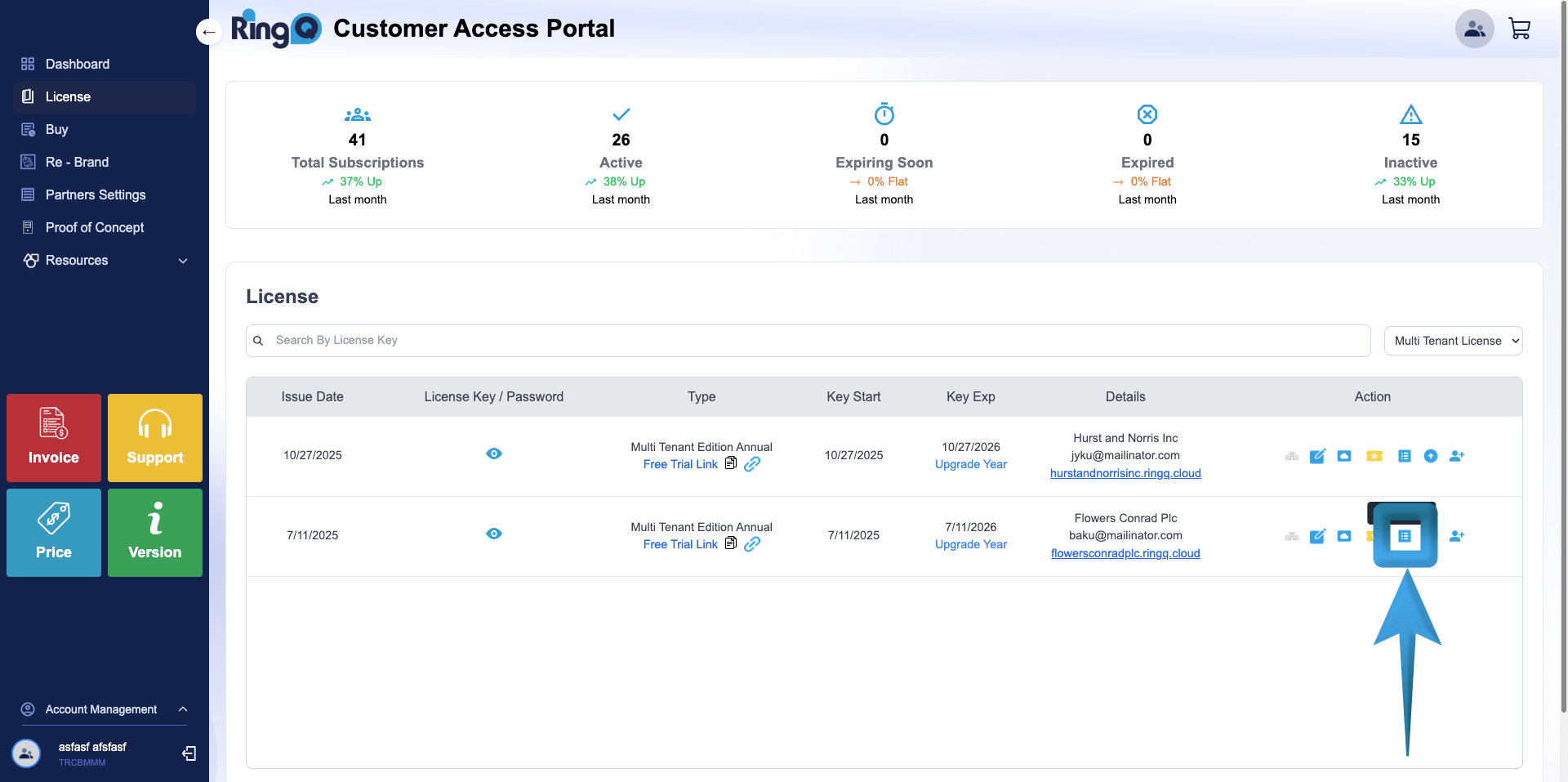 2. Go to the Actions column.
3. Click the Tenant List icon.
2. Go to the Actions column.
3. Click the Tenant List icon.
Add a New Tenant
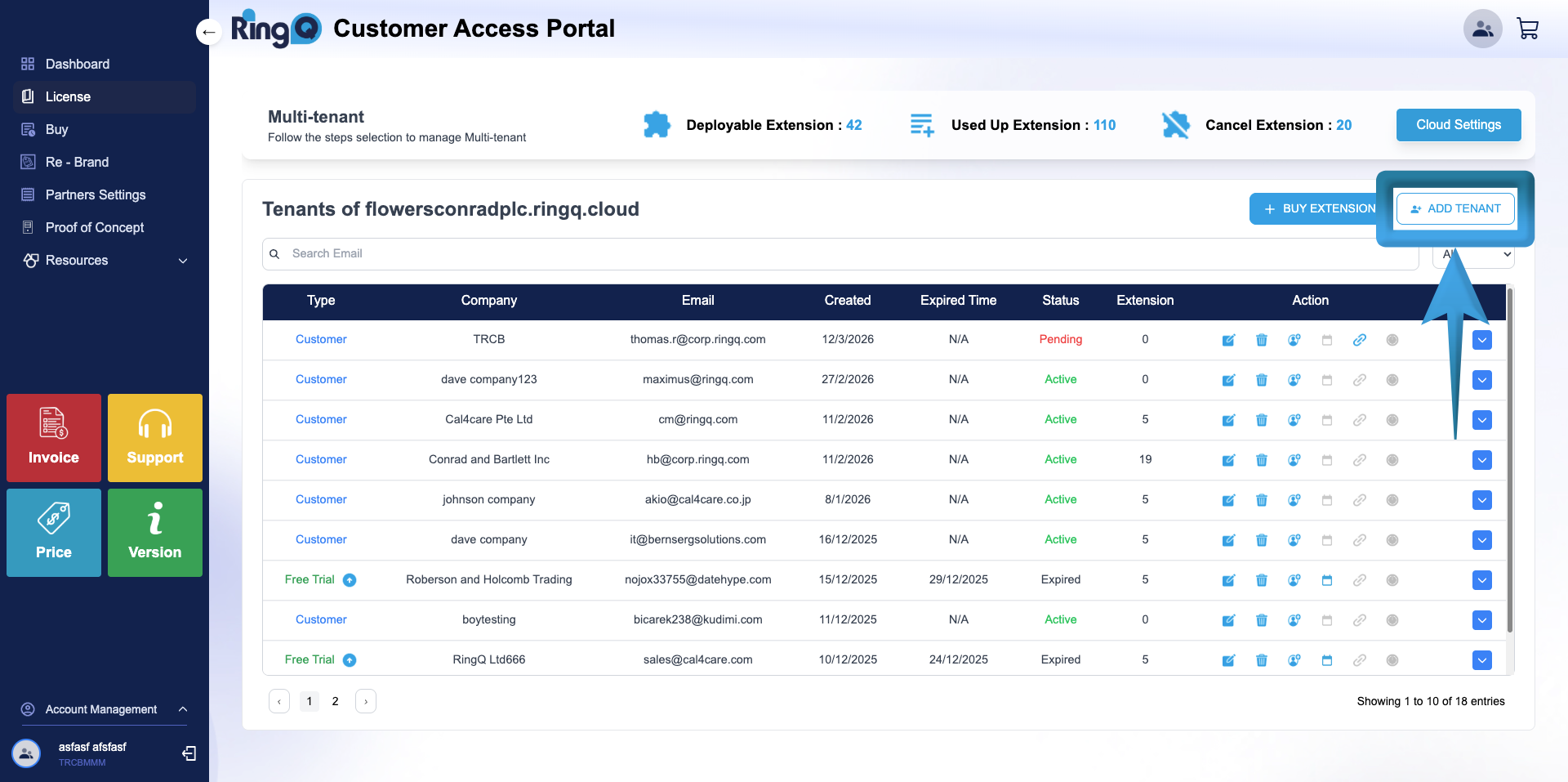 1. From the Tenant List page, locate the Add Tenant button in the upper-right corner.
2. Click Add Tenant.
3. You will be redirected to the Create Tenant page.
1. From the Tenant List page, locate the Add Tenant button in the upper-right corner.
2. Click Add Tenant.
3. You will be redirected to the Create Tenant page.
Fill Out the Tenant Information
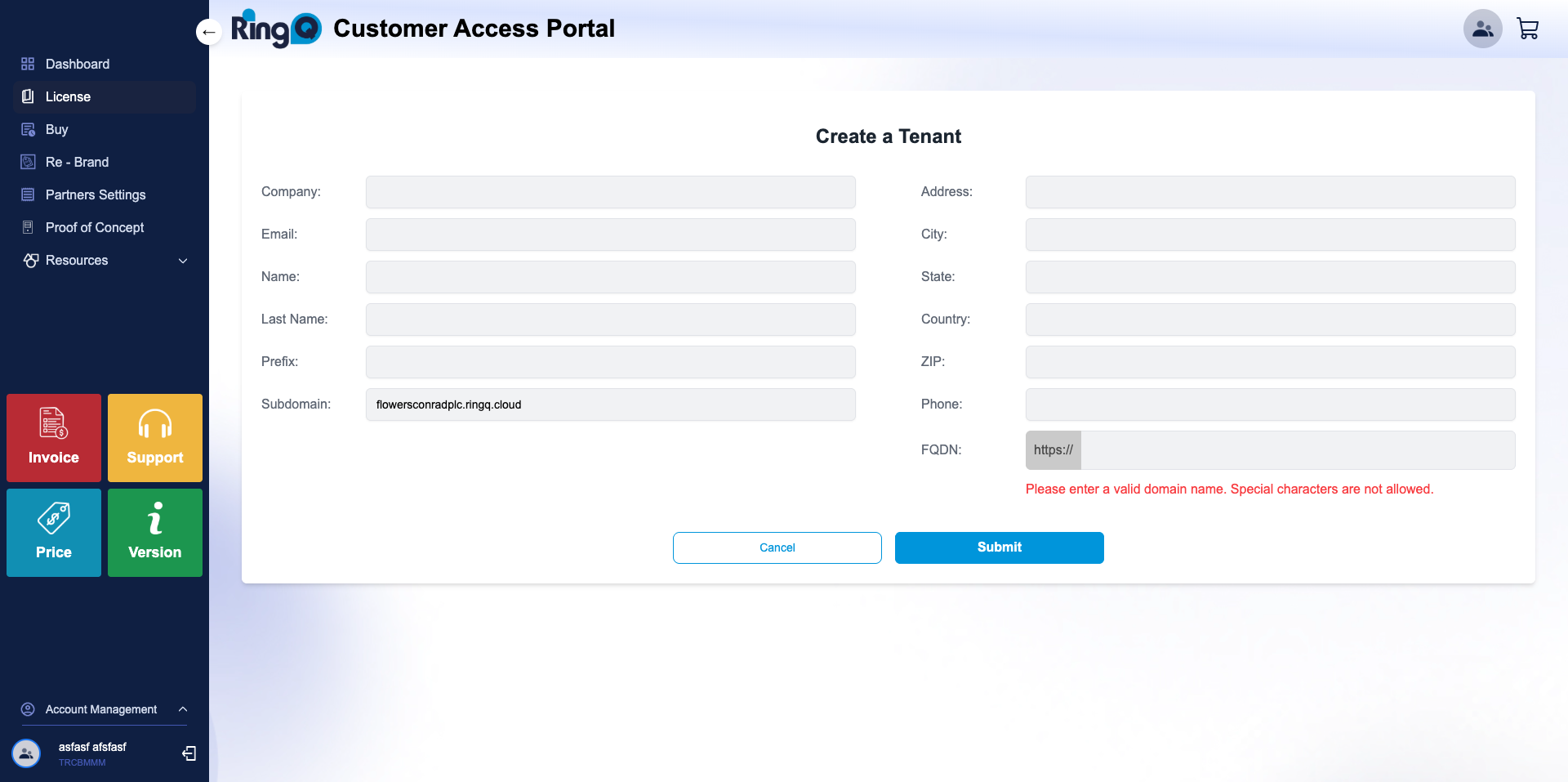 1. Fill out the form:
- Company – Enter the company name that will use the tenant instance.
- Email – Add the administrator’s email address. This email will be used for account verification, system notifications, and login credentials.
- Name – Enter the first name of the primary contact person for the tenant.
- Last Name – Enter the last name of the primary contact person.
- Prefix – Specify a short identifier or code for the tenant.
- Subdomain – Enter the unique subdomain that will be assigned to the tenant instance (e.g., companyname.ringq.ai). This will be part of the tenant’s access URL.
- Address. – Provide the street address of the tenant.
- City – Enter the city where the tenant is located.
- State – Specify the state or province associated with the tenant’s address.
- Country – Enter the country where the tenant operates.
- ZIP – Enter the ZIP code.
- Phone – Provide the main contact phone number for tenant.
- FQDN (Fully Qualified Domain Name) – Enter the complete domain name that will be used to access the tenant instance. This typically includes the hostname and domain (e.g., tenant.companydomain.com).
Activate the Tenant Instance
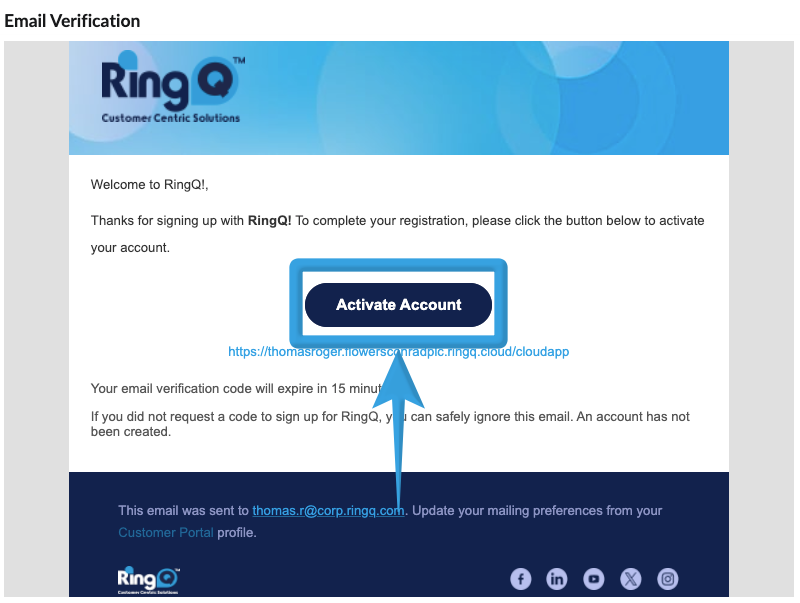 1. You will receive an email verification message to activate the tenant account.
2. Open the email and click the instance activation link.
3. Once activated, the new tenant instance will be ready for use, and you can begin configuring users, extensions, and system settings for the new environment.
1. You will receive an email verification message to activate the tenant account.
2. Open the email and click the instance activation link.
3. Once activated, the new tenant instance will be ready for use, and you can begin configuring users, extensions, and system settings for the new environment.