
Introduction
This guide explains how to manually install and configure the RingQ Chat Widget WordPress plugin. Manual installation is recommended for administrators who prefer direct control over plugin files or are deploying the widget in environments where automatic installation is restricted.
Follow the steps below to upload, activate, and configure the plugin so the RingQ Chat Widget can be securely integrated into your WordPress site.
Step 1: Upload the Plugin
1. Log in to your WordPress Admin Dashboard. 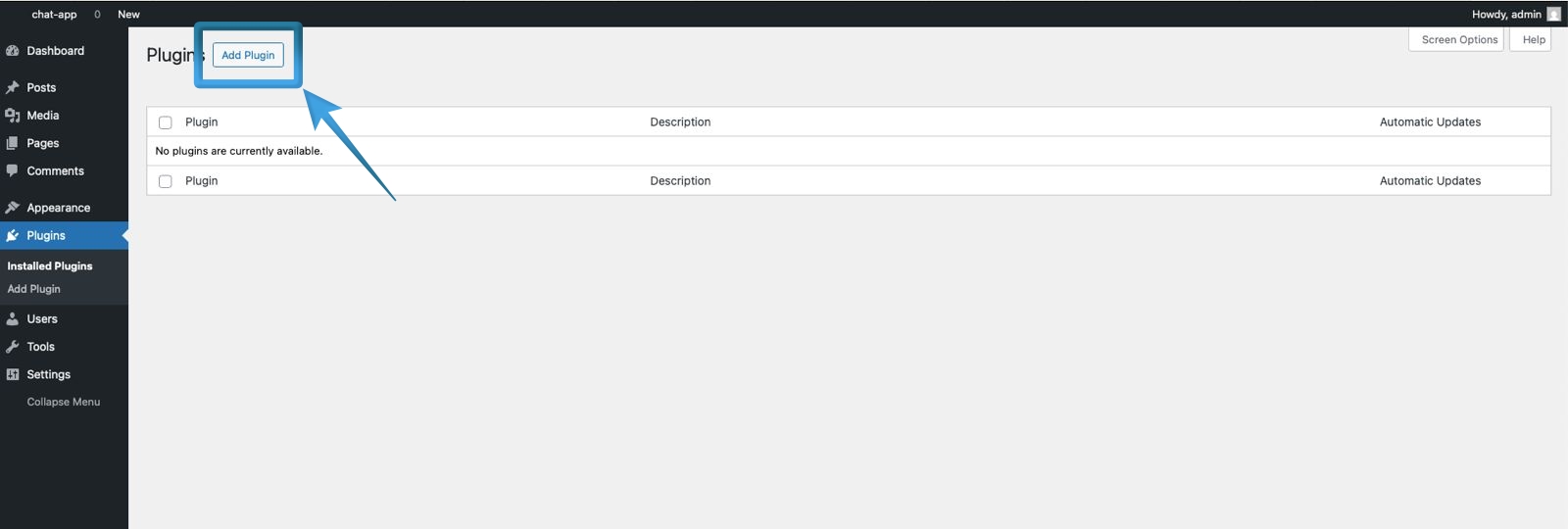
2. Navigate to Plugins > Add Plugin.
3. Click the Upload Plugin button at the top of the page.
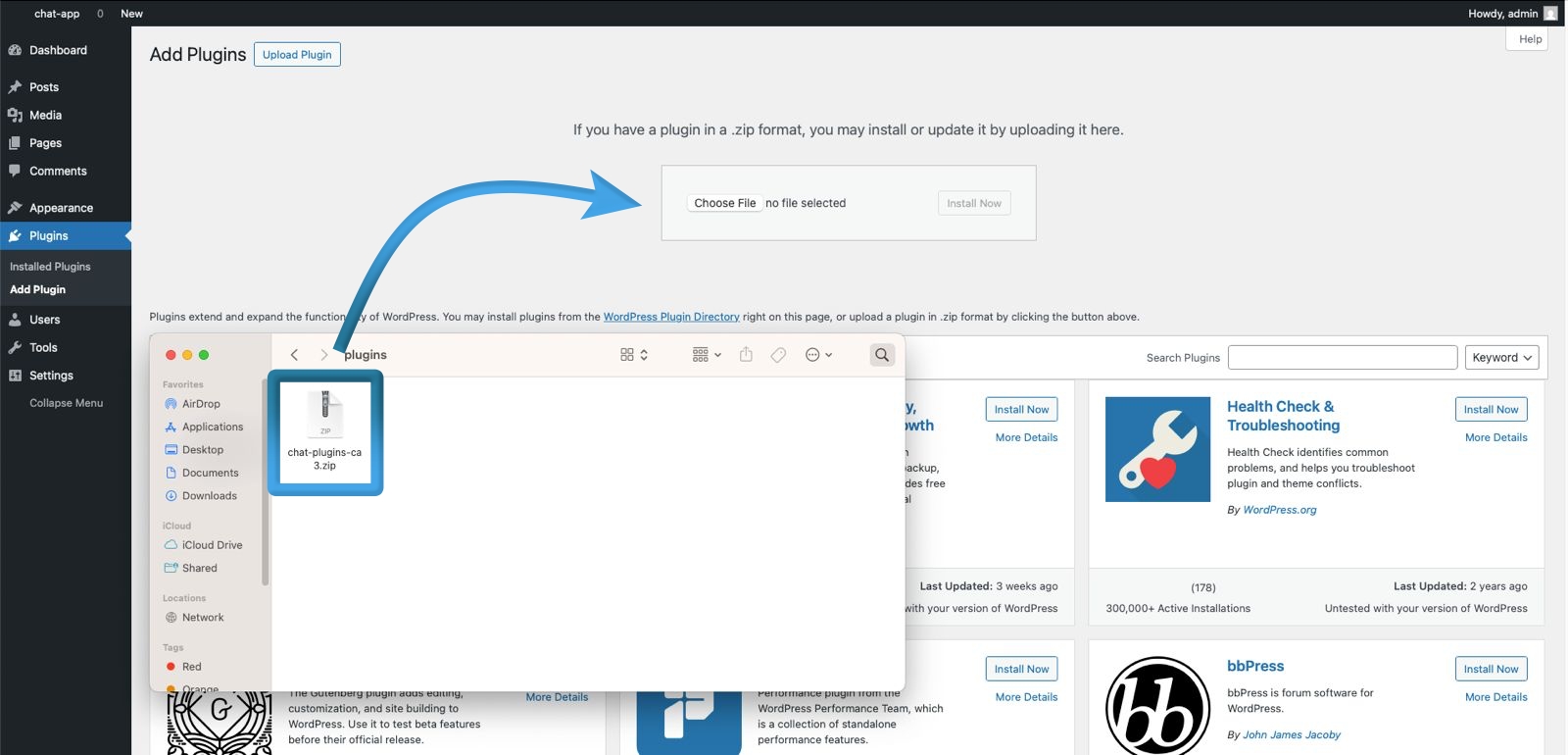
4. Drag and drop the plugin .zip file into the Upload Plugin section (or click Choose File to browse your computer).
5. Click Install Now.
Step 2: Configure the Web Chat Settings
Basic Chat Configuration
1. Open the plugin settings page.
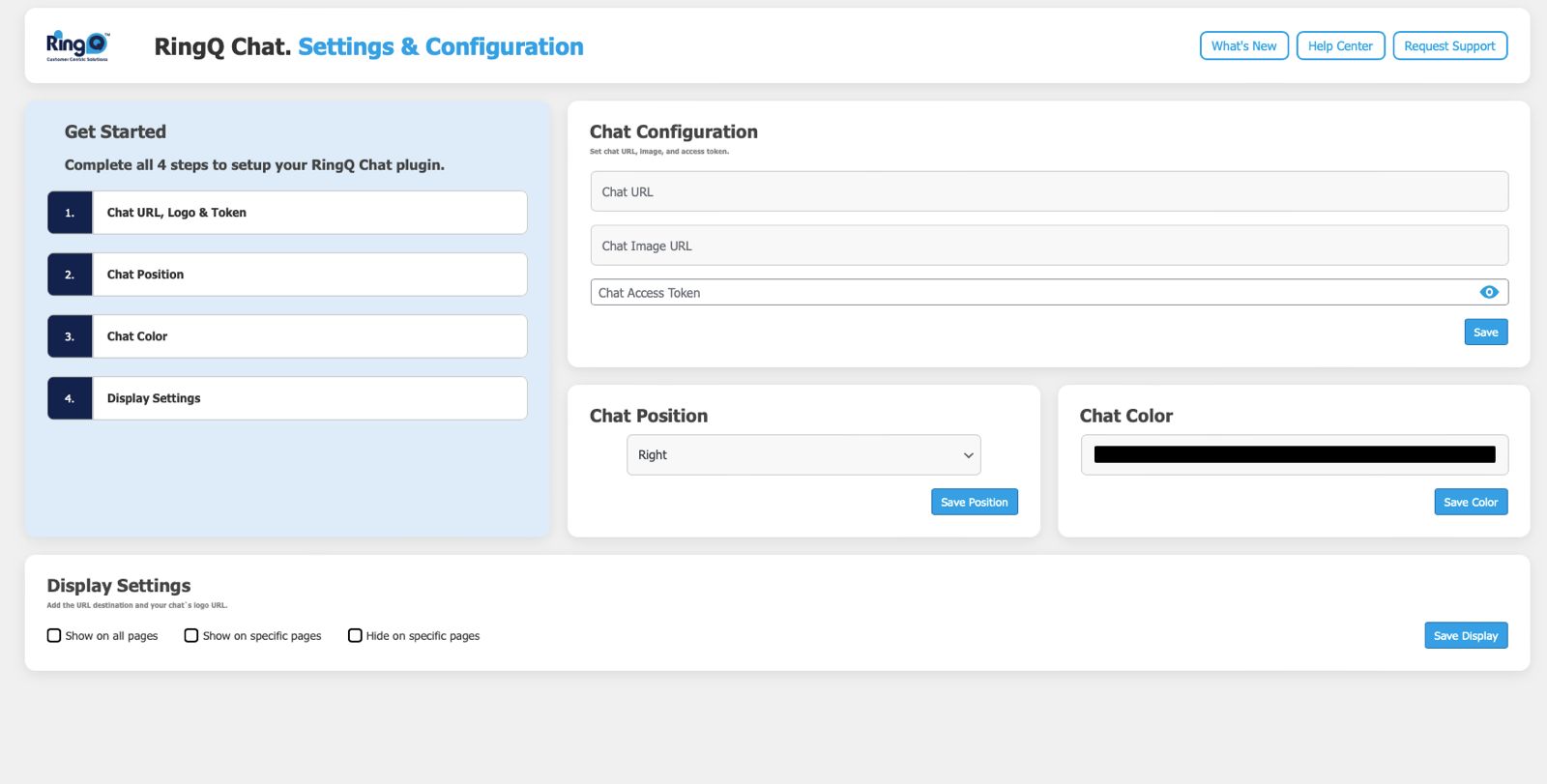
2. Enter the following required details:
- Chat URL – The URL provided for your web chat service
- Chat Image URL / Logo – The image or logo to display on the chat widget
- Chat Access Token – The access token used to authenticate the chat
3. Click Save to apply the settings.
Chat Appearance Settings
1. Chat Position – Select where the chat widget appears on the screen. Click Save Position.
2. Chat Color – Choose the preferred color for the chat widget. Click Save Color.
Step 3: Display Settings
 Show on all pages – Displays the chat widget across the entire site
- Show on specific pages – Displays the chat widget only on selected pages
- Save the display settings
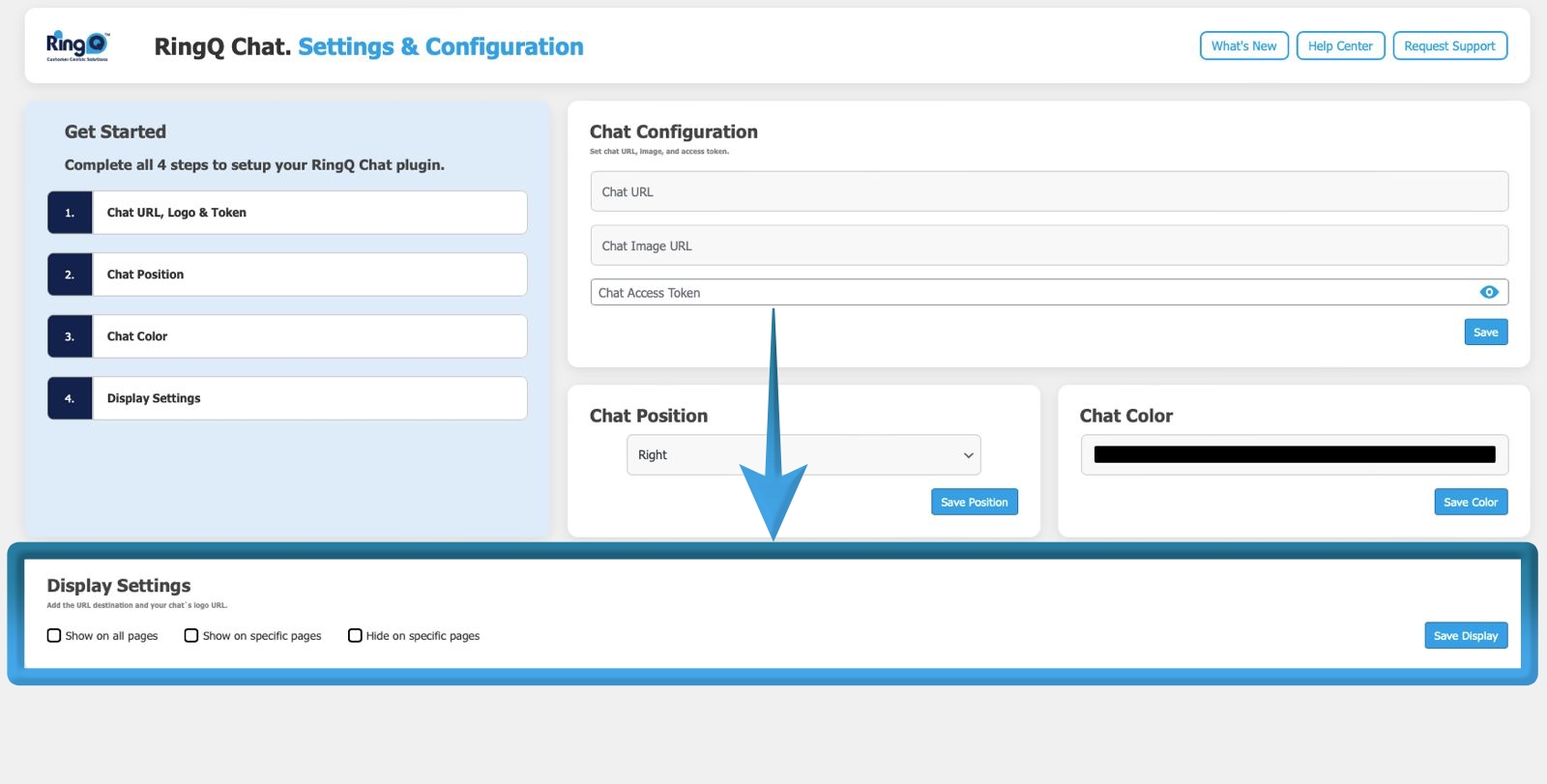 Show on all pages – Displays the chat widget across the entire site
Page Targeting Configuration (for Specific Pages)
When selecting Show on specific pages, configure the following:
- ID – Unique identifier for the rule
- Display Type – Define how the widget should appear
- Page Path – Enter the specific page URL or path
- Actions: Delete – Remove an existing Chat Widget Plugin
Final Notes
- Ensure all required fields (Chat URL and Access Token) are correctly entered.
- Save changes after every configuration update.
- Clear your site cache if changes do not appear immediately.