
Introduction
This guide provides step-by-step instructions on how to integrate and configure Telnyx with RingQ. By completing this setup, you will handle messaging services using Telnyx within RingQ.
Prerequisites
- An active Telnyx account
- Admin access to the RingQ Web Dashboard
- Provisioned Number(s) in Telnyx
Create a Messaging Profile
1. Go to the Telnyx Mission Control Portal.
2. Log in using a sign-in link, your password or with SSO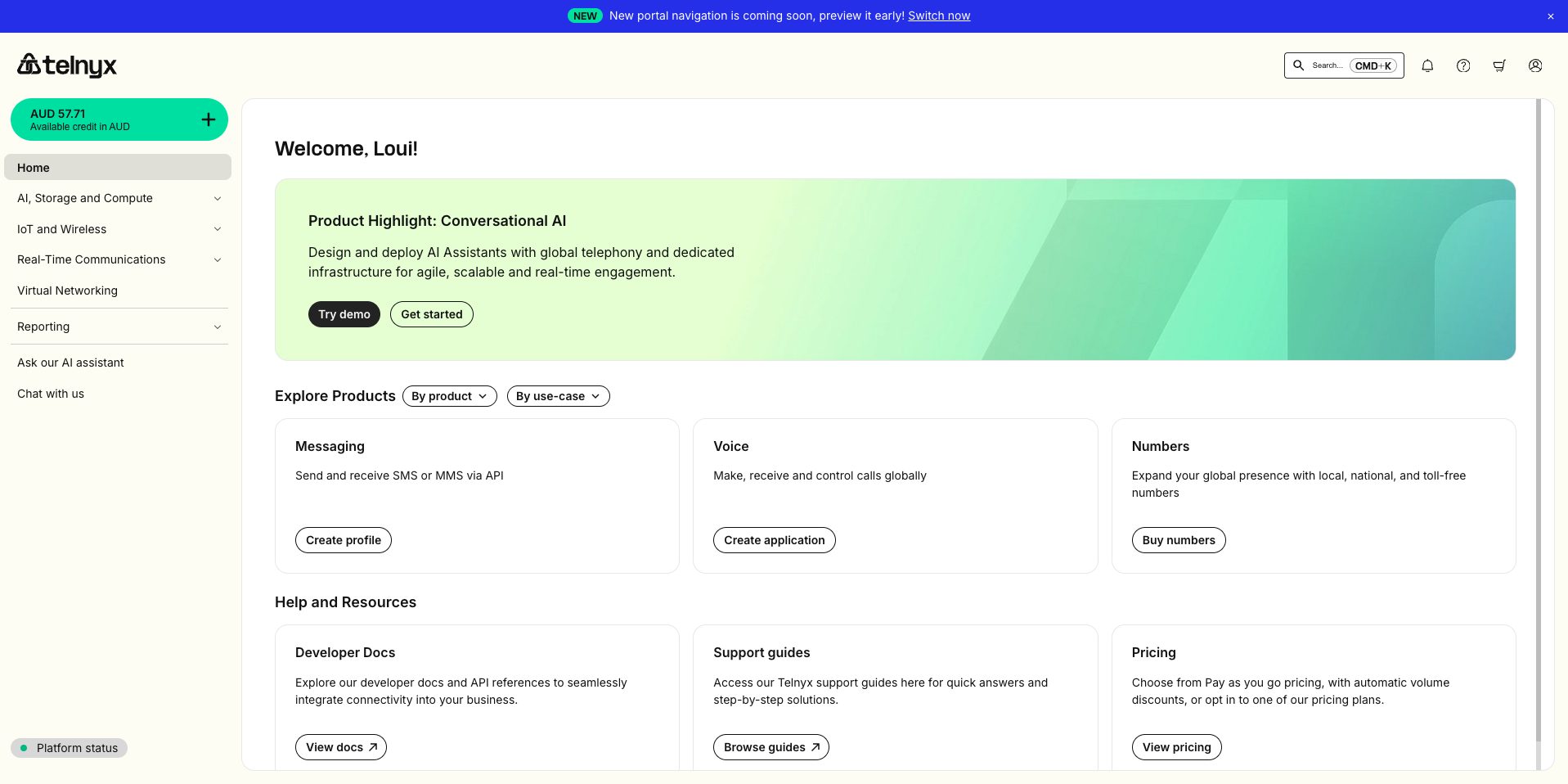
3. You will be redirected to the Telnyx Admin Dashboard. From the dashboard, navigate to: Real-Time Communications > Messaging > Programmable Messaging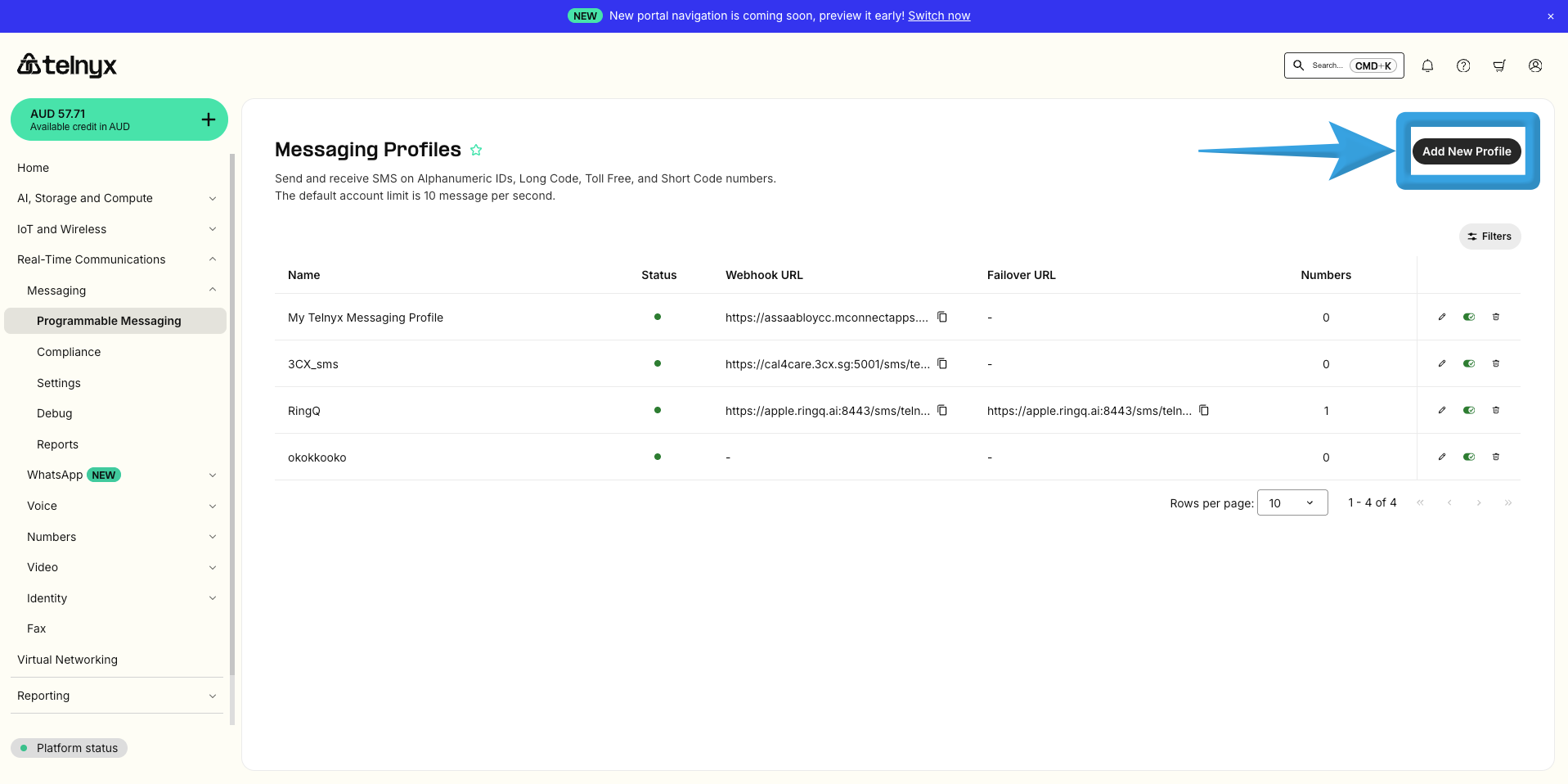
4. Click Add New Profile
5. Configure the profile:
- Profile Name: Enter a descriptive name
- API Version: Select API V2
- Click Next
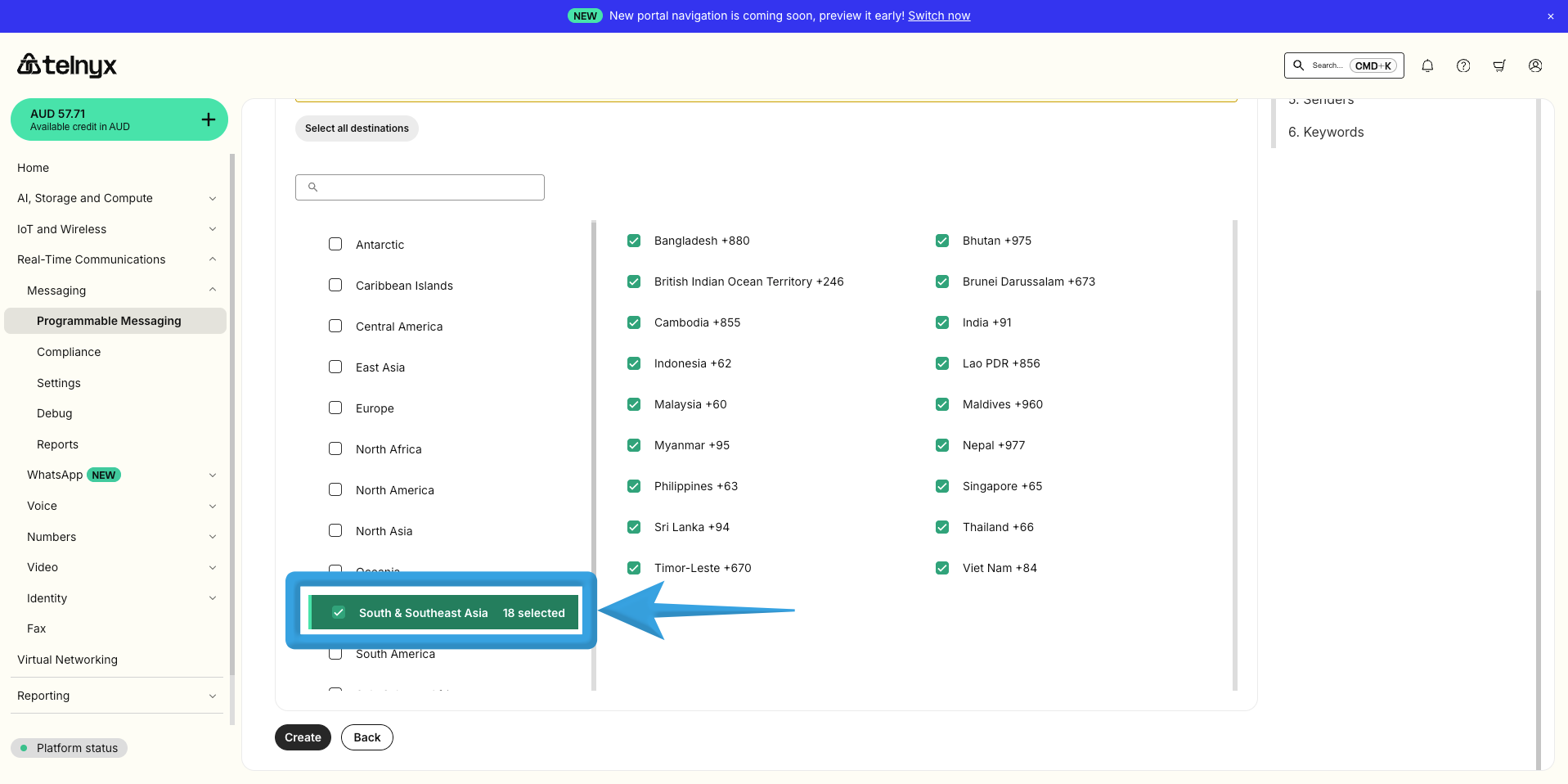
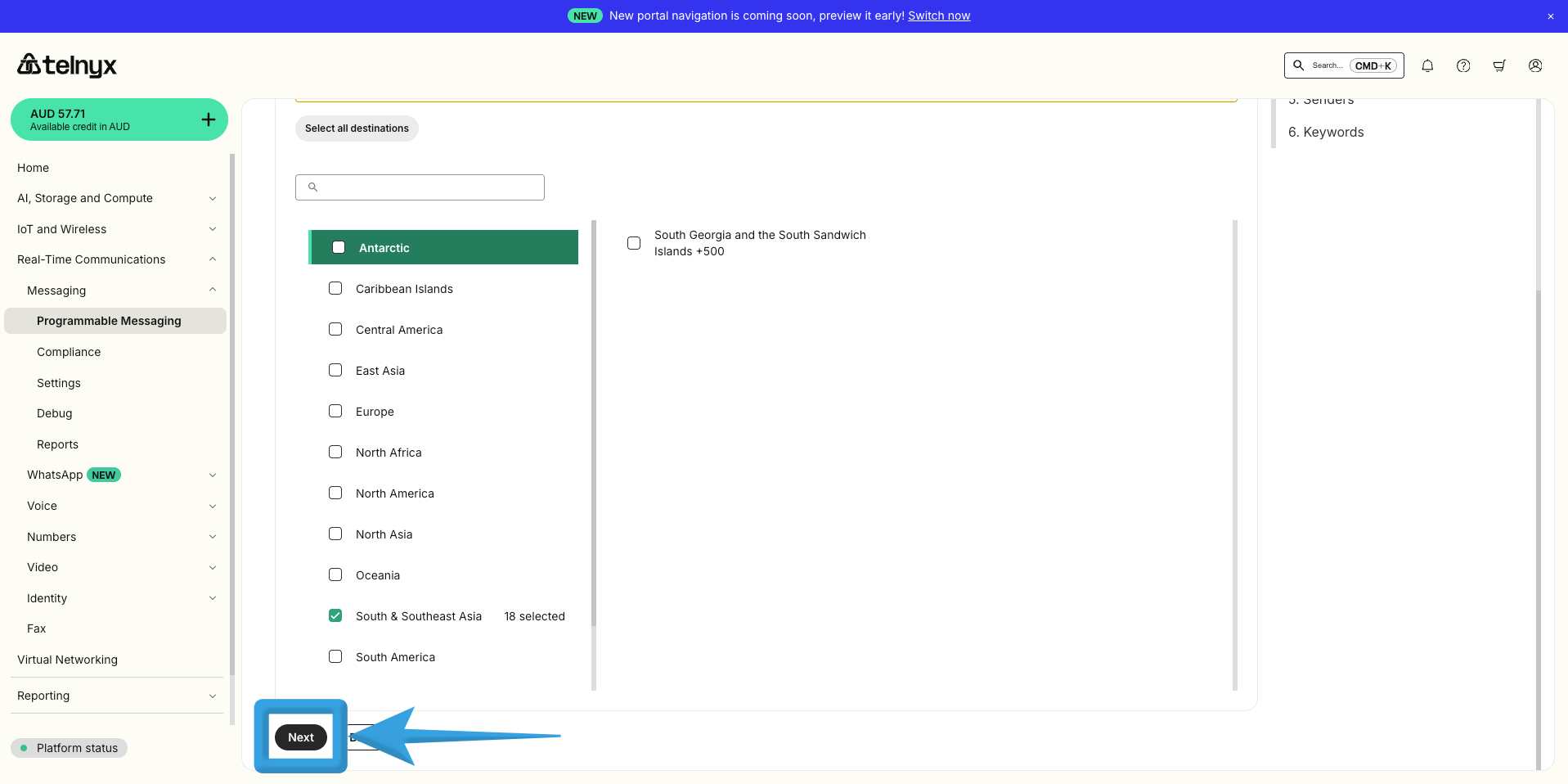
6. Destination Settings:
- Choose South-East Asia
- Click Next
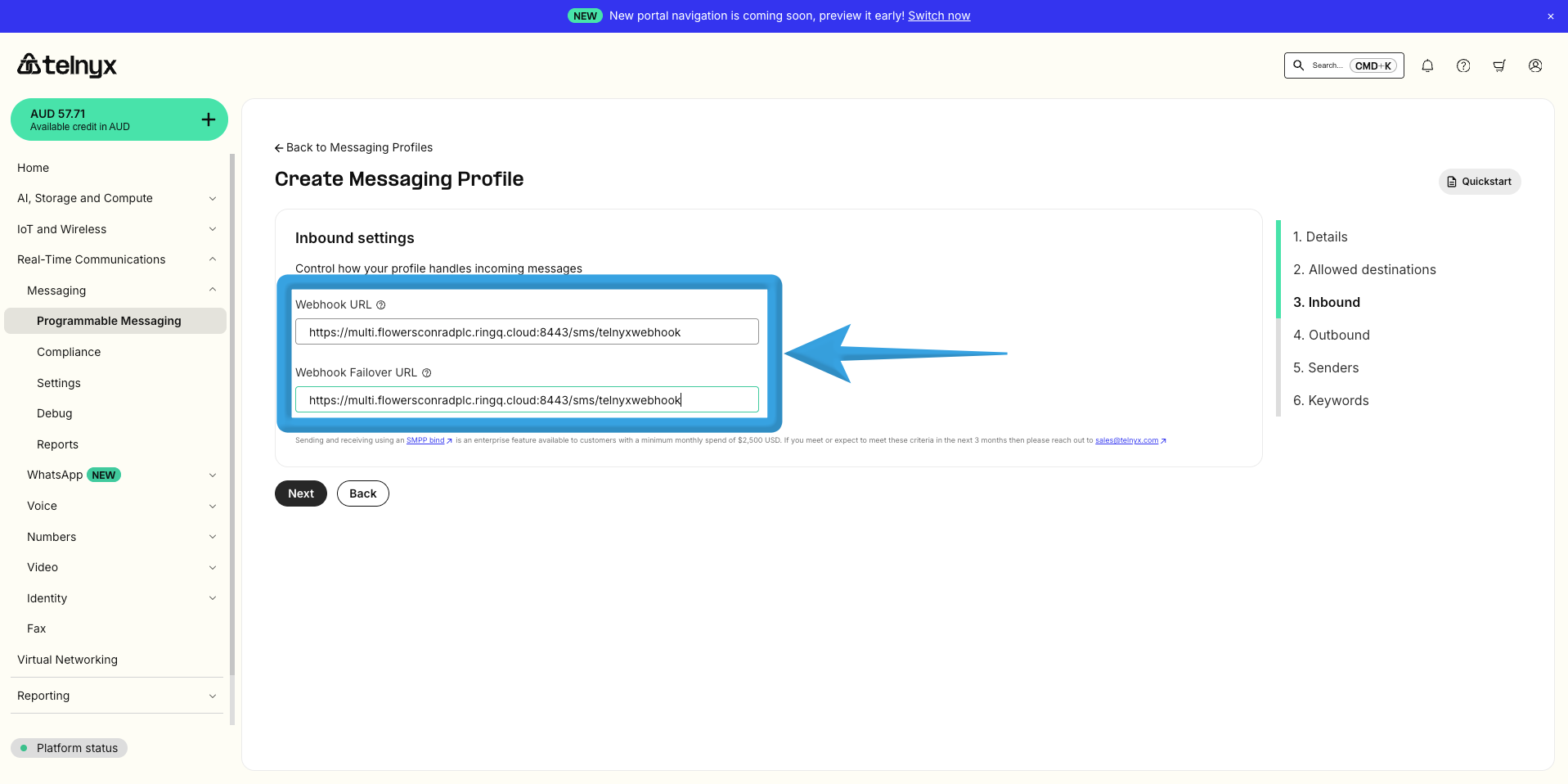
7. Inbound Settings:
- Enter the Webhook URL and Webhook Failover URL
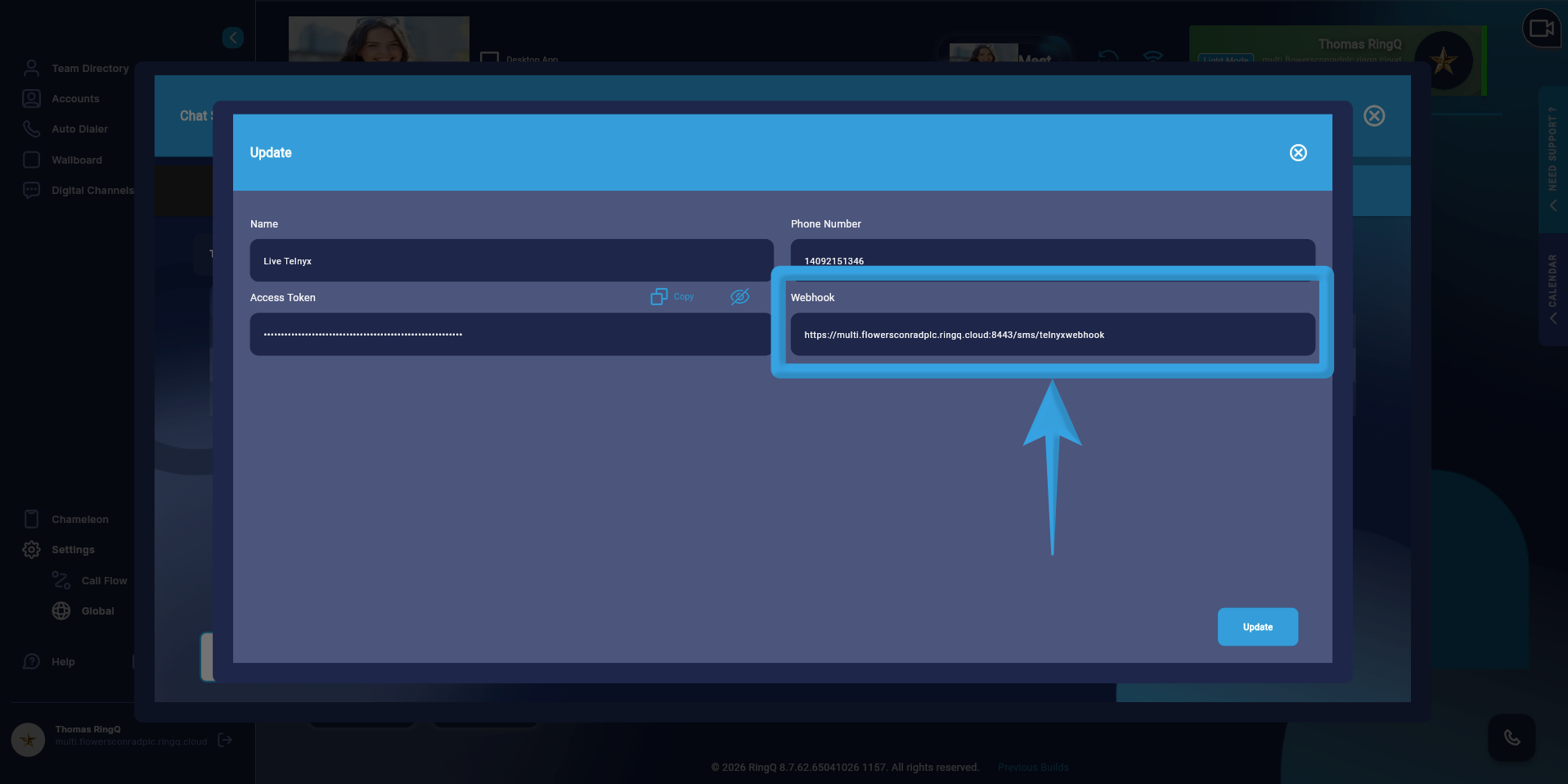
- Use the URL provided in the RingQ Chat Settings (Telnyx configuration page)
- Click Next
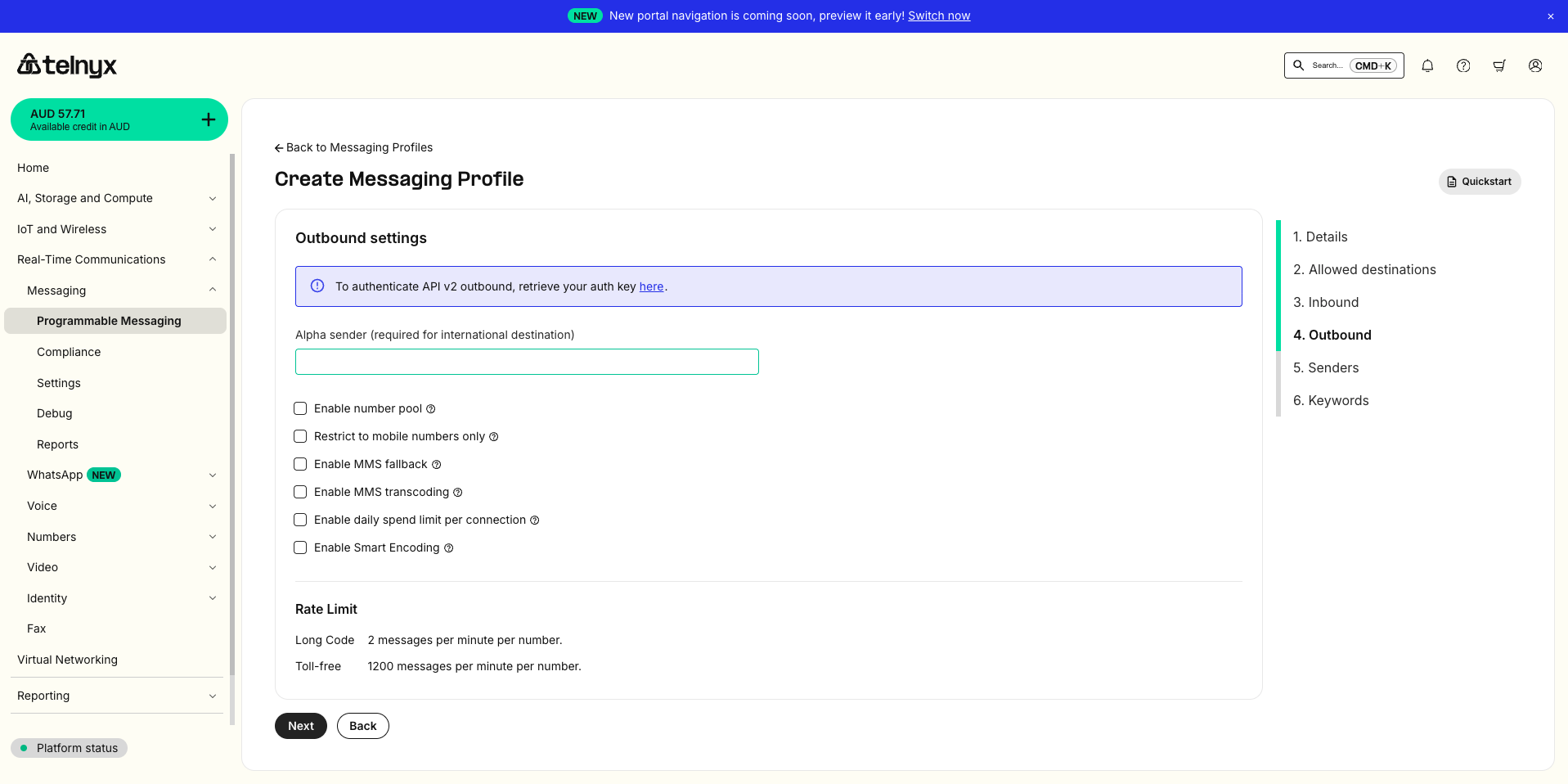
8. Outbound Settings:
- Leave default settings
- Click Next
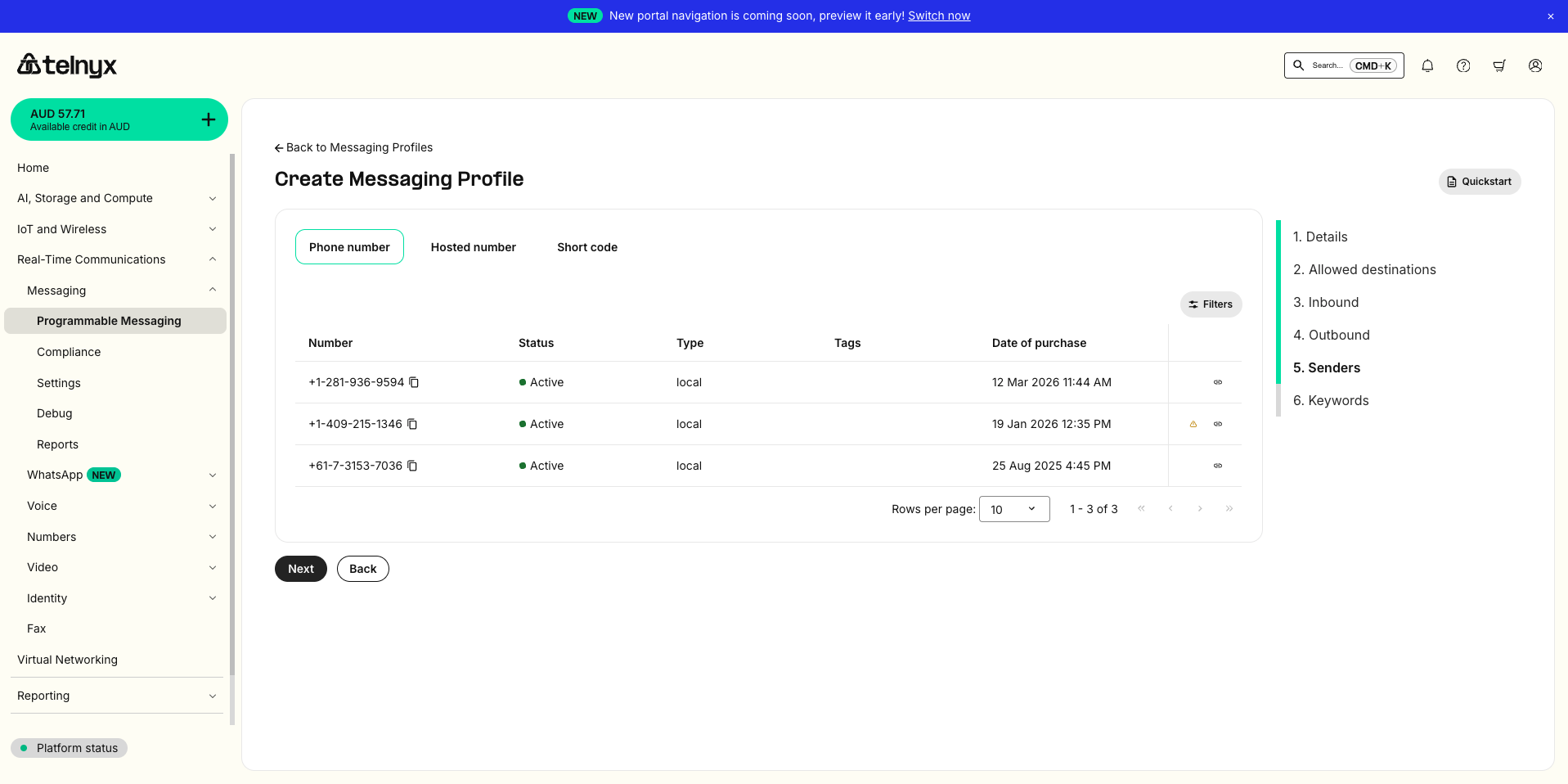
9. Senders Page:
- No changes required
- Click Next
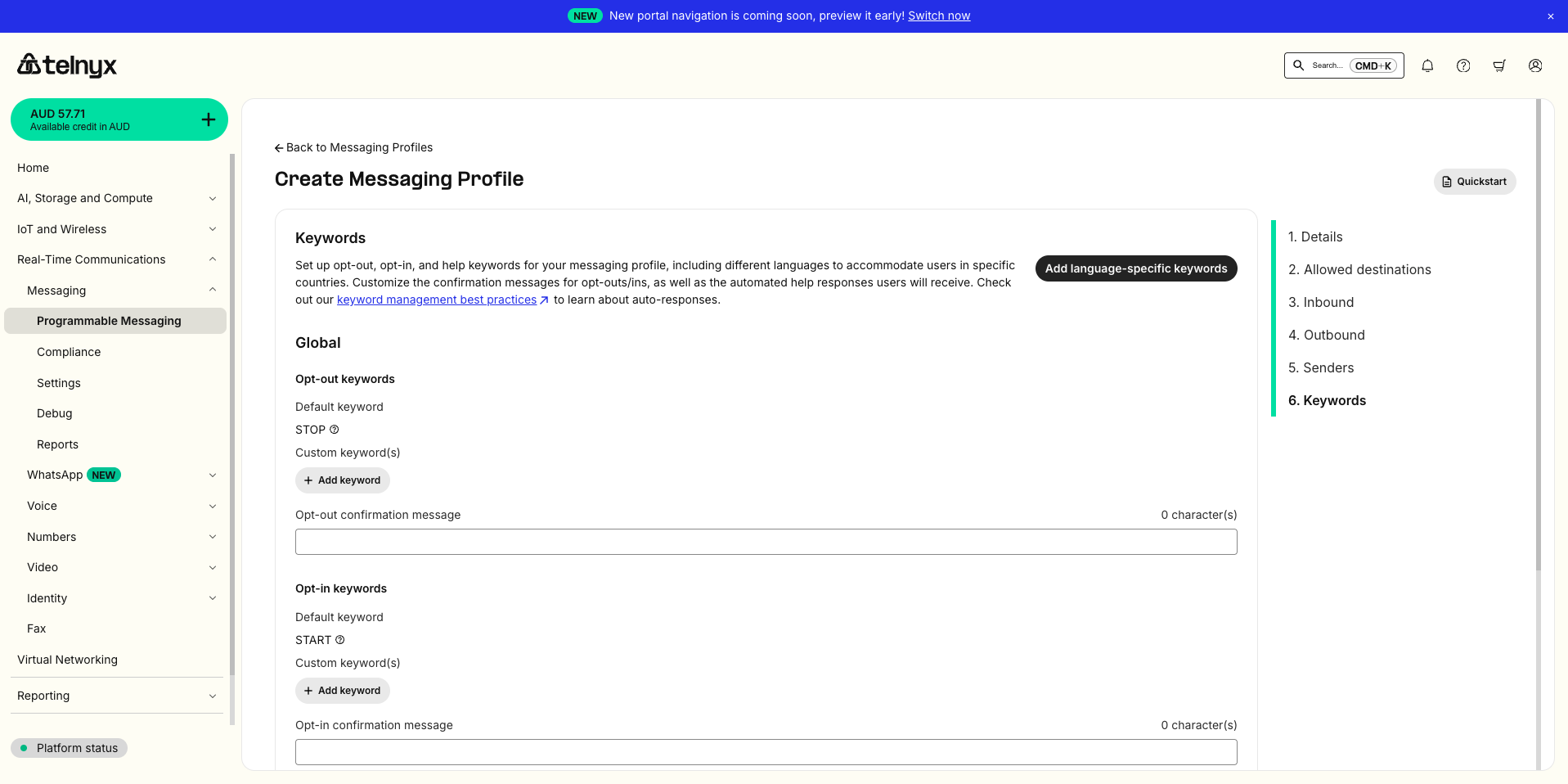
10. Keywords Page:
- No changes required
12. Click Complete to finalize the configuration.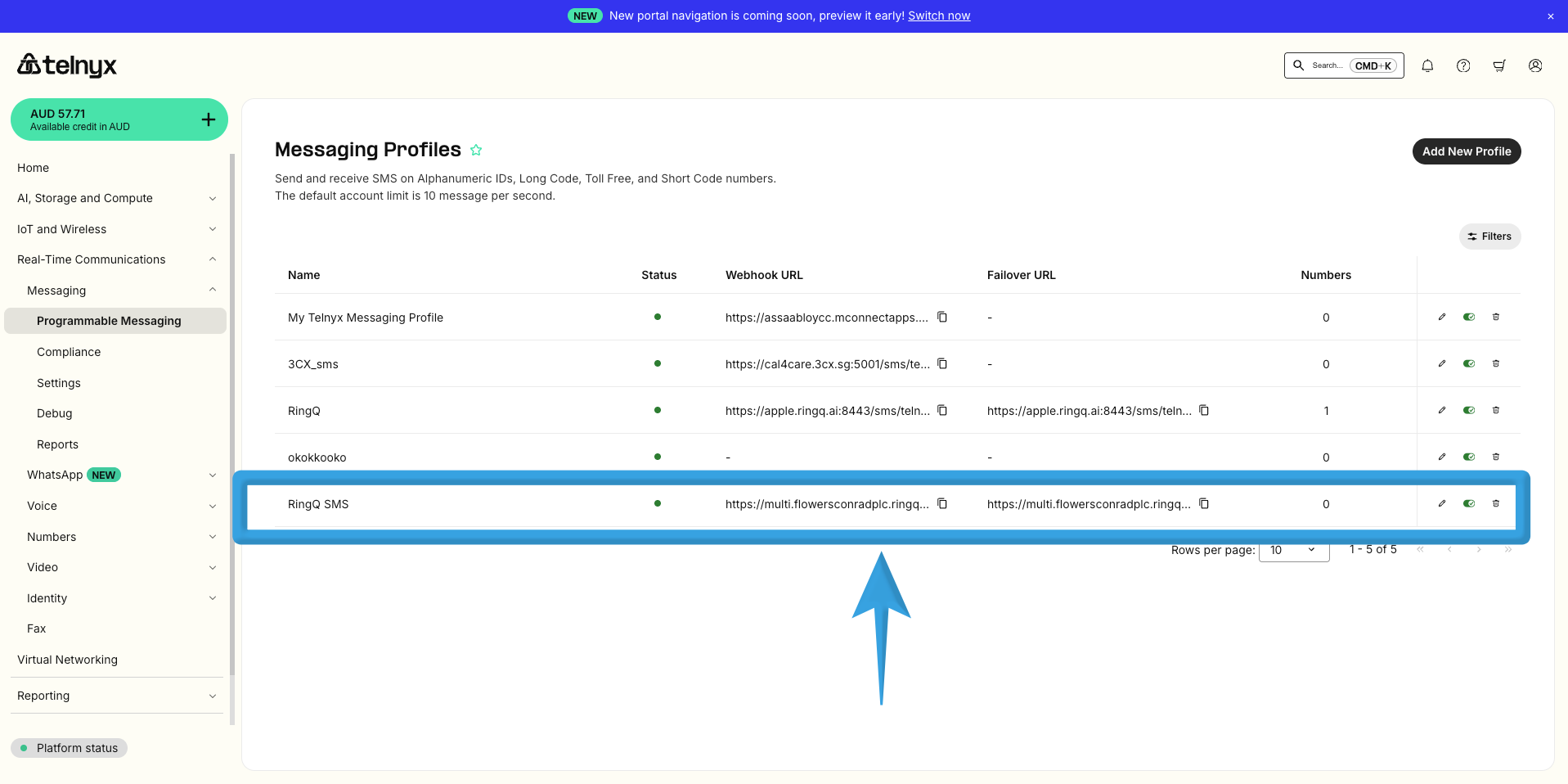
12. Your Messaging Profile is successfully created and ready for integration with RingQ.