
Introduction
This guide provides step-by-step instructions to create a Telegram bot and configure it in the RingQ Web App for chat integration. By following this guide, you will be able to connect your Telegram account to RingQ, enabling your system to send and receive messages. This integration allows agents to handle Telegram conversations directly within RingQ, improving communication efficiency and centralized message management.
Access Telegram Web
1. Open your browser and go to https://web.telegram.org
2. A QR code will be displayed.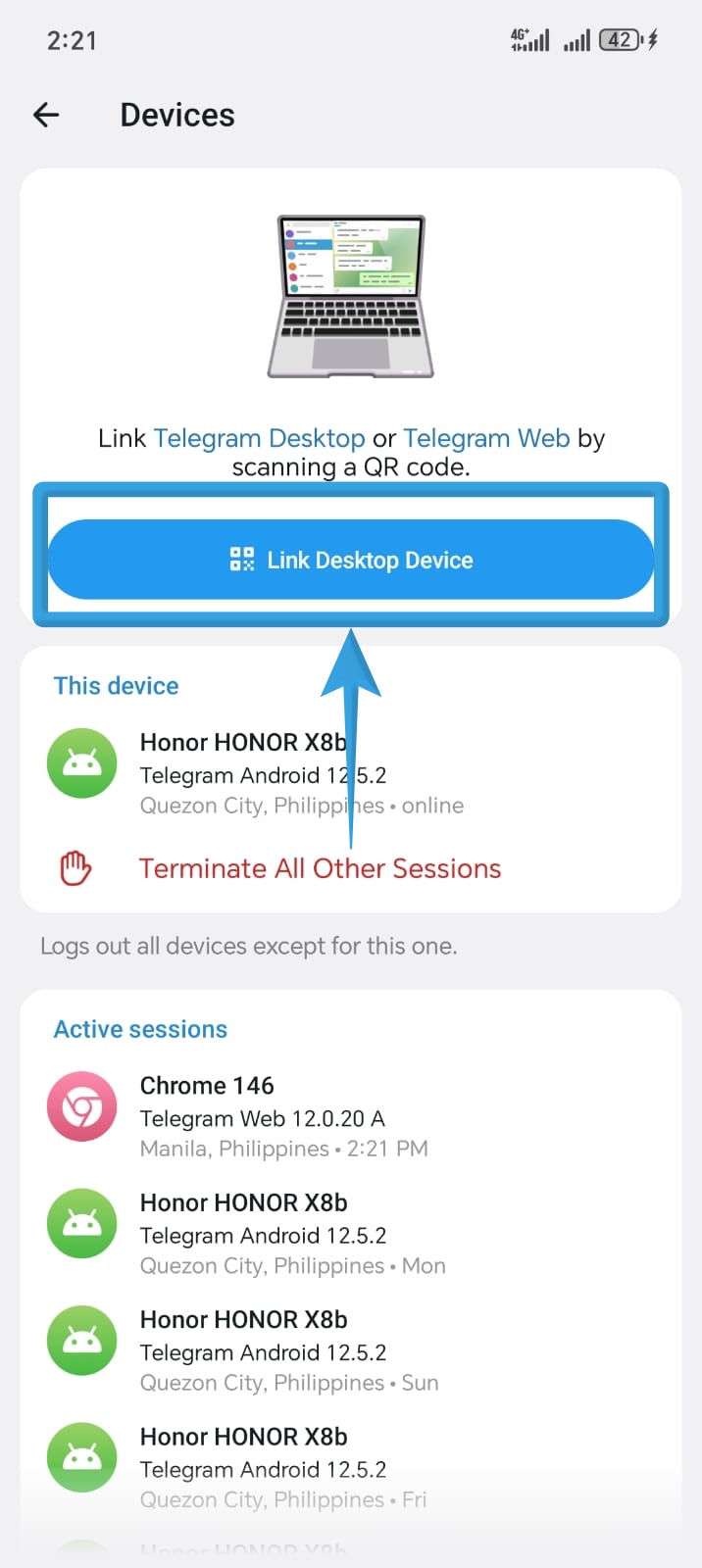
3. On your mobile device (with Telegram logged in):
- Go to Settings
- Tap Devices
- Select Link Desktop Device
4. Scan the QR code shown on your browser to log in.
Create a Telegram Bot (BotFather)
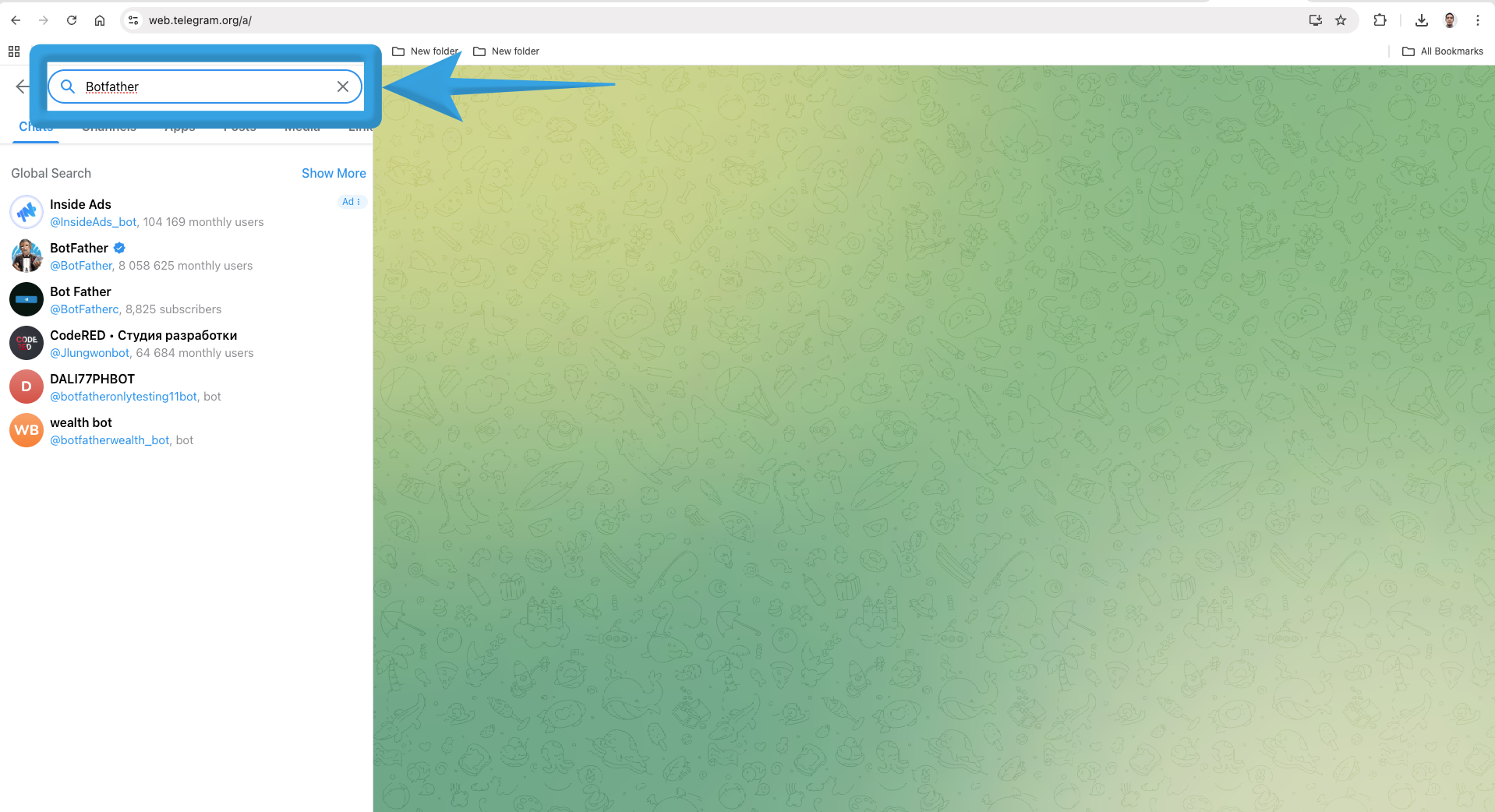
5. In Telegram Web, use the search panel (left side).
6. Search for BotFather and open the chat.
7. Click Start in the top right corner.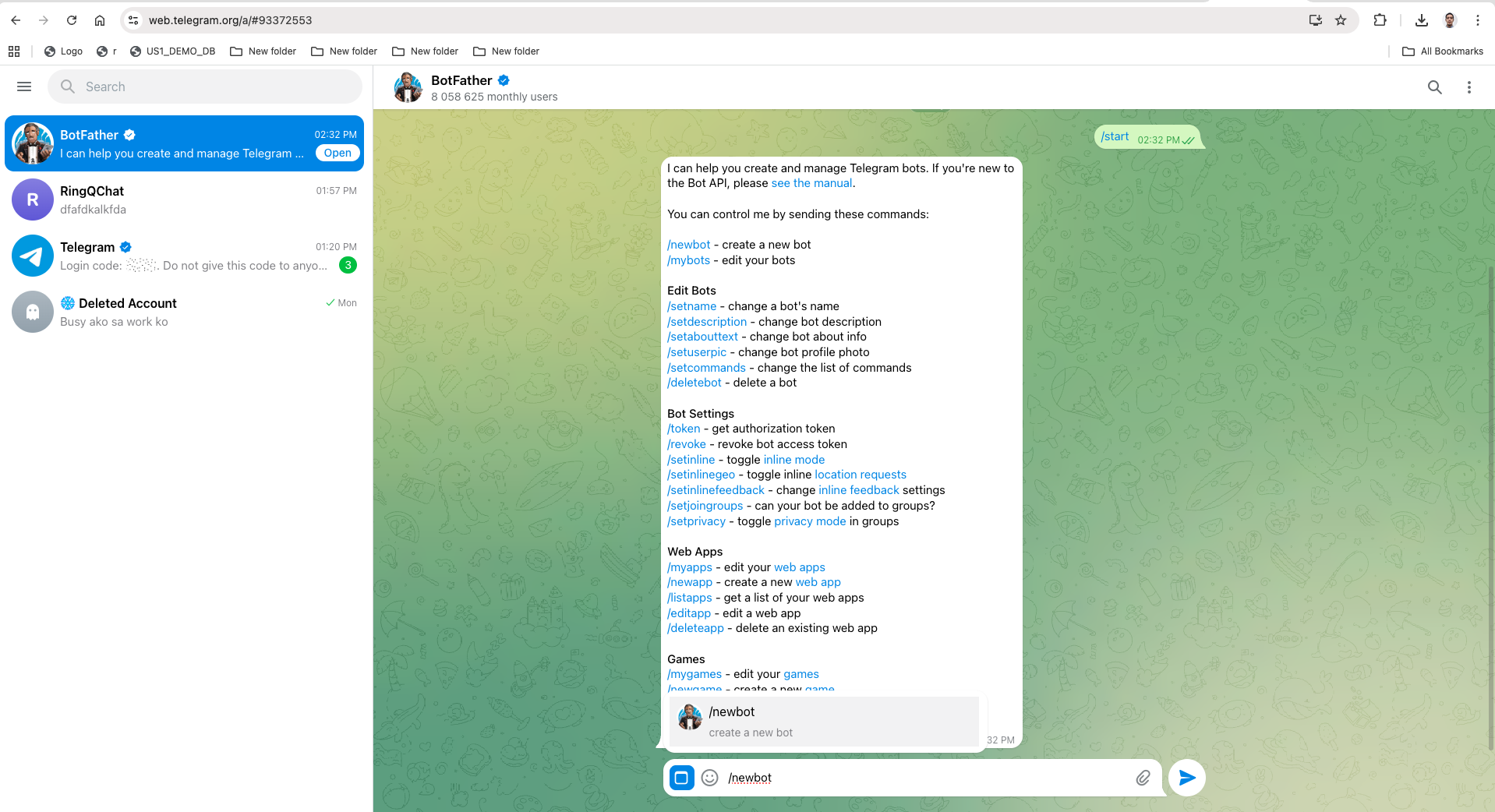
8. Type or select the command:
/newbot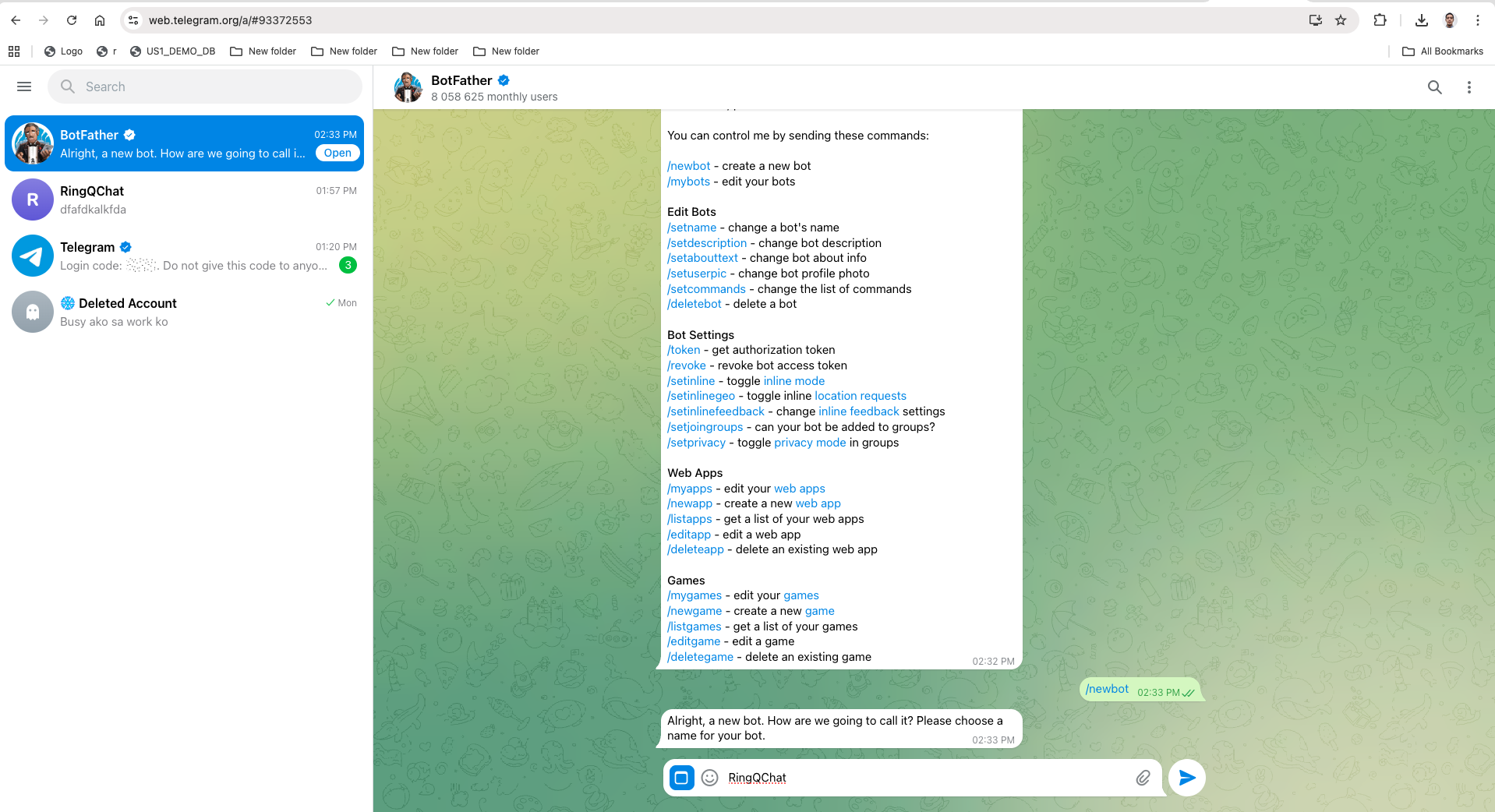
9. Enter your bot name. Example: RingQChat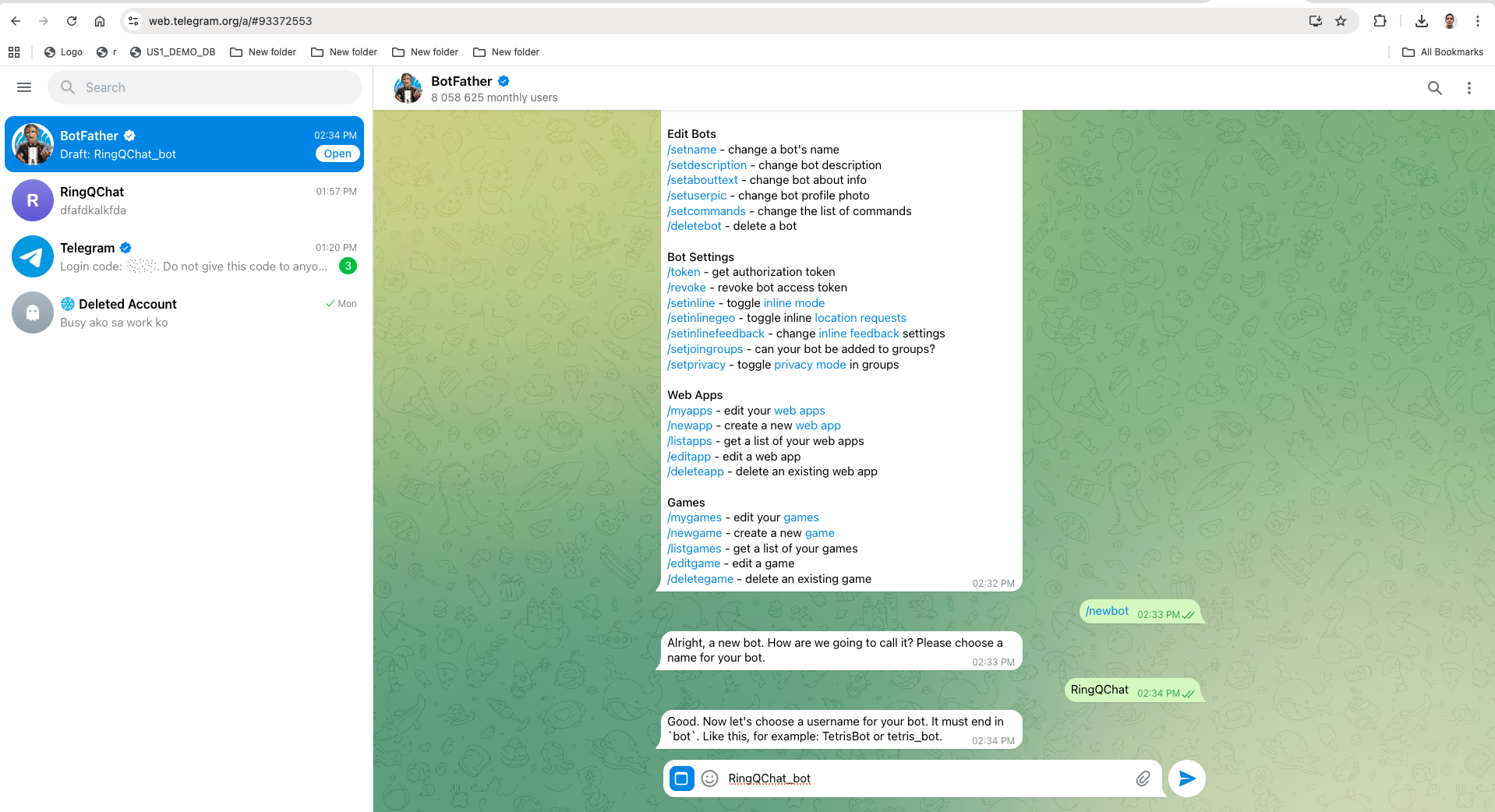
10. Enter your bot username. Must end with bot. Example: ringqchat_bot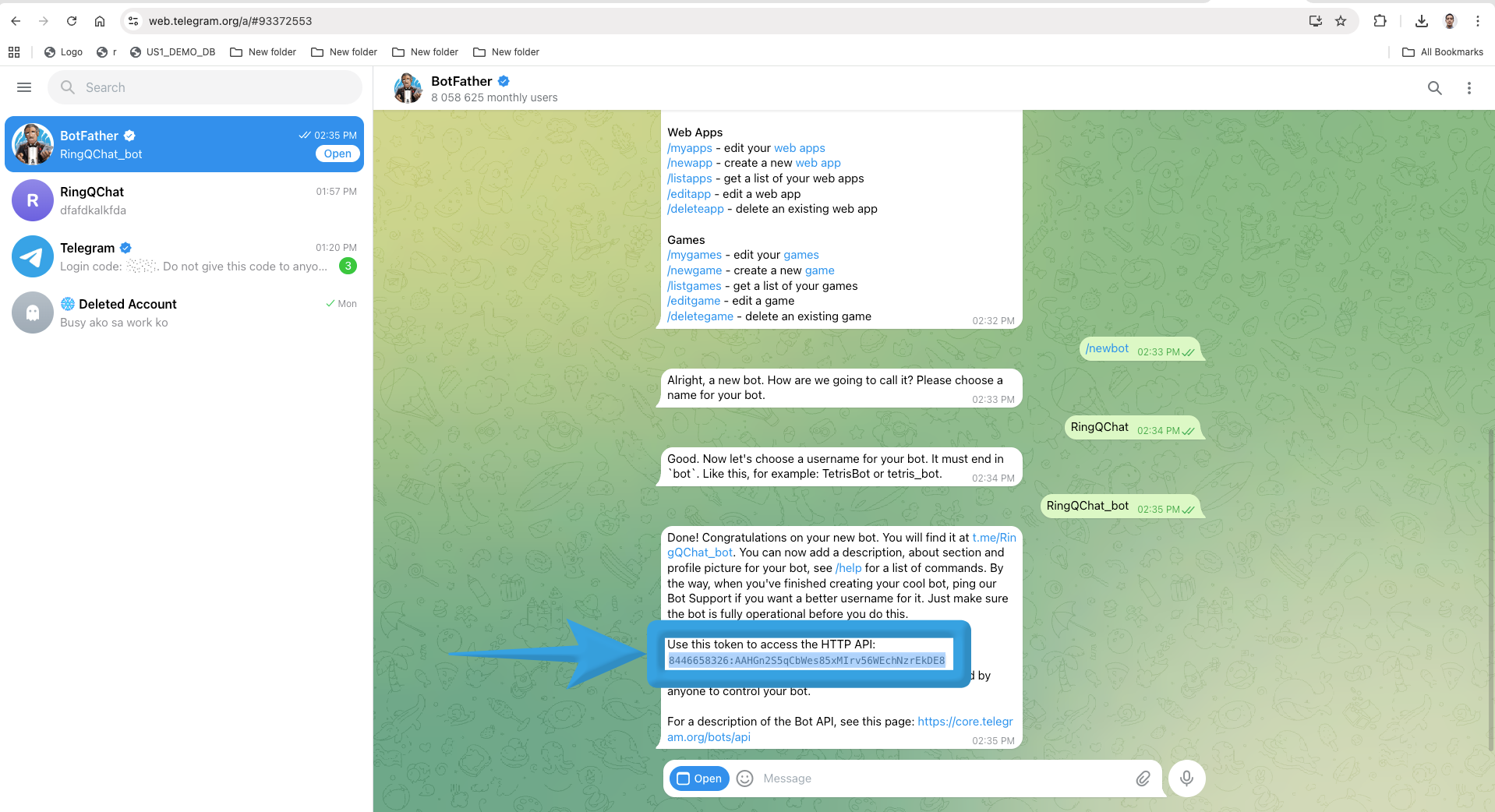
11. Once completed:
- BotFather will confirm bot creation
- You will receive an HTTP API Access Token
- Save this token securely (this will be used in RingQ)
Configure Telegram in RingQ
1. Follow this user guide on how to Configure Telegram in the RingQ Web App.
Get Webhook URL from RingQ
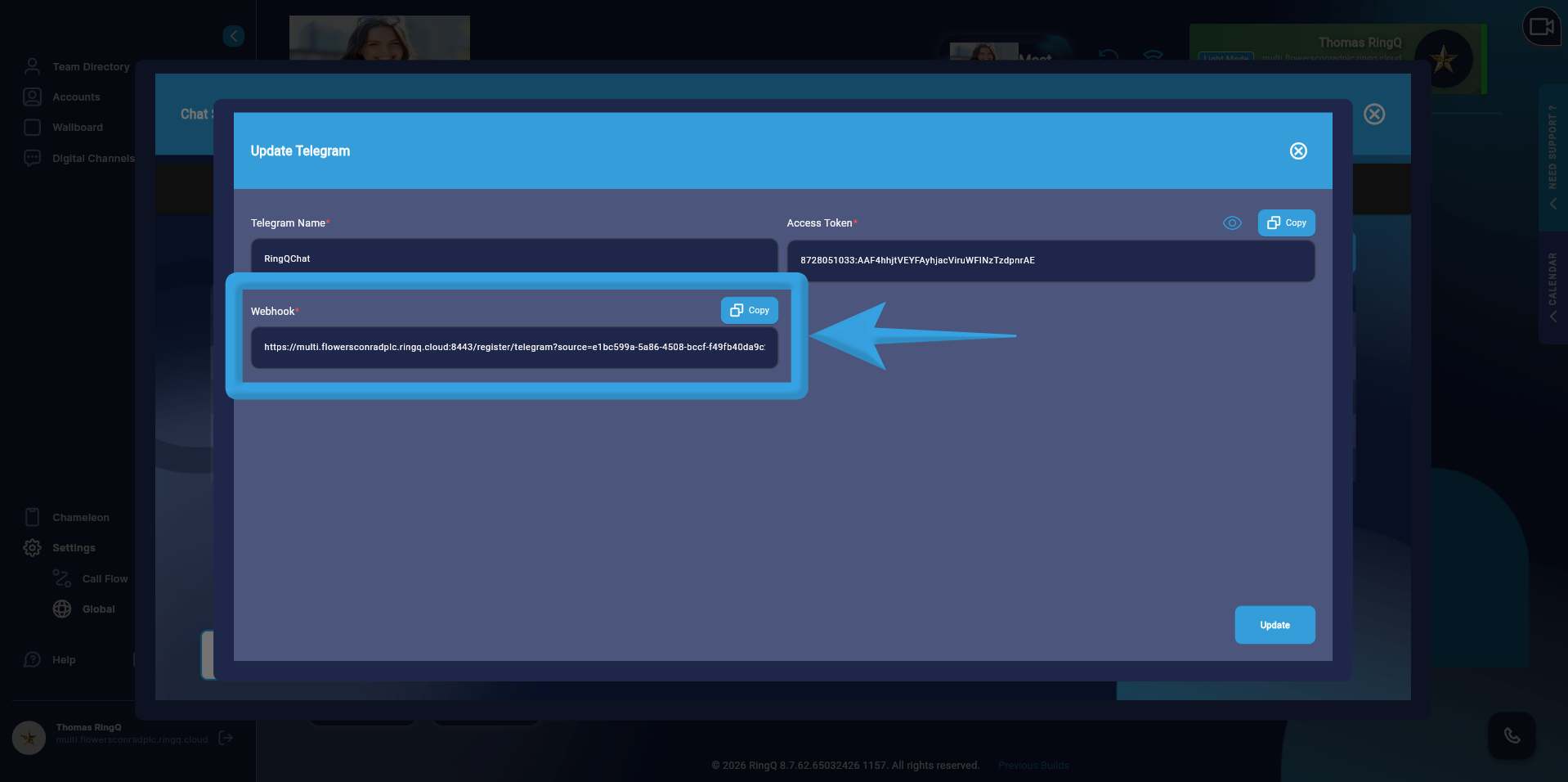
1. After saving, locate your Telegram configuration in the list
2. Click the Edit icon under the Action column
3. Copy the generated Webhook URL
Set Telegram Webhook
1. Open your browser and prepare this URL format: https://api.telegram.org/bot/setWebhook?url=
2. Replace the following:
- Paste your BotFather access token
- Paste the webhook URL from RingQ
Example: https://api.telegram.org/bot8728051033:AAF4hhjtVEYFAyhjacViruWFlNzTzdpnrAE/setWebhook?url=https://multi.flowersconradplc.ringq.cloud:8443/register/telegram?source=e1bc599a-5a86-4508-bccf-f49fb40da9c2
3. Paste the final URL into your browser and press Enter
4. If successful, Telegram will confirm that the webhook is set.
Your Telegram integration is now active. You can start receiving and managing Telegram chats directly in RingQ.
You can now assign Telegram chats to your queue and allocate agents within your RingQ system.