
Introduction
This guide shows takes you through the steps of setting up Telegram in a queue and assigning agents to receive and respond to Telegram chats and calls within RingQ.
Assigning Telegram to a Queue
1. Login to your RingQ Admin dashboard. 2. Navigate to “Settings”> “Call Flow”.
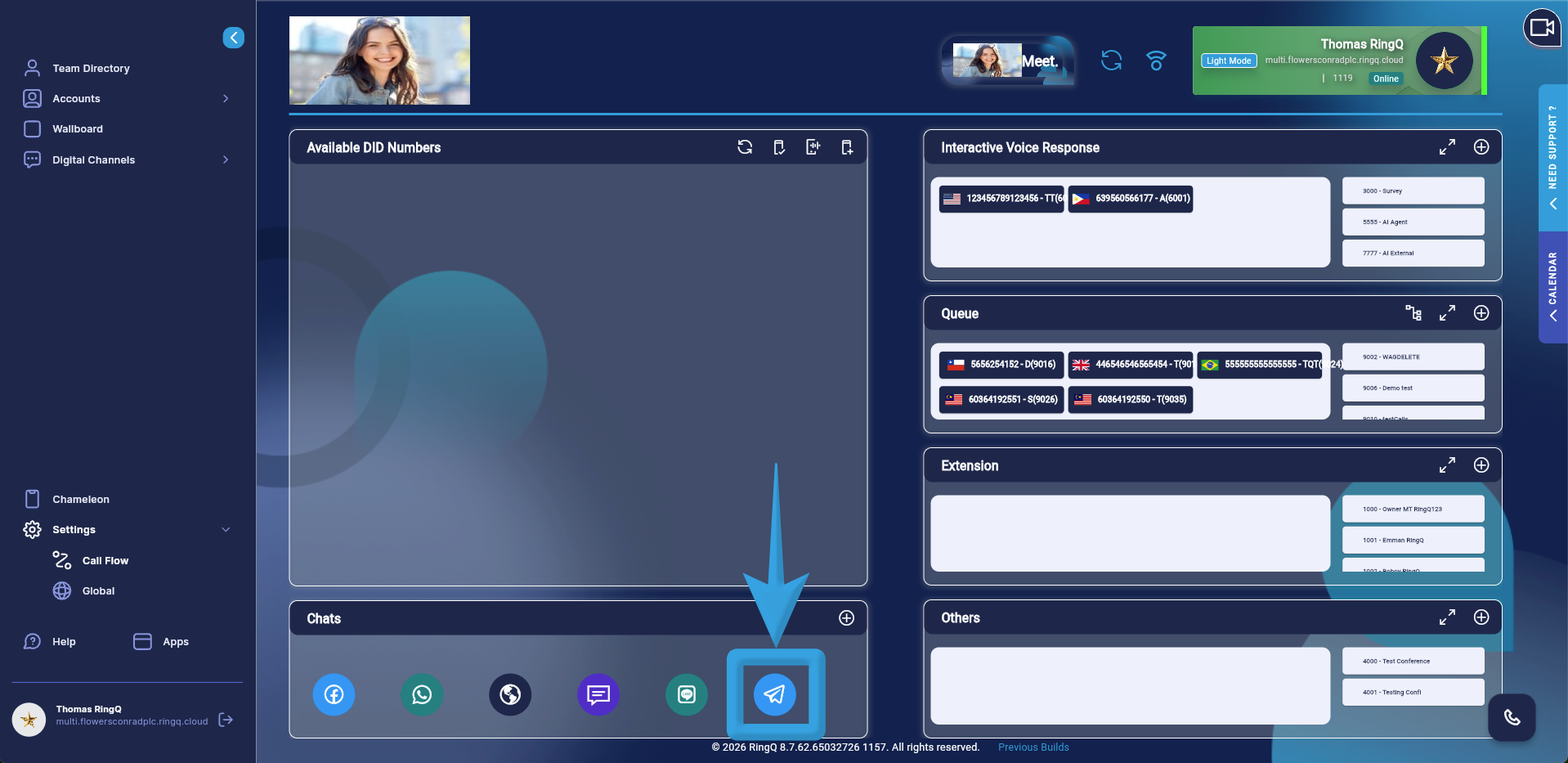 3. Navigate to the Chats section in the Call Flow and click and hold on the “Telegram” icon.
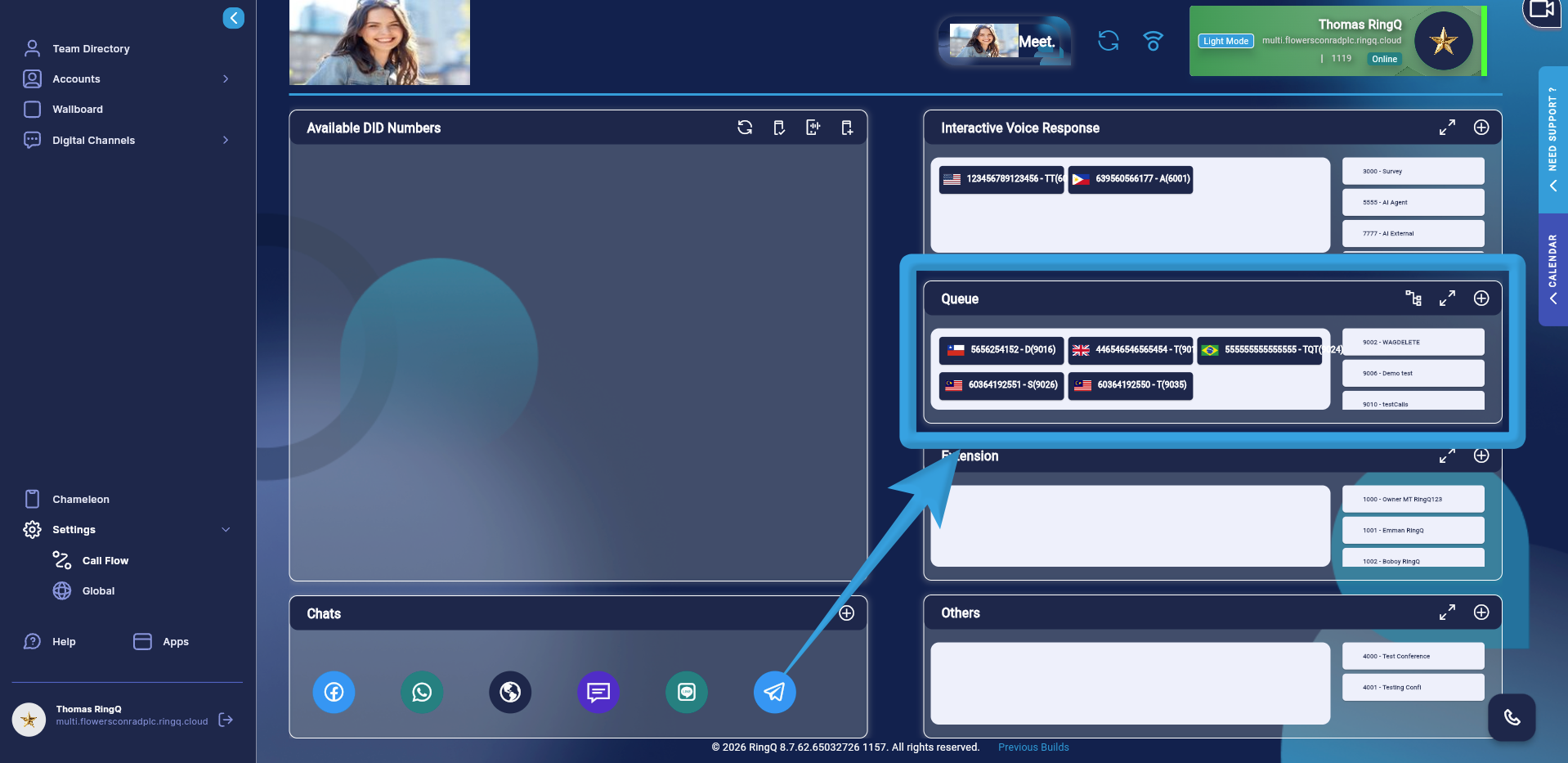 4. Drag and drop the icon into the “Queue” section.
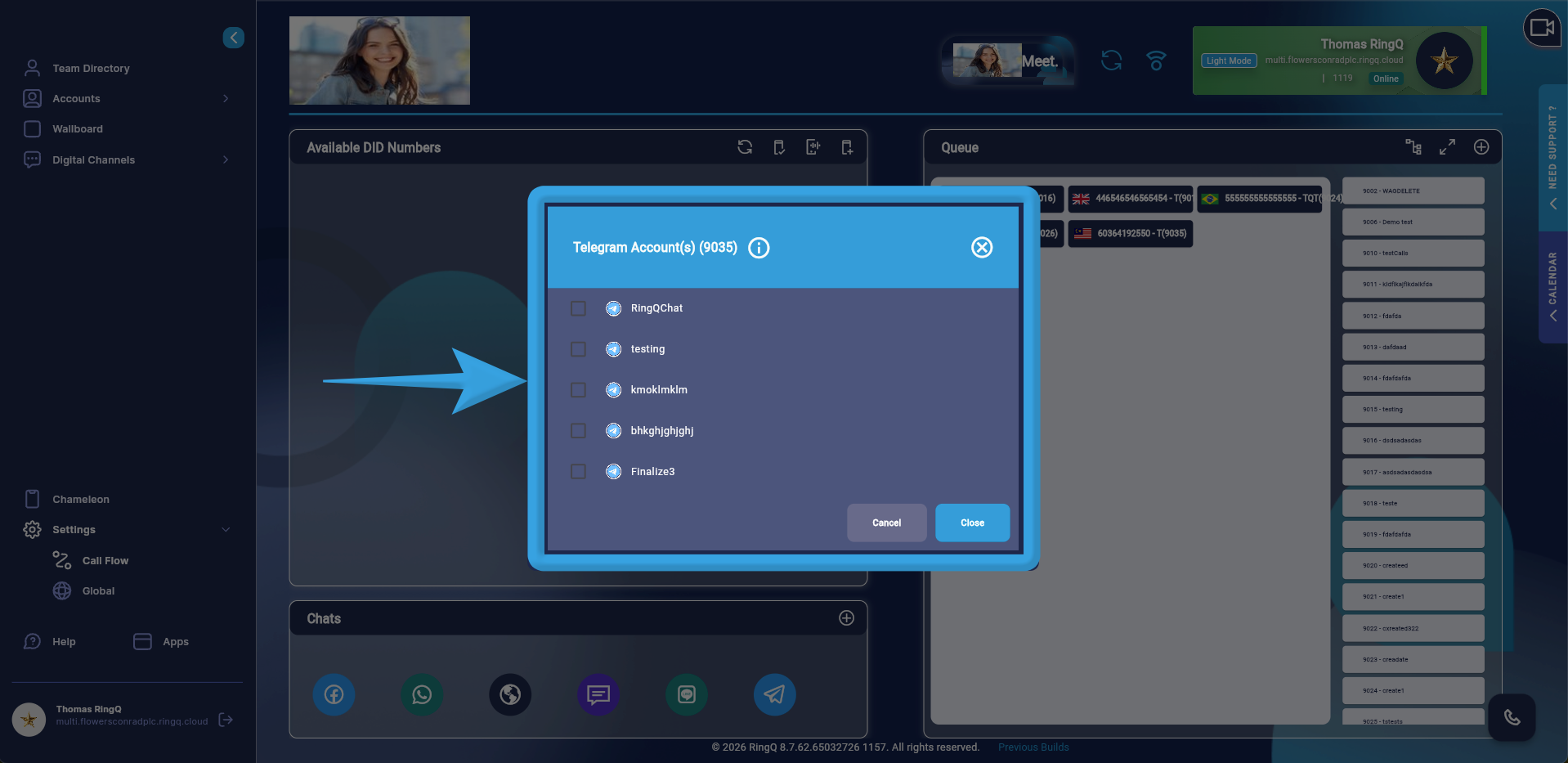 5. A pop-up window will display all Telegram accounts configured in your Chat Settings. Select your desired Telegram account by ticking the corresponding box.
6. Click “Open”.
5. A pop-up window will display all Telegram accounts configured in your Chat Settings. Select your desired Telegram account by ticking the corresponding box.
6. Click “Open”.
Assigning Agents to the Telegram Queue
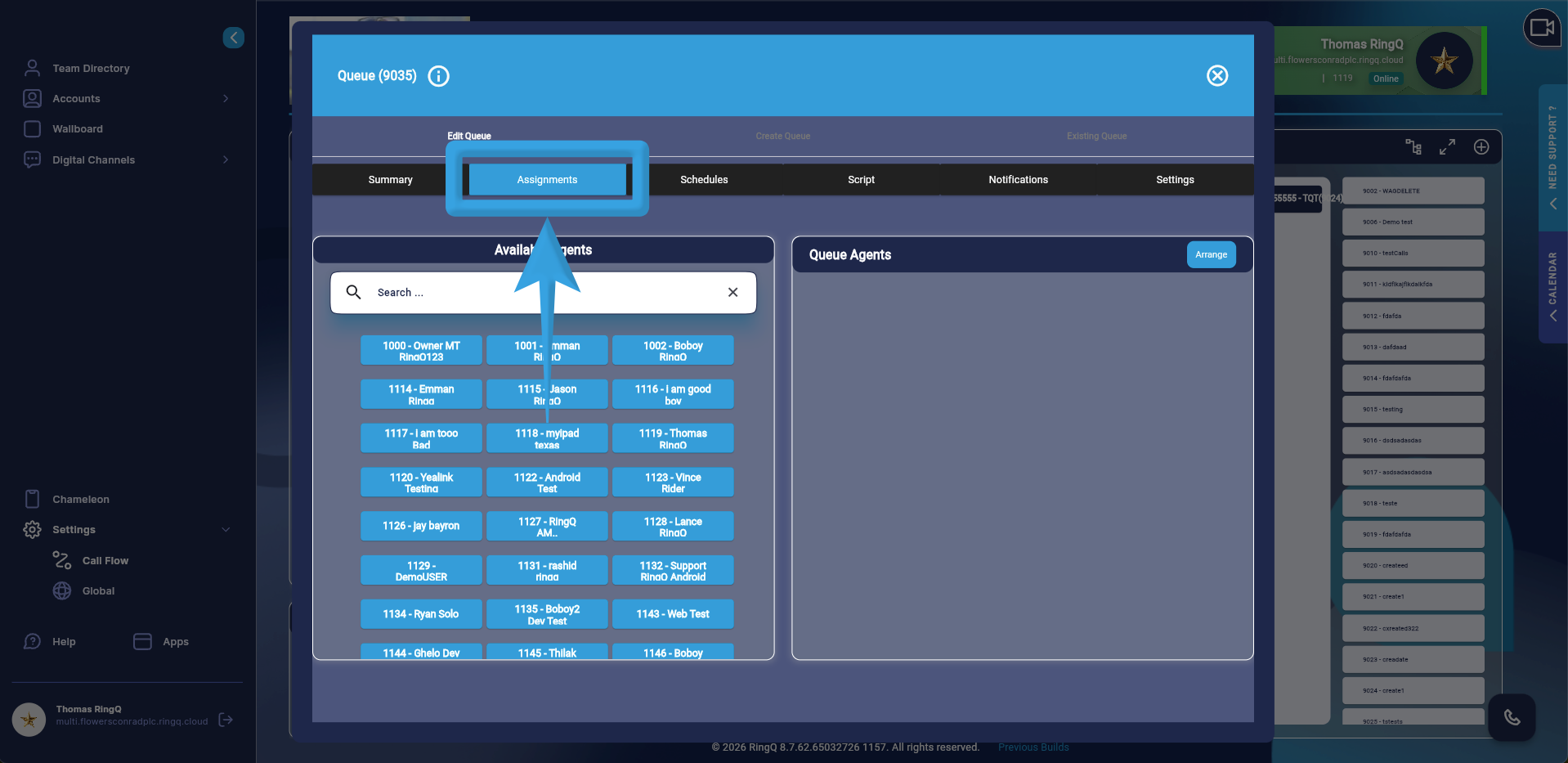 1. Go to the “Assignments” tab.
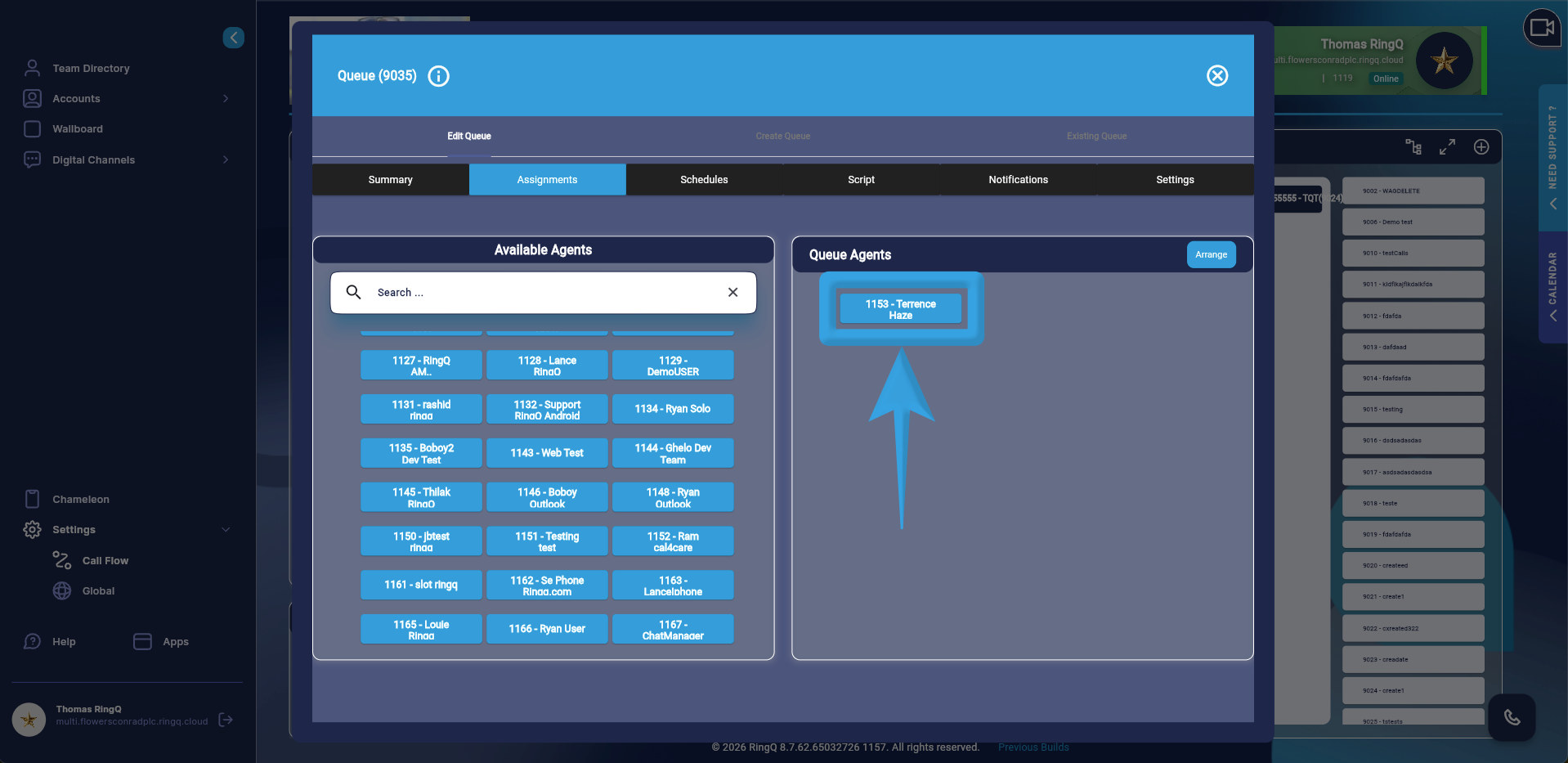 2. Assign agents to handle Telegram chats.
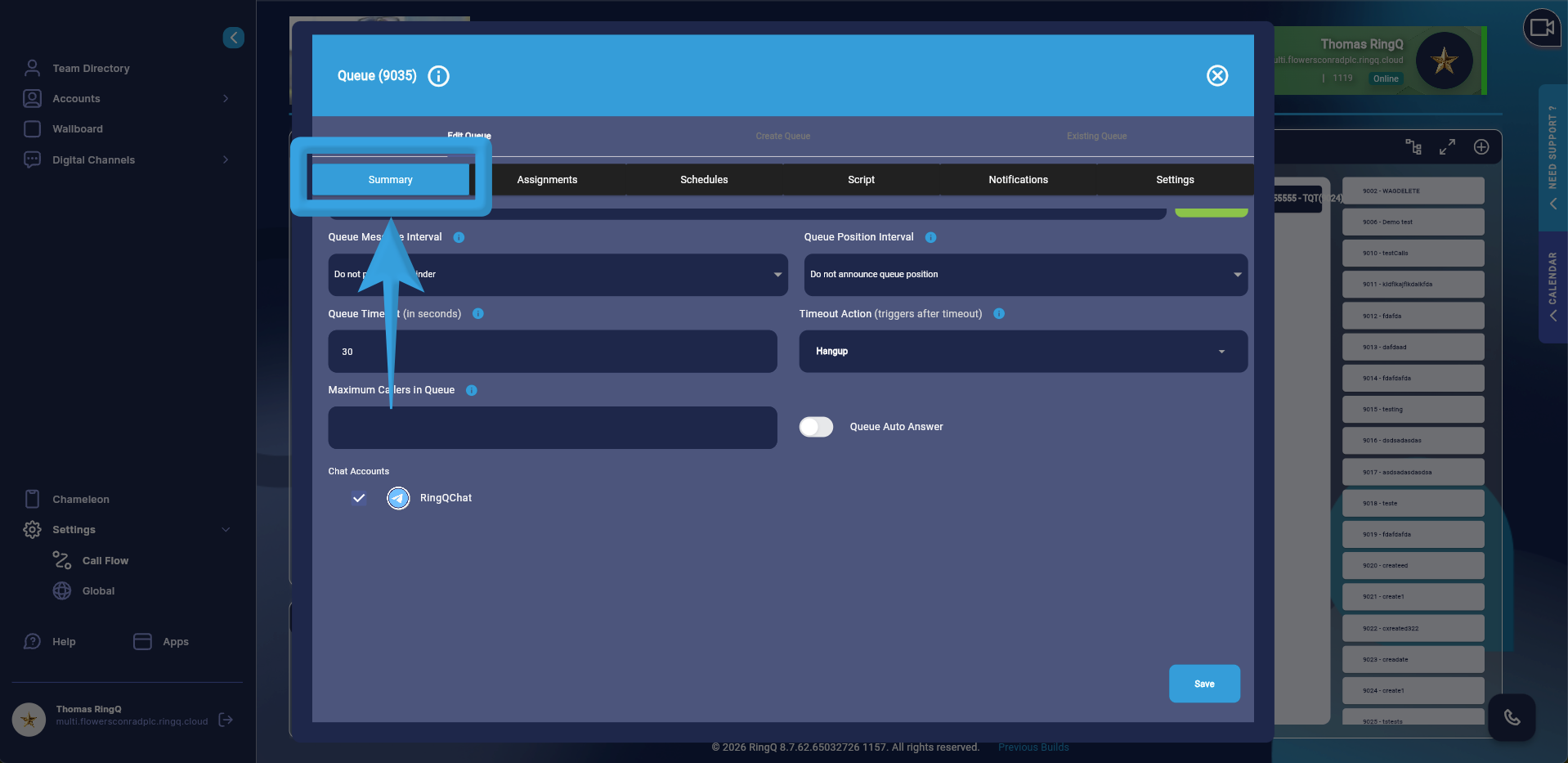 3. Go to the Summary page and click the “Save” button.