
Introduction
This guide explains how to view and respond to messages during an active RingQ Meet call.
Accessing in-call messages allows you to follow shared links, read updates, and communicate with participants without leaving the meeting.
In-Call Messages

1. During a meeting, locate the chat feature found in the meeting controls or sidebar.
2. Click on the “Chat” button to access the chat window.
Sending Messages
While in the chat window:
1. Click on the text field at the bottom of the chat interface and type in your message. 
2. Press the Send button.
Sending Attachments
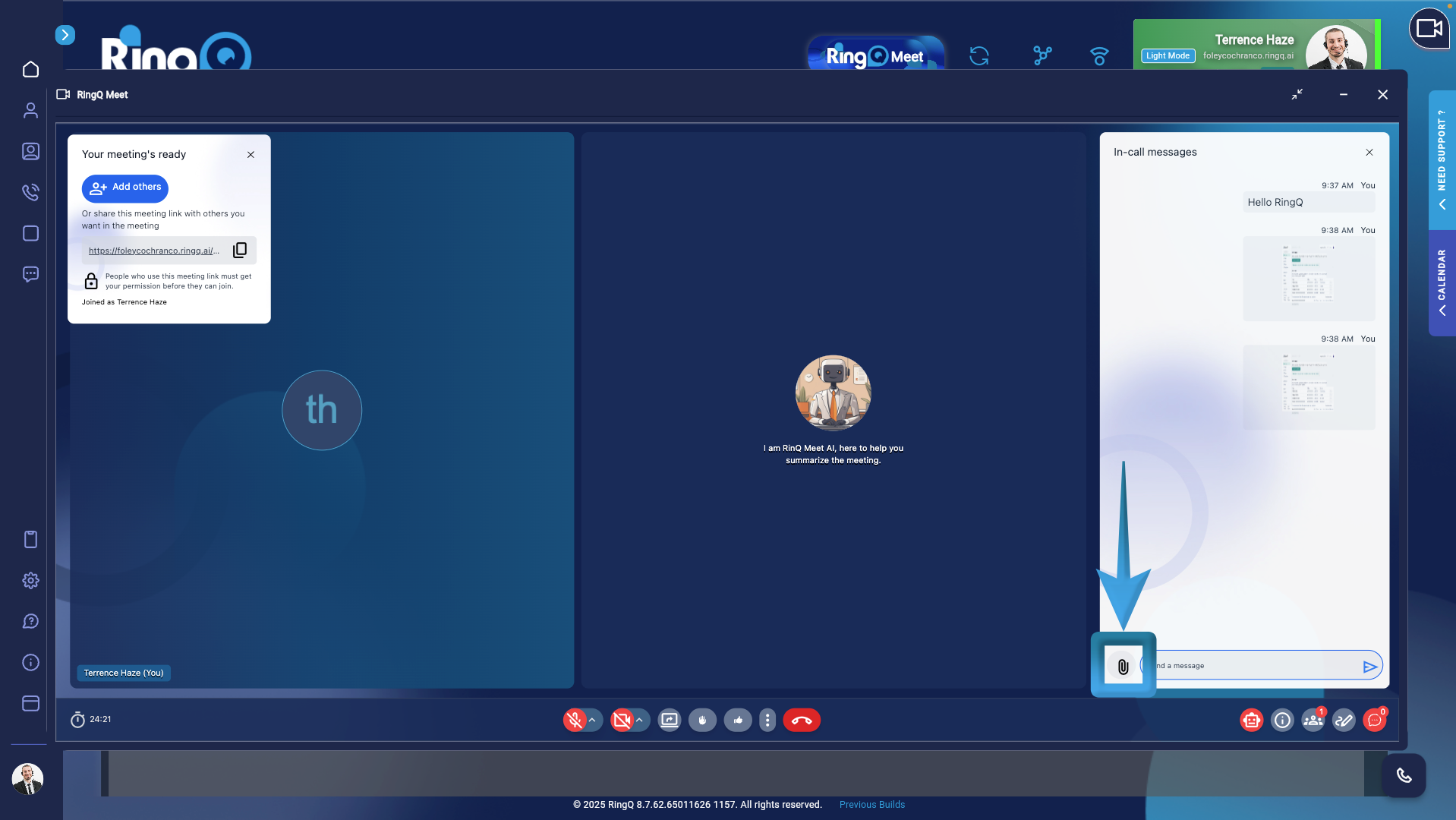
1.Look for the “Attach a File” button, represented by a paperclip icon.
2. Click on it to open a file selection dialog.

3. Choose the file you want to send from your device.

4. Confirm your selection and send the attachment.
Notifications
- Depending on your settings, you may receive notifications for new chat messages.
- Adjust notification settings as per your preference.