
Introduction
This document describes the configuration of Dell SonicWall firewall devices for use with the RingQ Phone System. The guide applies to SonicWall firewalls configured using Many-to-One NAT. Please note that we cannot provide assistance with the configuration of your firewall.
Create Service Objects
In order to configure the SonicWall you need to create the service objects for each Port or Port range that needs to be forwarded. Then place these service objects in a service group after which you have to apply the policies.
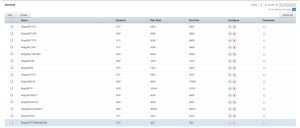
1. Open the Web Management Console of the DELL SonicWall Firewall Gateway and go to Network → Services.
2. In section “Services” add one service object for each port that RingQ requires forwarding for.
3. In section “Service Groups” add a new service group named “RingQ Services” and add all of the above Service Objects as members.
4. Now go to Network → Address Object and locate section “Address Objects”.
5. Here add a new Address Object and set:
- Name: RingQ PBX
- Zone Assignment: LAN
- Type: Host
- IP Address: The LAN IP address of your RingQ Server

Create NAT Policy
1. Go to “Network → NAT Policies” and press “Add”.
2. Create your Inbound NAT policy by filling in the following fields:
- “General” tab:
- Original Source: Any
- Translated Source: Original
- Original Destination: WAN Interface IP
- Translated Destination: RingQ PBX (this is the Address Object created in Step 1)
- Original Service: RingQ Services (this is the Service Group created in Step 1)
- Translated Service: Original
- Inbound Interface: Select the WAN interface your RingQ Will be using
- Outbound Interface: Any
- Comment: RingQ Inbound Connections
- Enable NAT Policy: Checked/Enabled
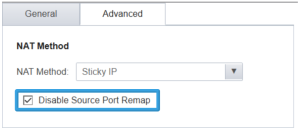
- Advanced” tab:
- Disable Source Port Remap: Checked/Enabled

- Disable Source Port Remap: Checked/Enabled
Creating Firewall Access Rules
1. Go to “Firewall → Access Rules”, select the “WAN to LAN” option and press “Add”.
2. Create a new Access Rule with the following fields:
- “General” tab:
- Action: Allow
- From Zone: WAN
- To Zone: LAN
- Service: RingQ Services (this is the Service Group created in Step 1)
- Source: Any
- Destination: Select the Address Object of the “WAN/Public IP” you have configured RingQ to use
- Users Allowed: All
- Schedule: Always on
- Comment: RingQ Inbound Access
- Allow Fragmented Packets: Checked/Enabled
Disable SIP Transformations
1. Go to ”VoIP → Settings”
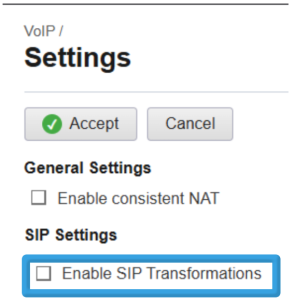
2. In the “SIP Settings” section disable option: Enable SIP Transformations