
Introduction
This guide take you through the steps of configuring SMS integration between Twilio in RingQ, enabling your system to send and receive text messages directly within the platform.
Configure Twilio (Generic API) in RingQ
1. Login to your RingQ Admin Dashboard.
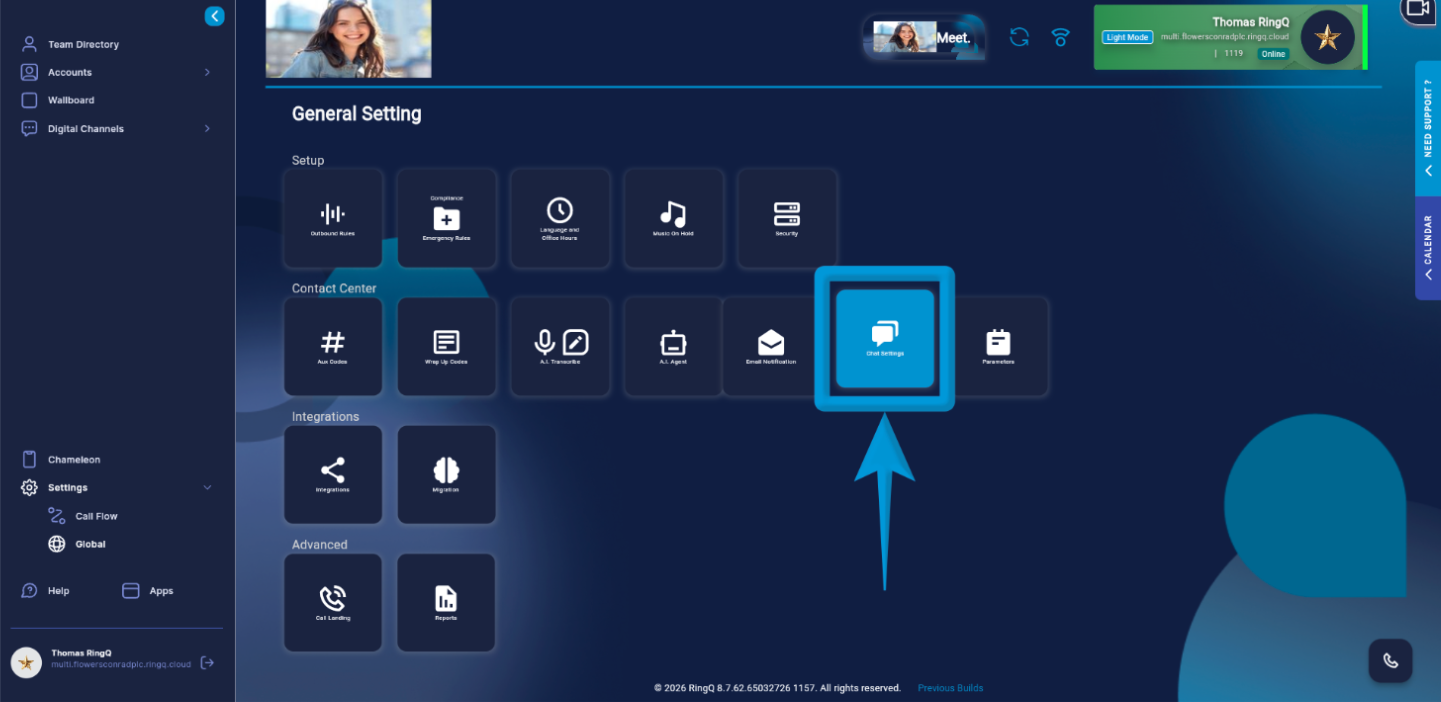 2. Go to “Settings”>”Global”> “Chat”.
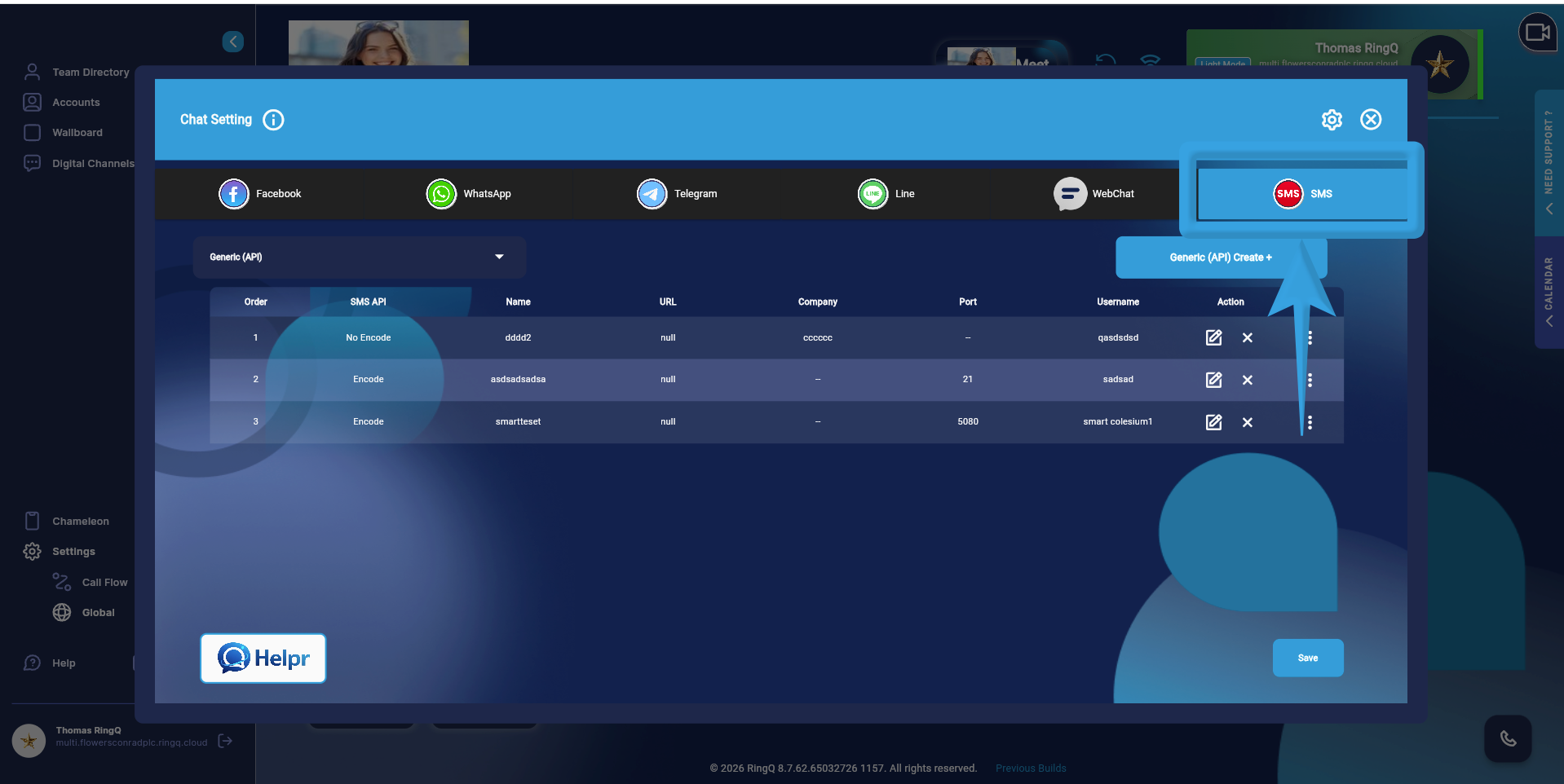 3. Open the “SMS” tab.
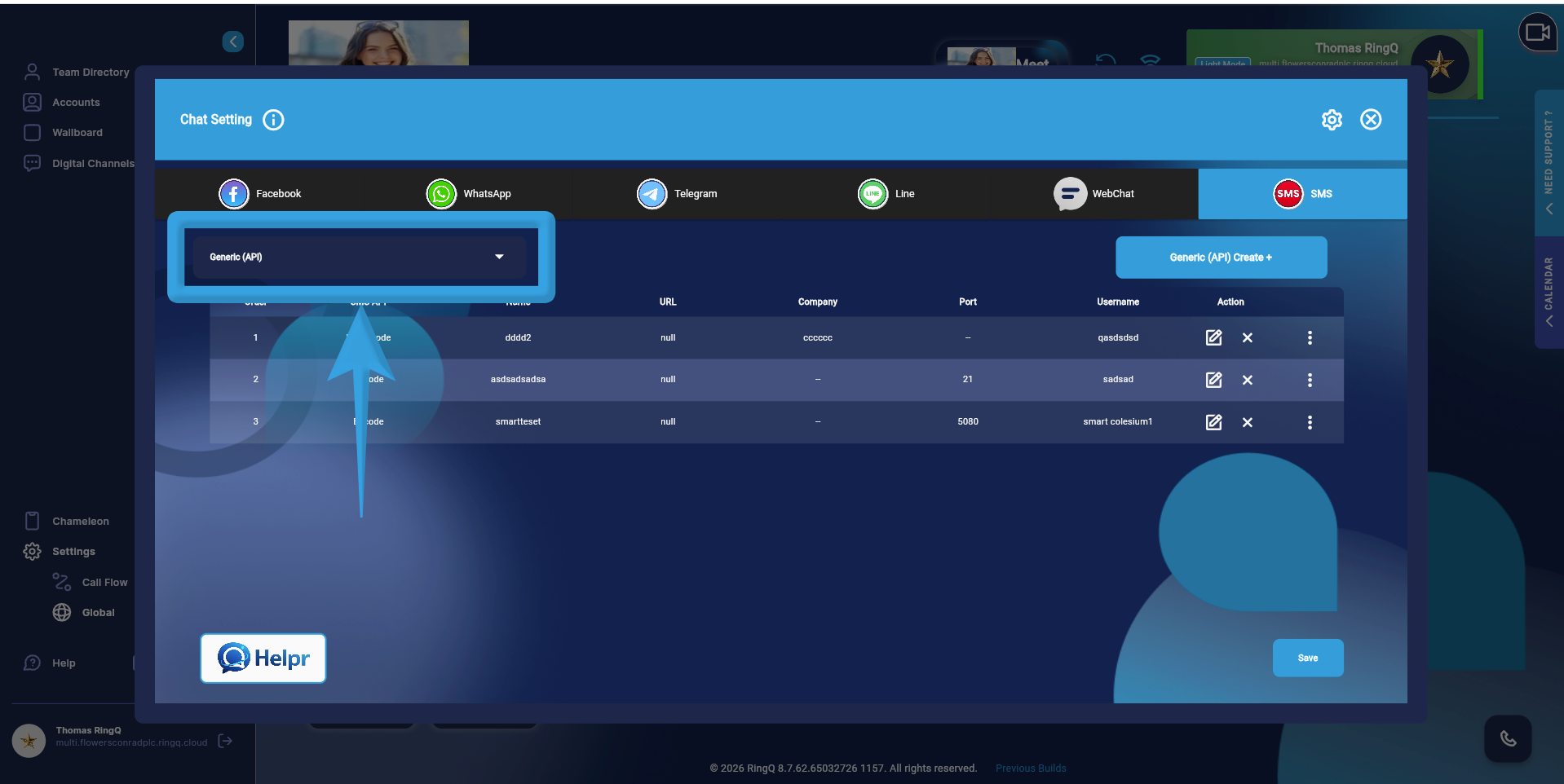 4. On the left panel, click the Generic API dropdown and select “Twilio”.
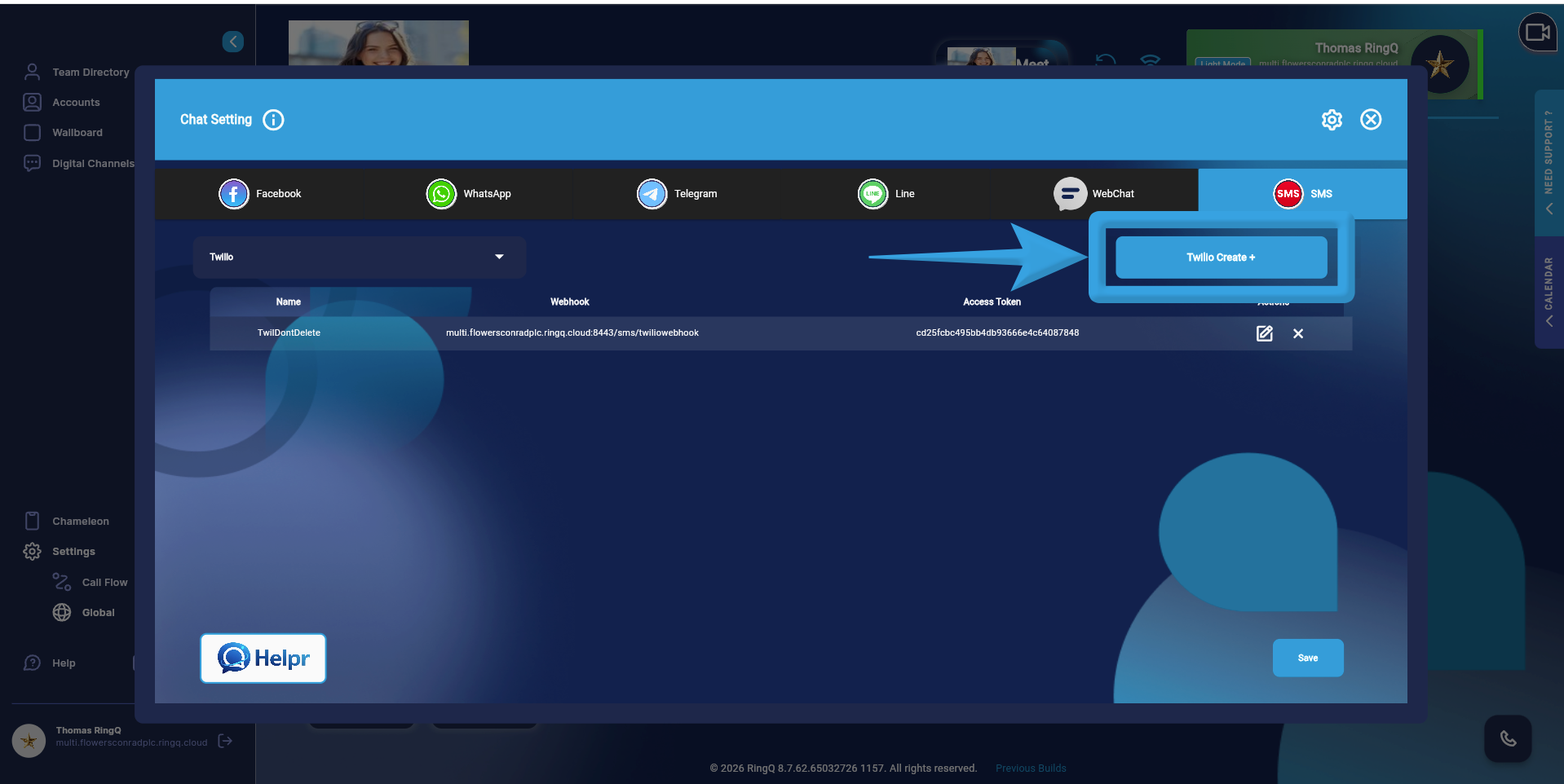 5. Click on the “Create Twilio” button.
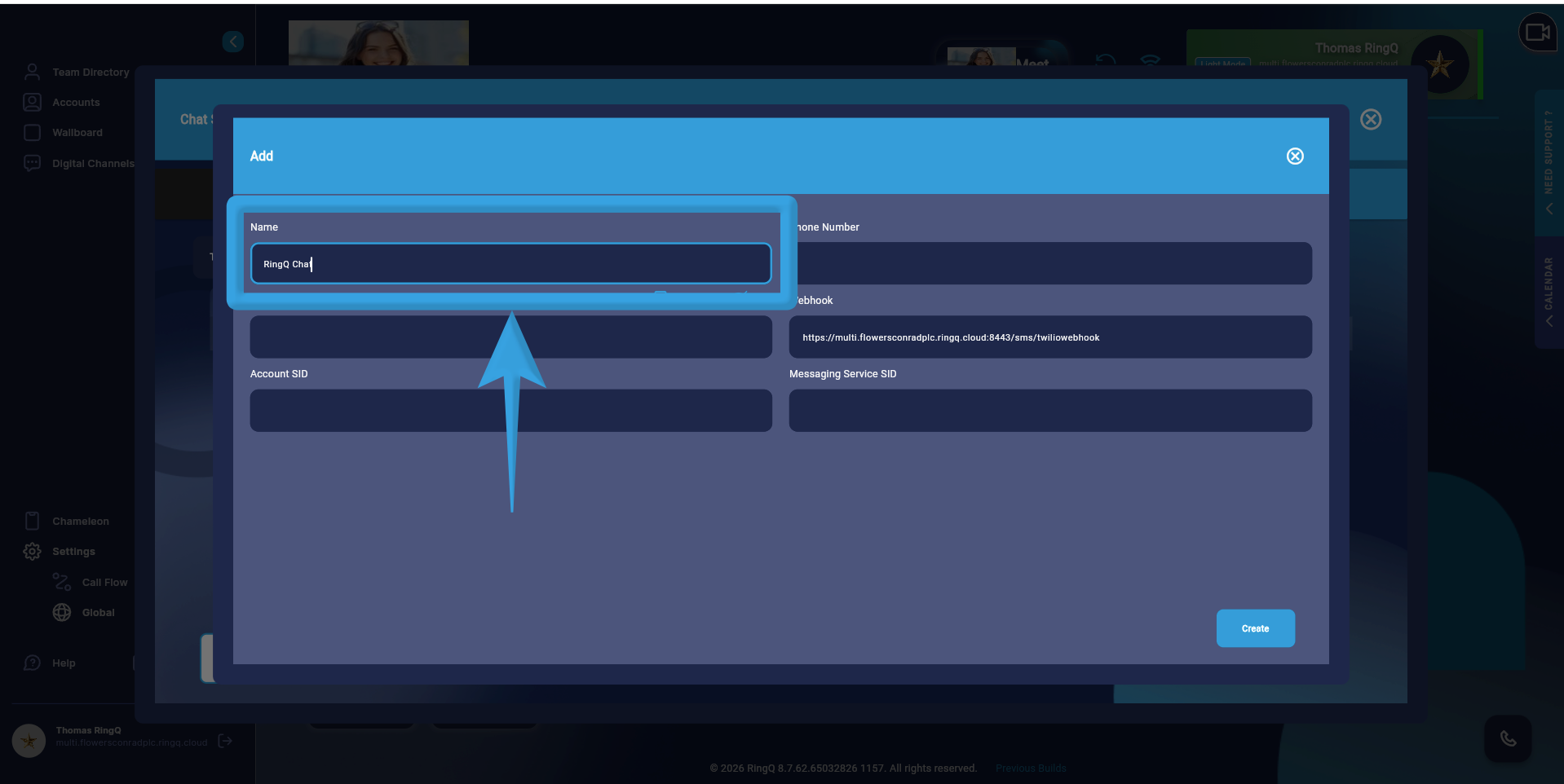 6. Enter a name for the setup.
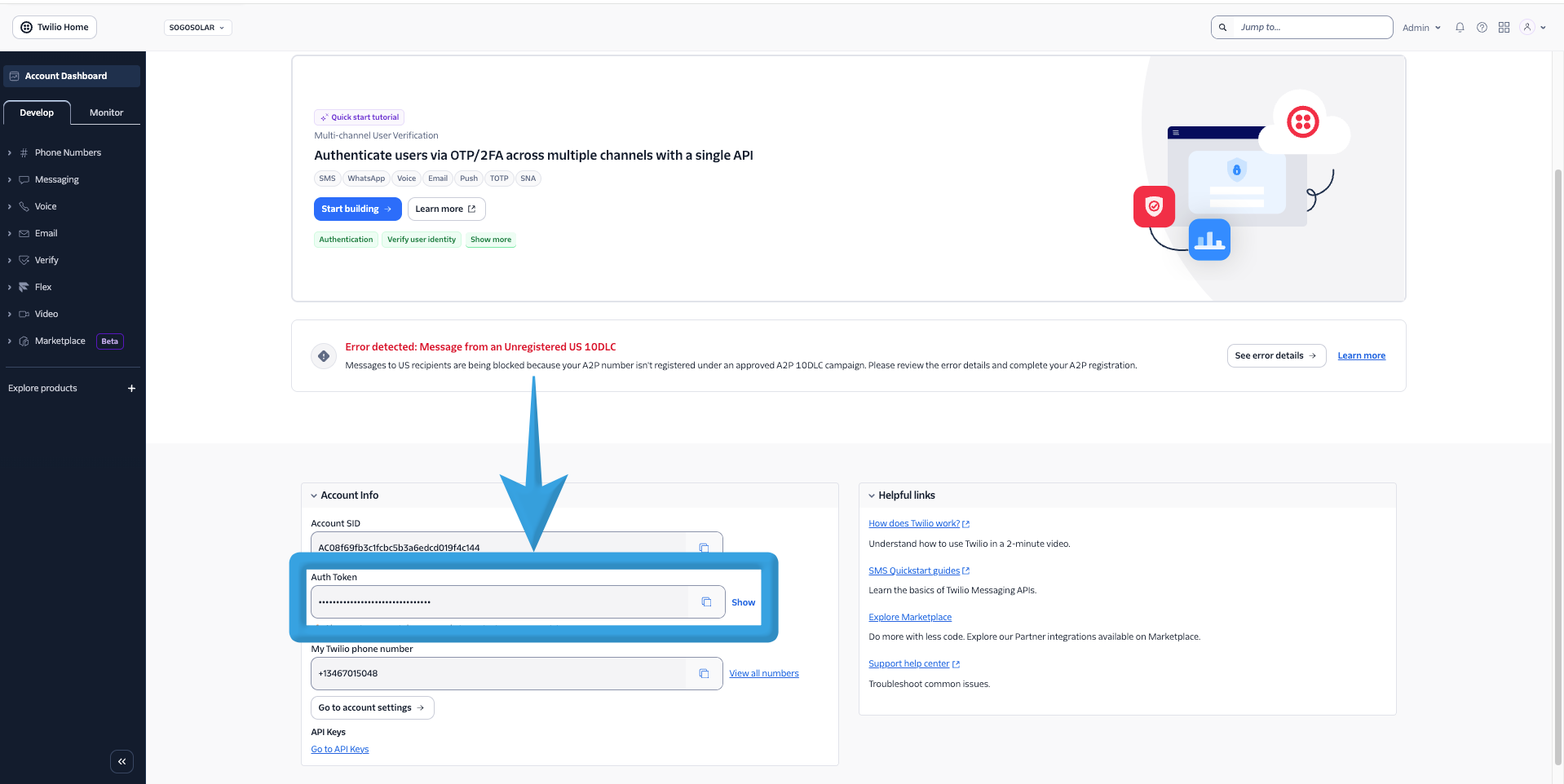 7. Copy the Auth Token or Access Token from the Twilio console and paste into the “Access Token” field in RingQ.
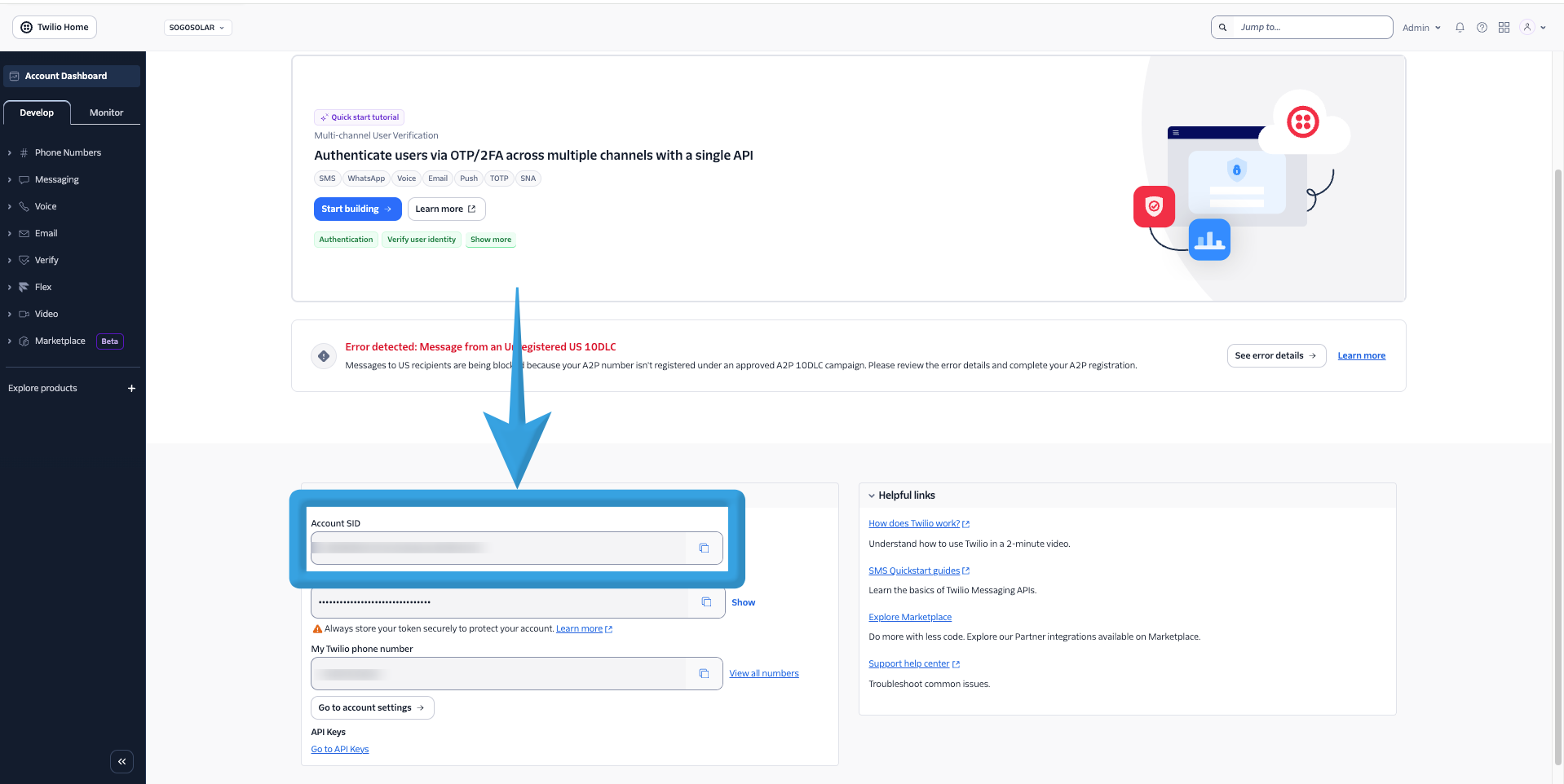 8. Copy the Account SID field from your Twilio console and paste it into the “Account SID” field in RingQ.
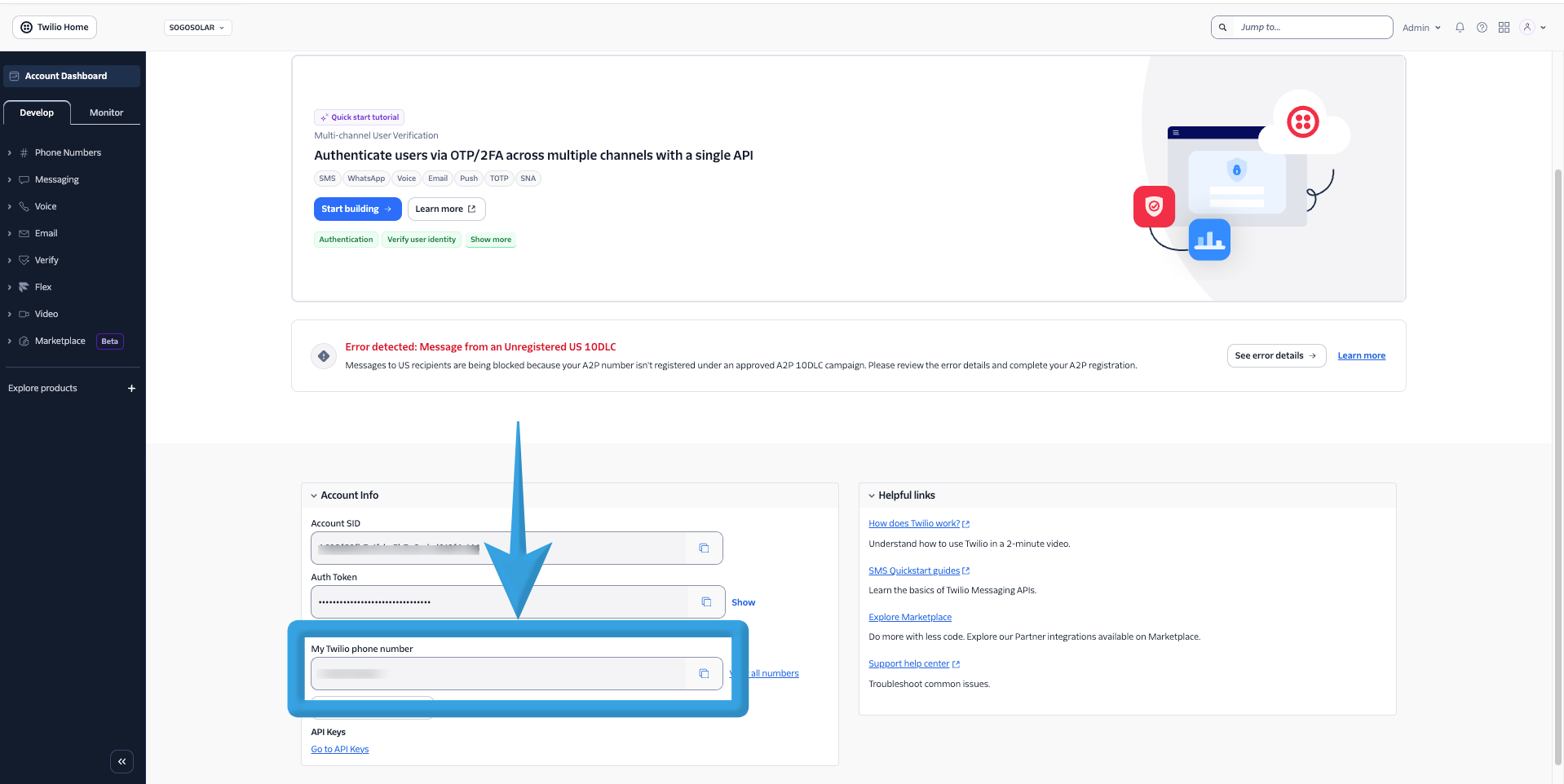 9. Copy the “Phone Number” field from Twilio and paste it into the “Phone Number” field in RingQ.
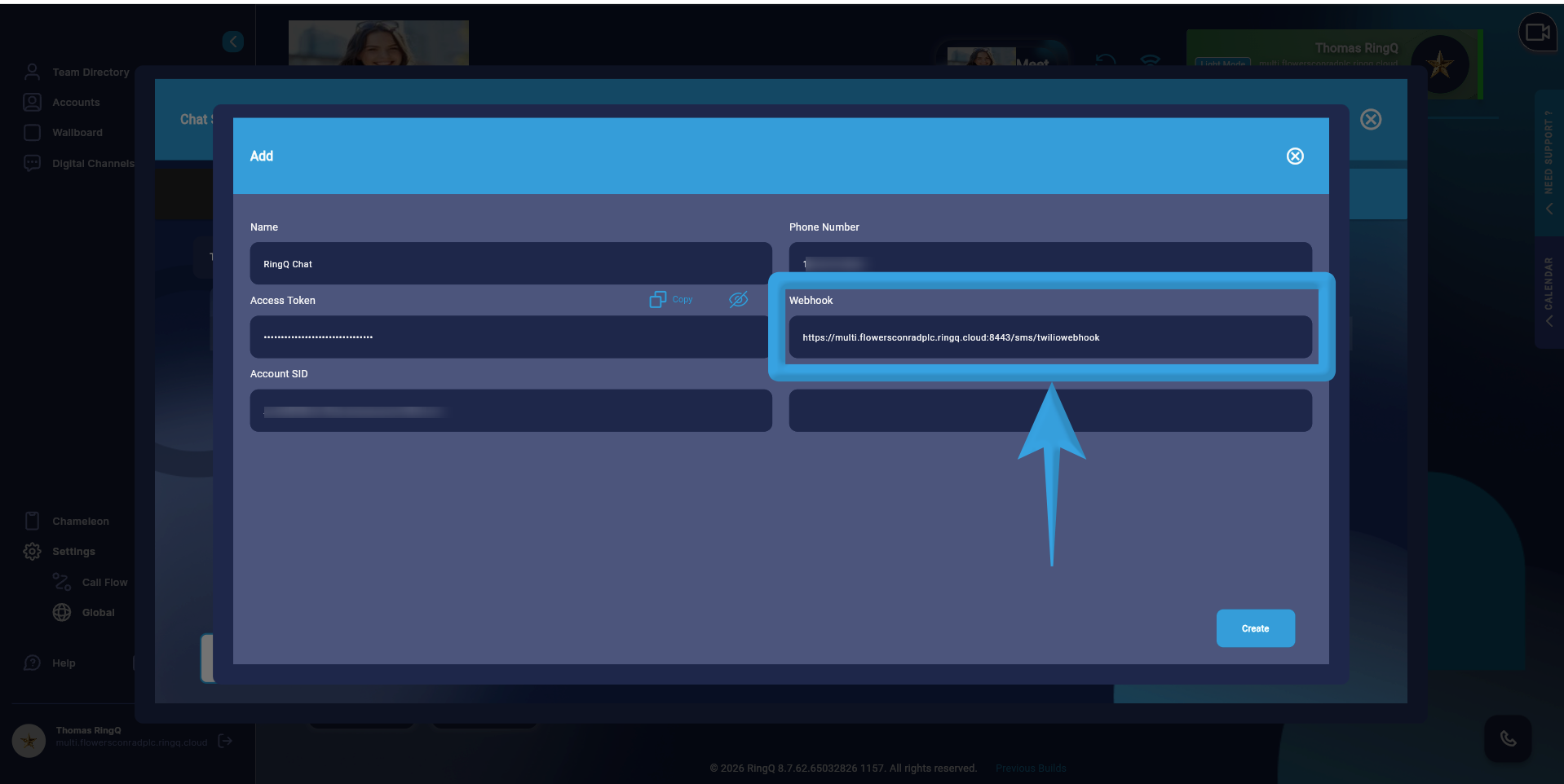 10. The “Webhook” field is automatically generated by the system.
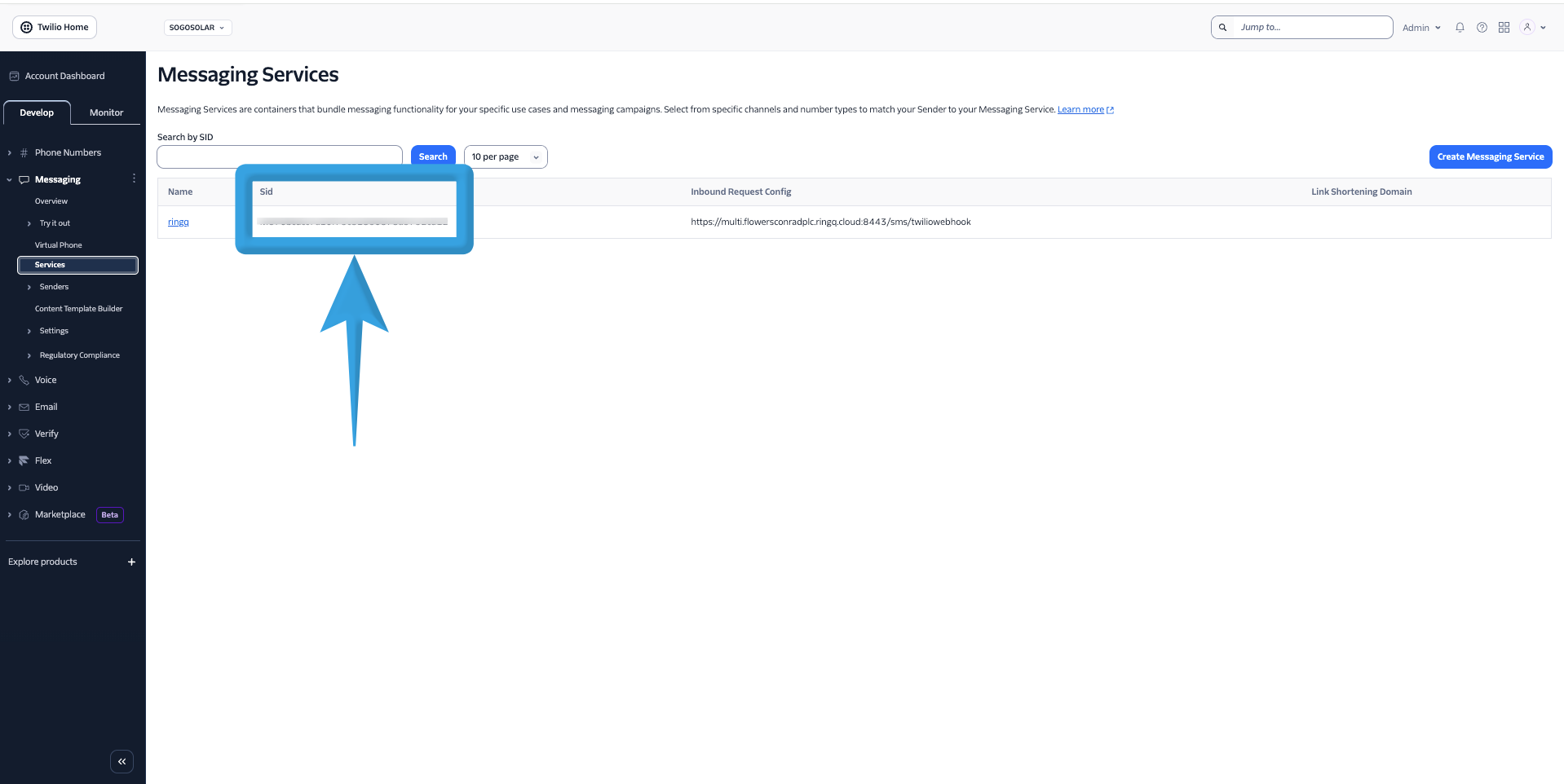 11. Copy the Messaging Service SID from your Twilio Messaging Services and paste it into the “Messaging Services SID” field in RingQ.
12. Click “Create”.
11. Copy the Messaging Service SID from your Twilio Messaging Services and paste it into the “Messaging Services SID” field in RingQ.
12. Click “Create”.
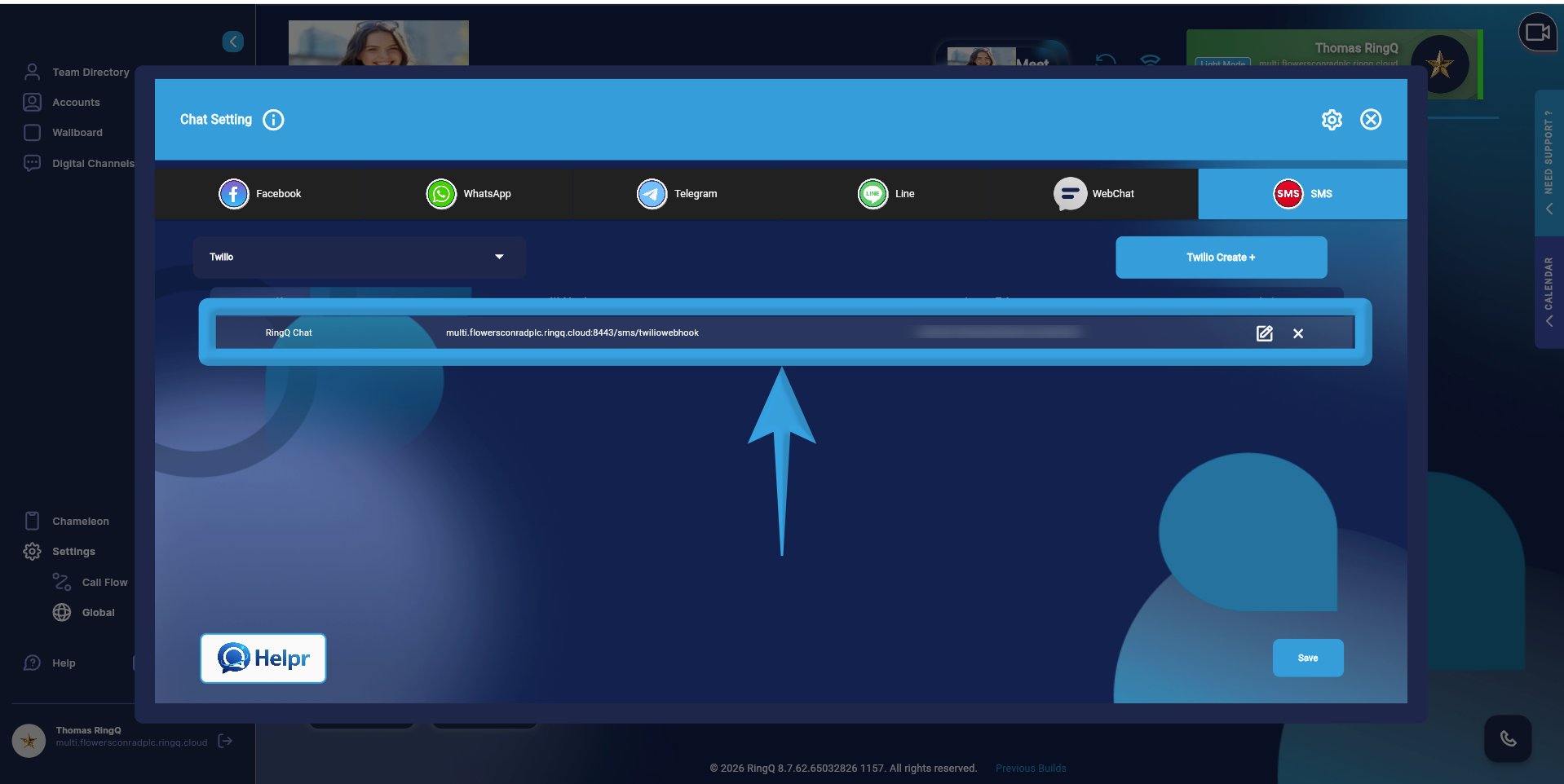 13. Your Twilio SMS setup will appear in the SMS page list within RingQ.