
Introduction
This guide explains the available meeting settings in RingQ Meet. Meeting settings allow you to adjust audio and video preferences, manage permissions, and control how a meeting operates.
Settings
1. Login to your RingQ Web App and start a RingQ Meet meeting.
 2. Click the Settings button before the meeting starts. The available settings are:
- Audio – select your desired audio input and output devices and test audio settings to ensure clear communication during the meeting.

- Microphone – choose the microphone you want to use during the meeting and adjust microphone sensitivity to optimize audio quality.

- Speaker – Choose whether to use the internal speaker or an external speaker.

- Suppress Noise – This feature reduces background noise to enhance audio clarity.

-
- Video – Select optimization for camera, blur background, and mirror camera.
- Camera – This setting allows the user to select and use the available cameras on the device, whether a built-in camera or an external camera.

- Blur Background – Applies a soft blur to the background, enhancing visual clarity by keeping the focus on foreground elements.

- Mirror Camera – Horizontally flips the camera view to provide a mirror-like perspective, similar to how you see yourself in a mirror.

- Notification – This allows users to select notifications for chat messages, join requests, participant joining, and participant leaving.

- Chat – Receive a notification sound when a new chat message arrives.

- Join Request – Receive an alert when someone requests to join the meeting.

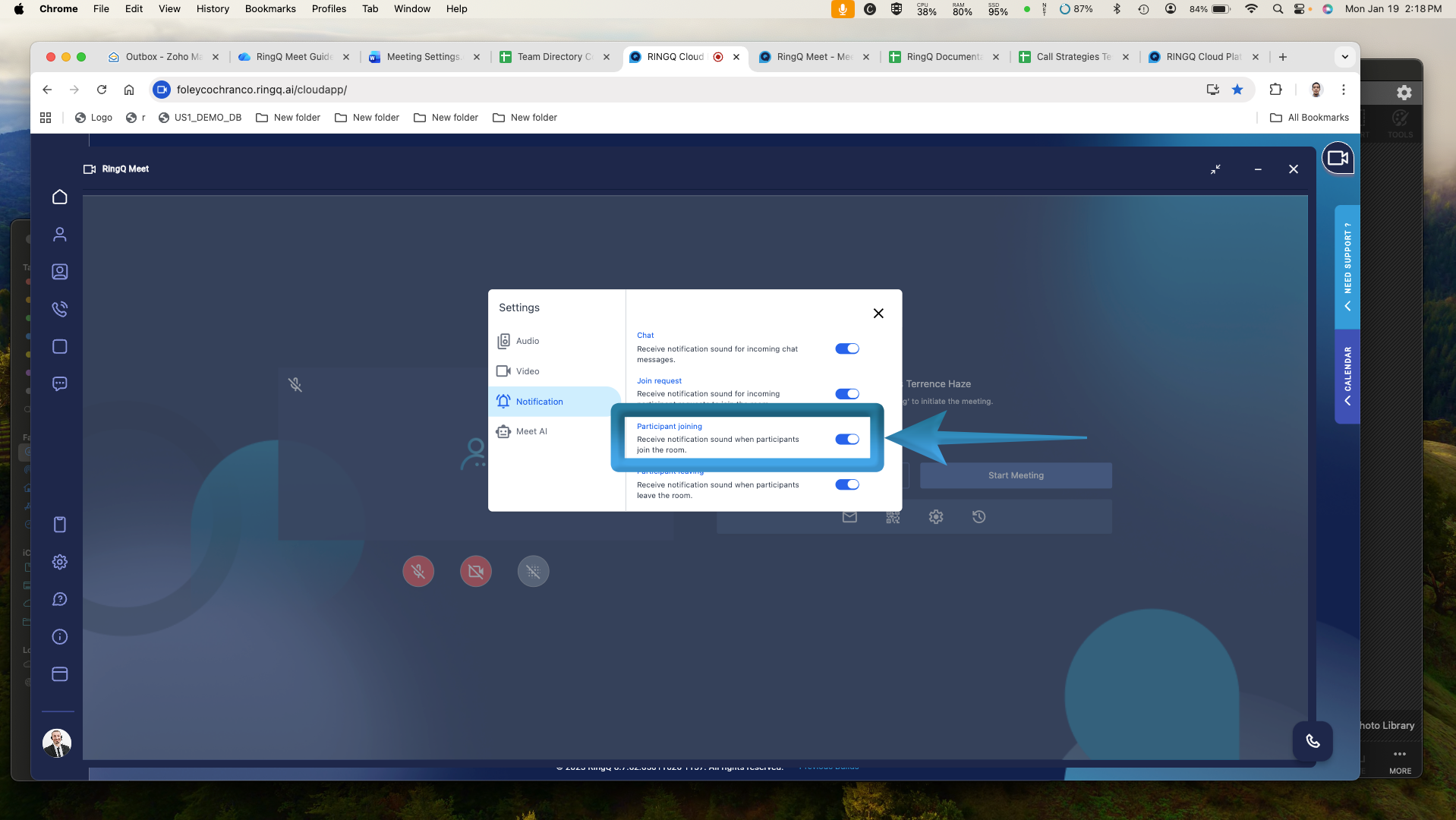
- Participant Joining – Receive a notification sound when a participant joins the room.
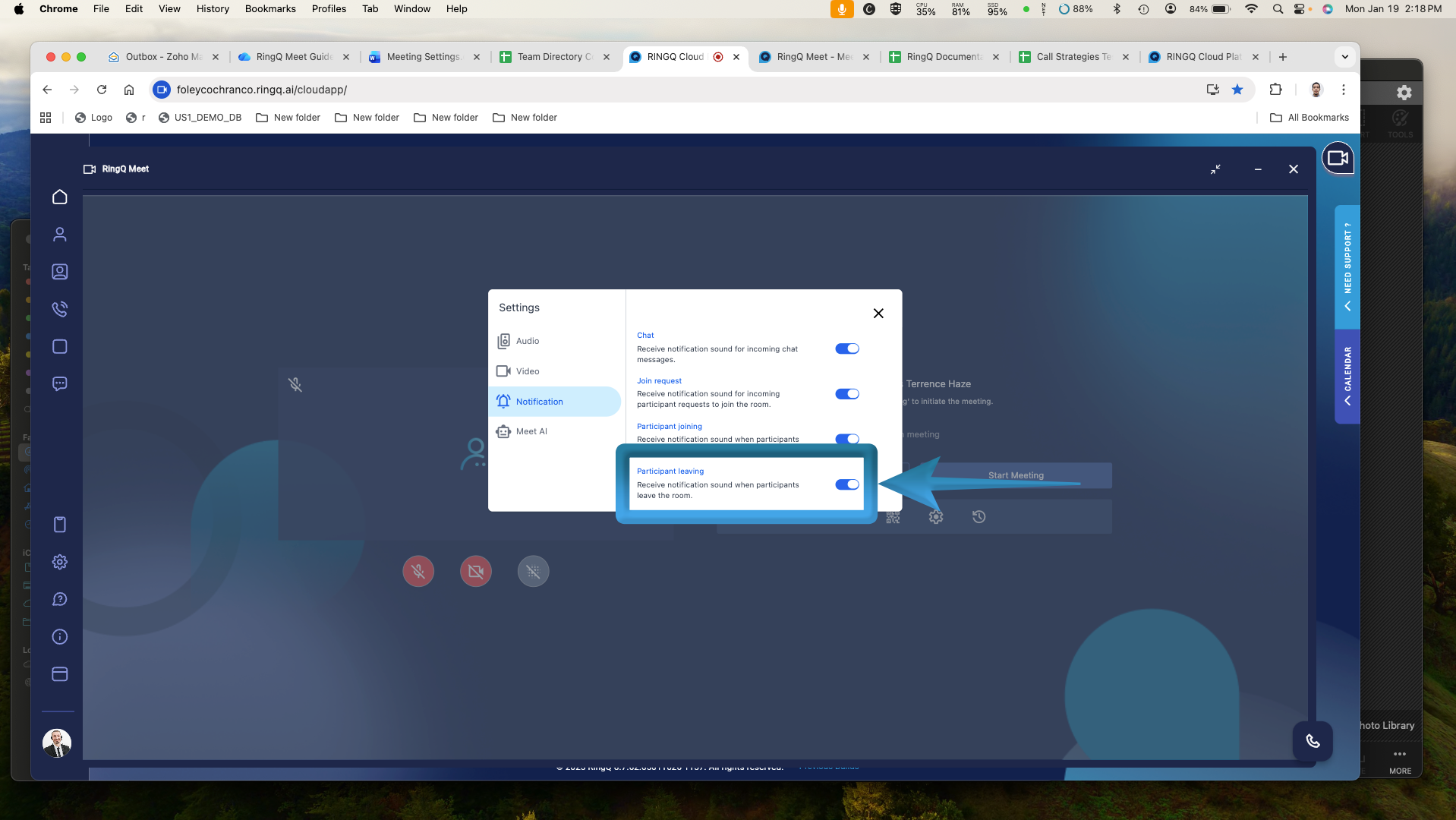
- Participant Leaving – Receive a notification sound when a participant leaves the room.

- Meet AI – This allows the user to start the meeting with an AI listener that summarizes the conversation and automatically sends the meeting summary to all participants who joined using a registered email address.
- Start AI Listener – Allows the user to begin the meeting with an AI listener that summarizes the conversation.
- Auto Send All – Allows the user to automatically send the meeting summary to all participants who joined the meeting using a provided email address.
