
Introduction
This guide explains how to configure SFTP remote storage for backups using the Time Machine feature in RingQ.
SFTP is recommended over FTP because it encrypts data using SSH.
Prerequisites
Before configuring SFTP backup in RingQ, ensure:
- Remote server with SSH/SFTP enabled
- Valid SFTP credentials (username & password or SSH key)
- Dedicated backup directory created on the server
- Public IP or hostname of the SFTP server
- Port 22 (or custom SSH port) allowed in firewall
- Sufficient storage space on remote server
Access RingQ Time Machine Settings
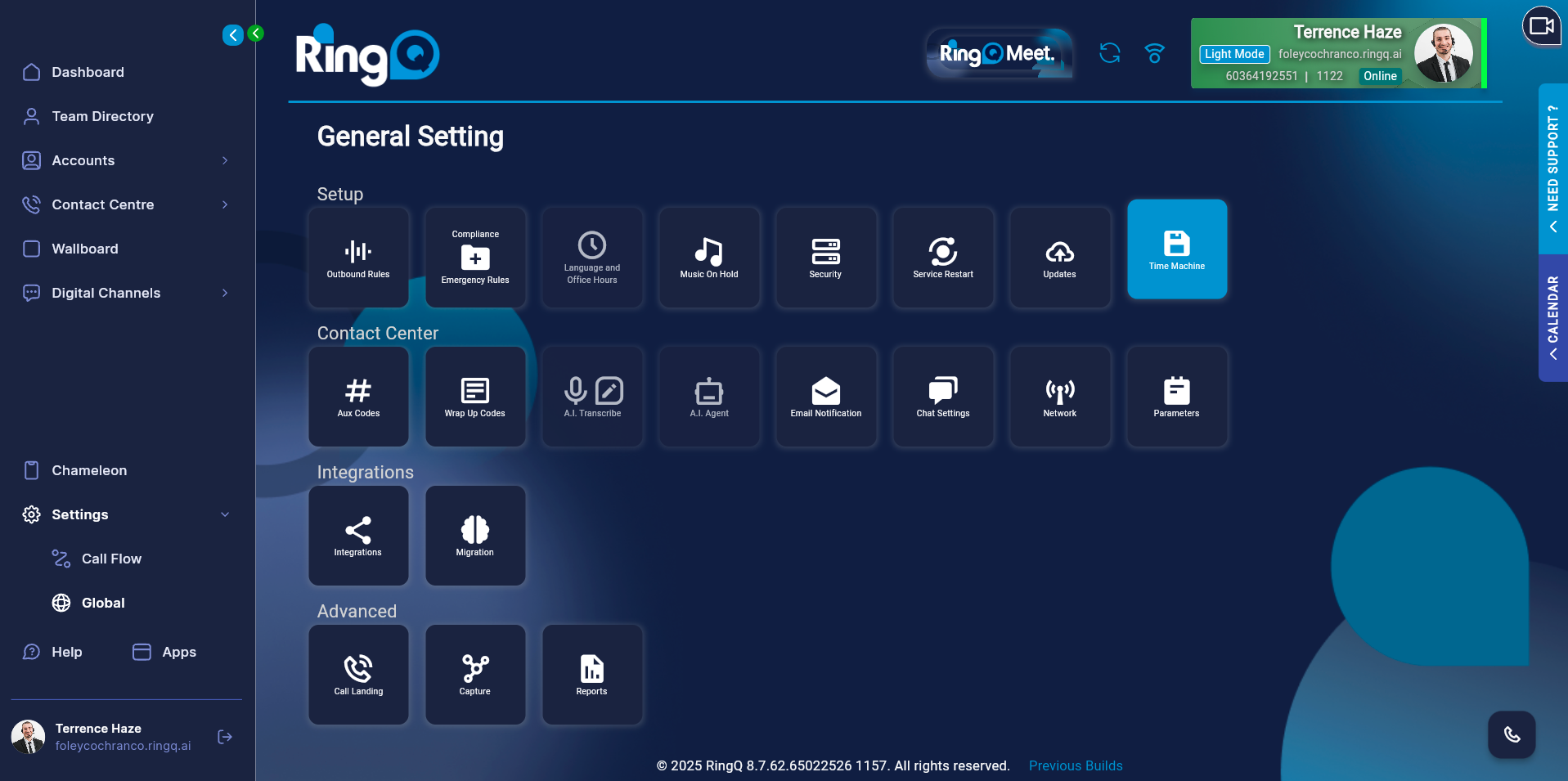
1. Log in to your RingQ Admin Dashboard
2. Navigate to:
Settings → Global → Time Machine
3. Go to Settings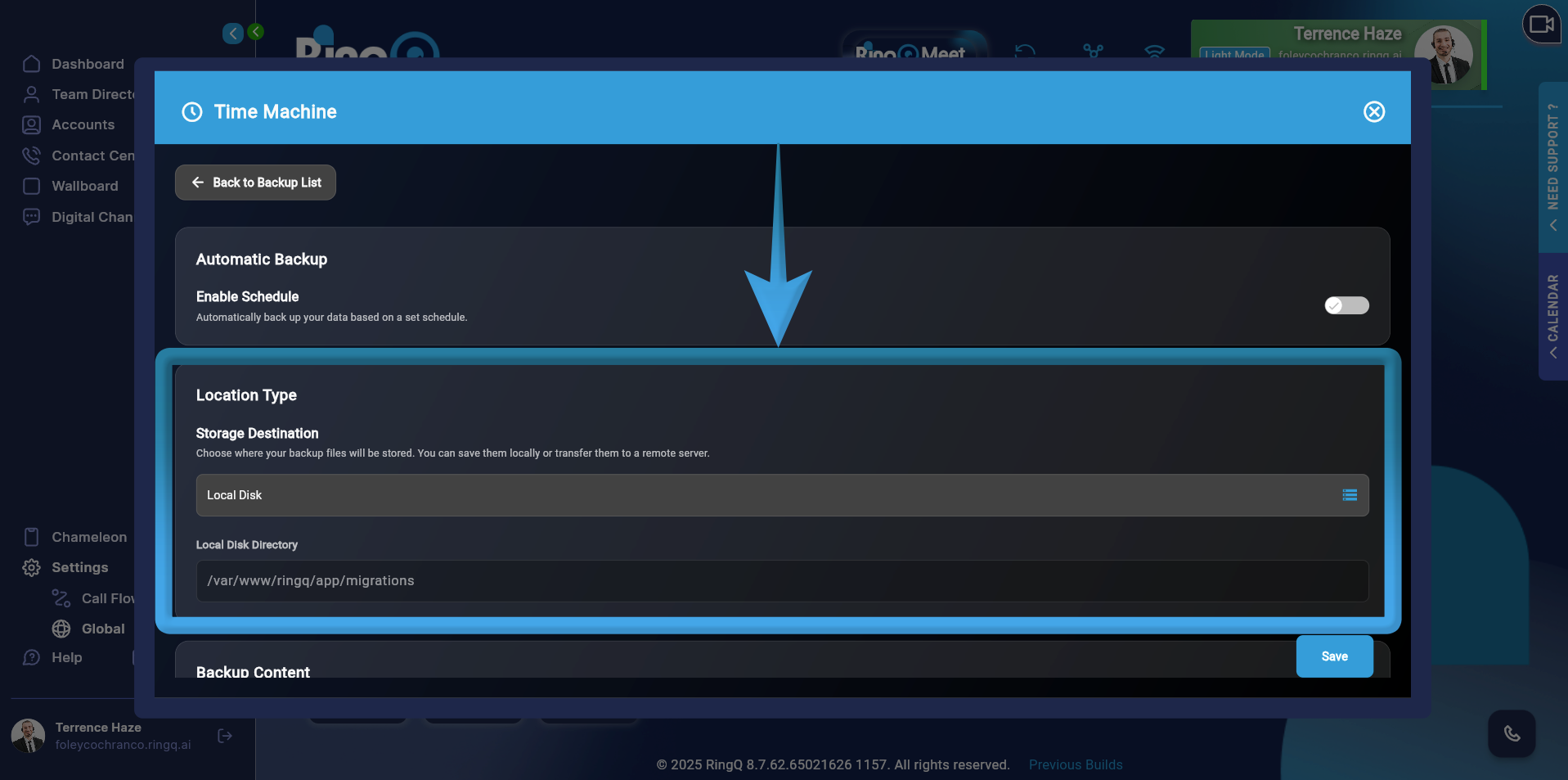
4. Scroll down to Location Type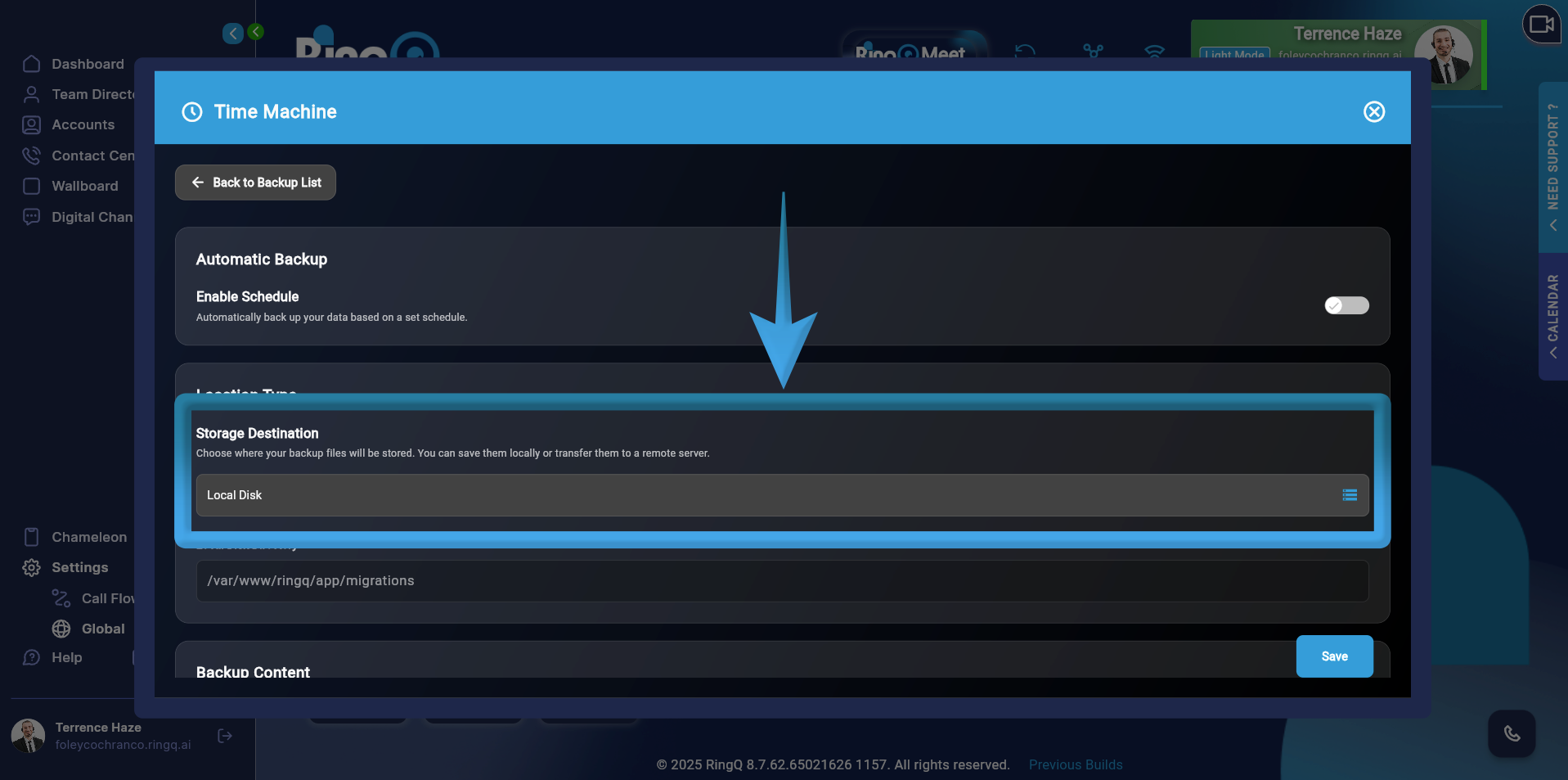
5. Click the Storage Destination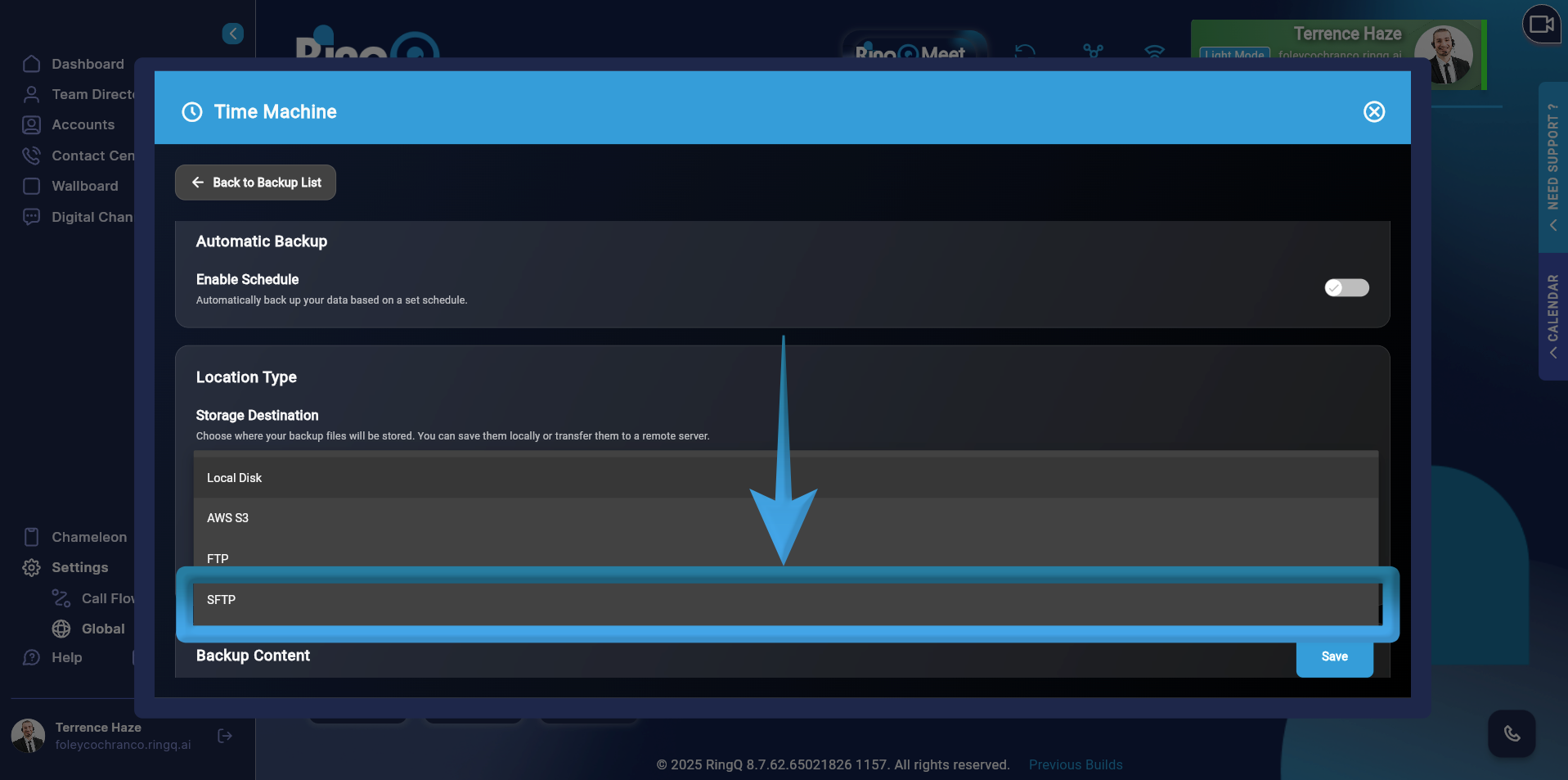
6. Select SFTP
Configure SFTP as the Backup Destination
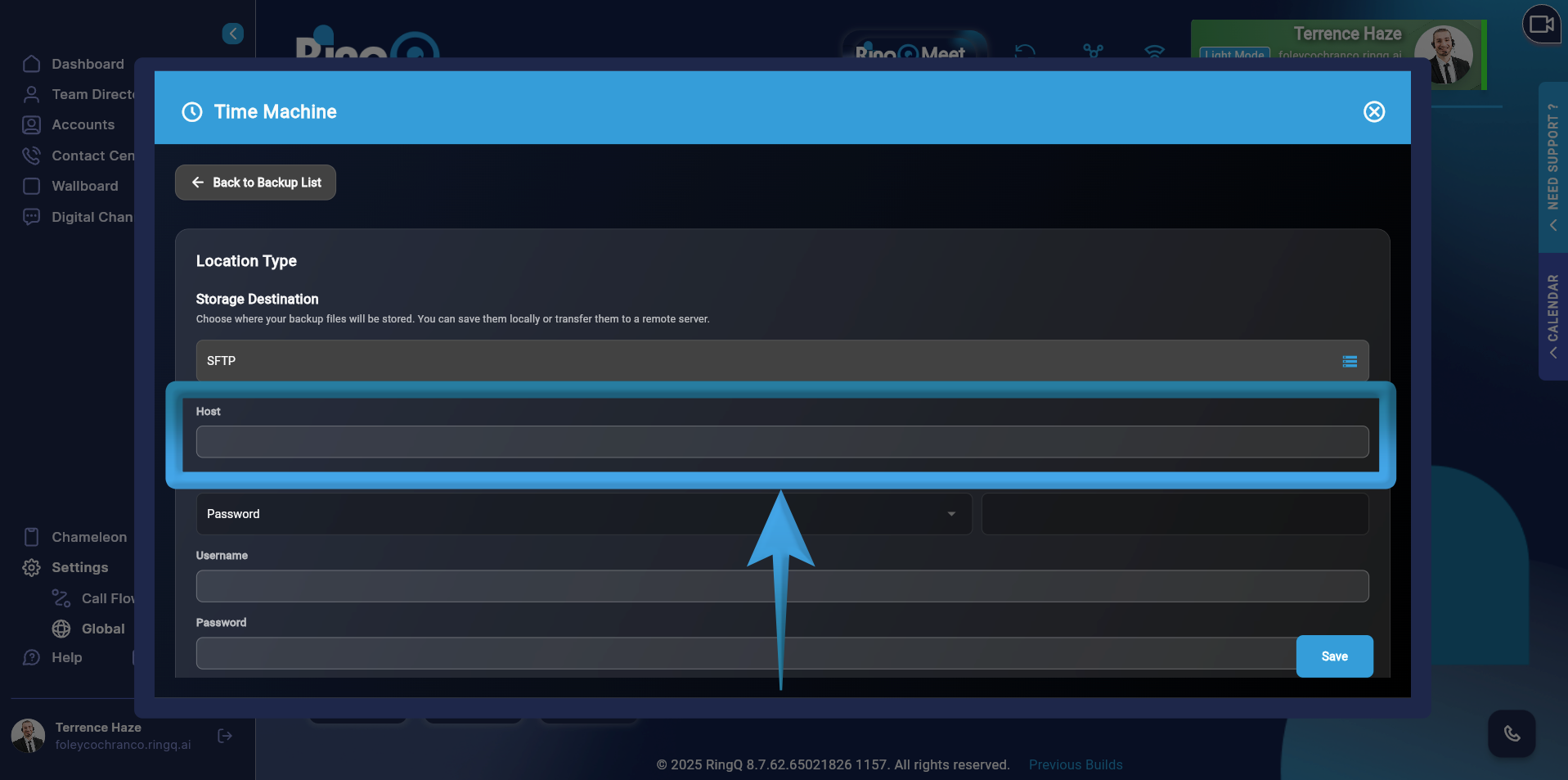
Fill out the required fields.
If Password Method is required:
- Host – Enter the FTP server hostname or IP address.
- Auth Method – Select Password.
- Port – Enter the FTP port (default: 21, unless otherwise specified).
- Username – Enter the FTP account username.
- Password – Enter the FTP account password.
- Storage Path – Specify the remote directory where backups will be stored (e.g., /backups/ringq/).
If SSH Key Method is required:
- Host – Enter the FTP server hostname or IP address.
- Auth Method – Select SSH Key.
- Port – Enter the FTP port (default: 21, unless otherwise specified).
- Username – Enter the FTP account username.
- Private Key – Paste the SSH private key used for authentication (applicable when Auth Method is set to Key-Based instead of Password).
- Storage Path – Specify the remote directory where backups will be stored (e.g., /backups/ringq/).
Click Save to apply and store the configuration.