
Introduction
Migrating from another cloud PBX to RingQ is a straightforward process designed to minimize disruption and get your system up and running quickly. Through the RingQ Admin Dashboard, administrators can easily upload and configure all essential components—including SIP Trunks, Extensions, DIDs, and Outbound Rules—in just a few steps. With everything managed from a single interface, transitioning your communications environment to RingQ is simple, fast, and fully under your control.
Backup Upload
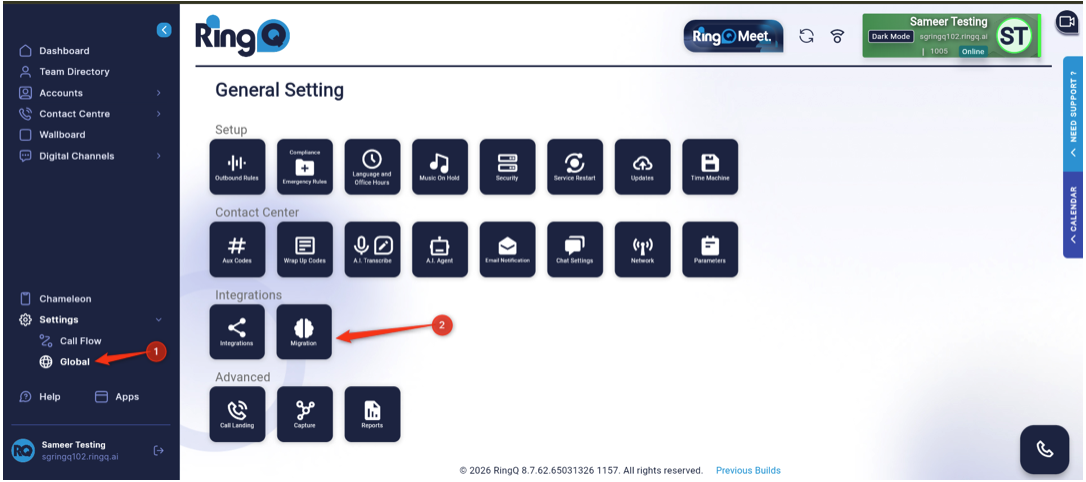 1. Login to your RingQ admin dashboard and navigate to Settings > Global > Migration.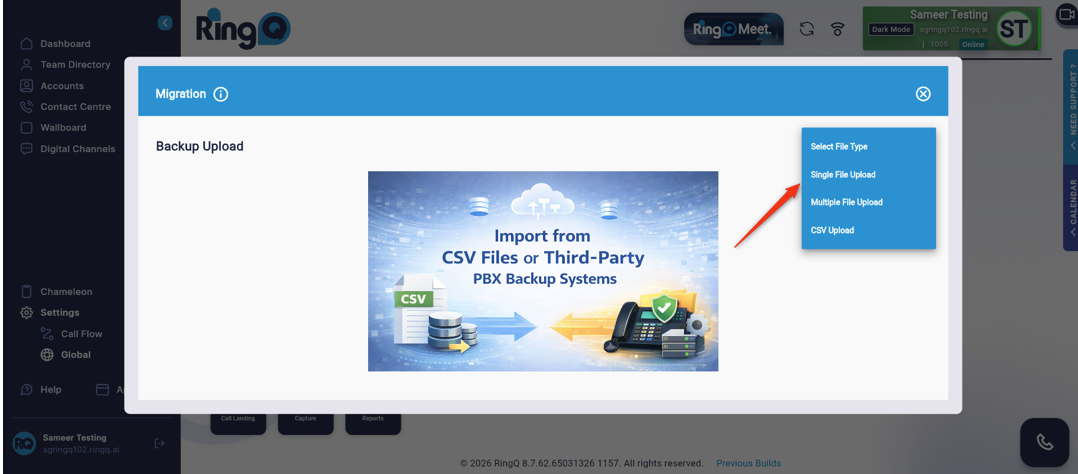
2. In the right-side corner, click on the dropdown field:
a. Single File Upload
b. Multiple File Upload
c. CSV Upload
Single File Upload
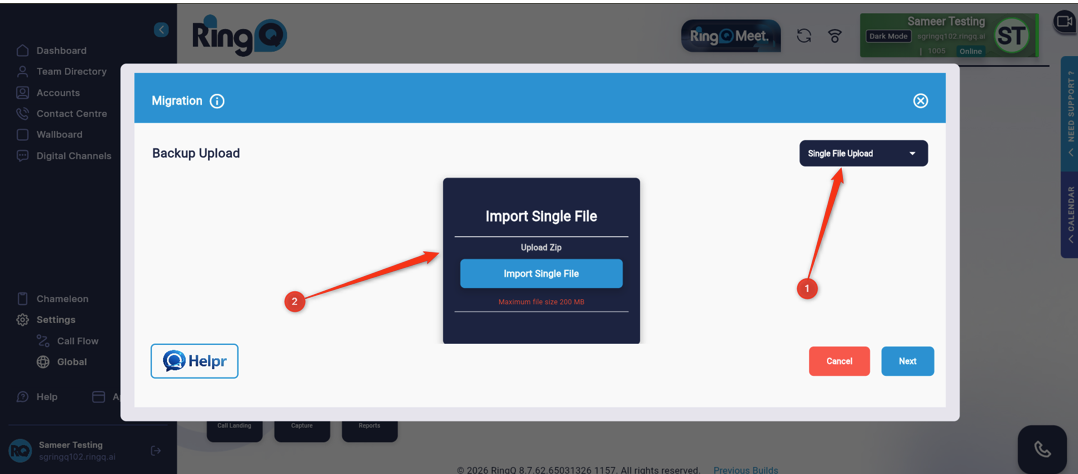
1. Click on the “Import Single File” button. Note that onle ZIP files are supported.
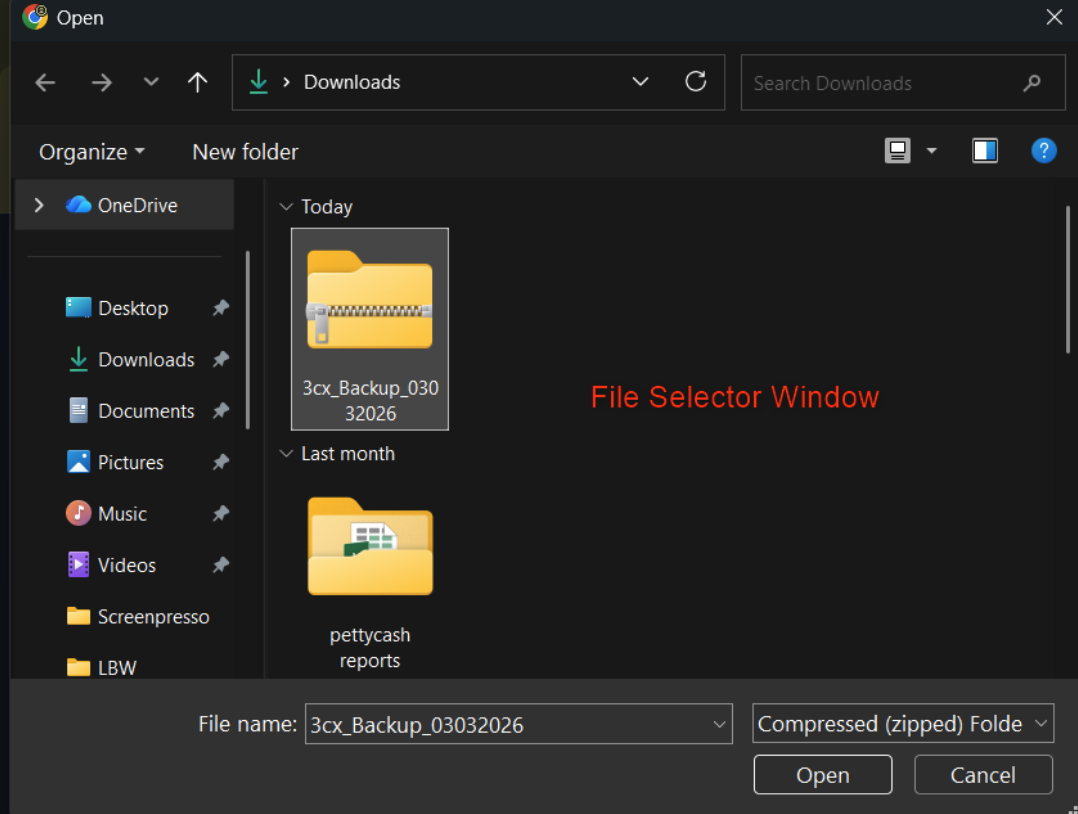
2. Select the ZIP file containing your backup and click “Open”.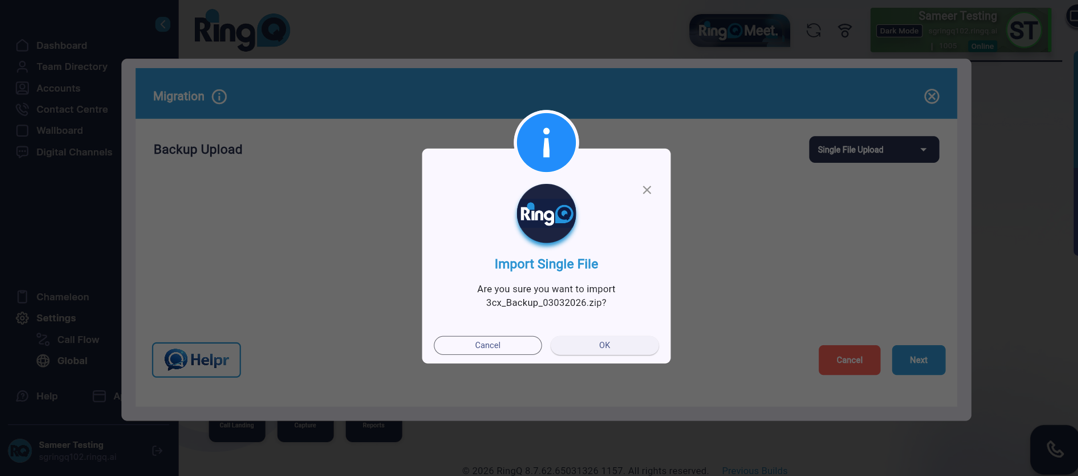
3. In the next window click on “OK”.
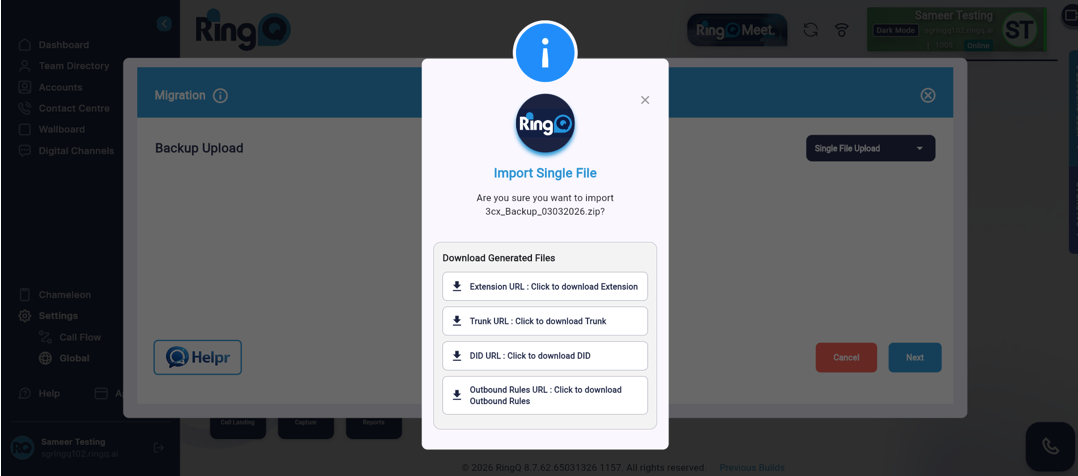
4. Four different files on four tabs will appear. Download each file, and save them.
5. Close the popup and click the Next button.
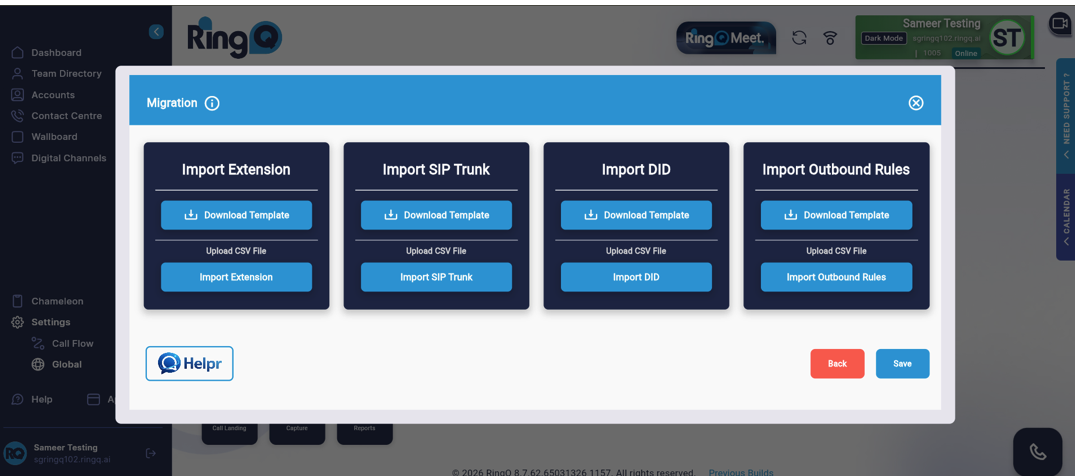
6. From here you can download the CSV file format, add or edit details, and upload/import files. Alternatively, the user can upload/import previously downloaded files.
7. All tabs/boxes have “Download Template” and “Import” buttons.
You can download any CSV template, edit the file, and import it again.
8. When the file is imported and the Save button is clicked, it returns to the General Settings page.
Import Extension/SIP Trunk/DID/Outbound Rules
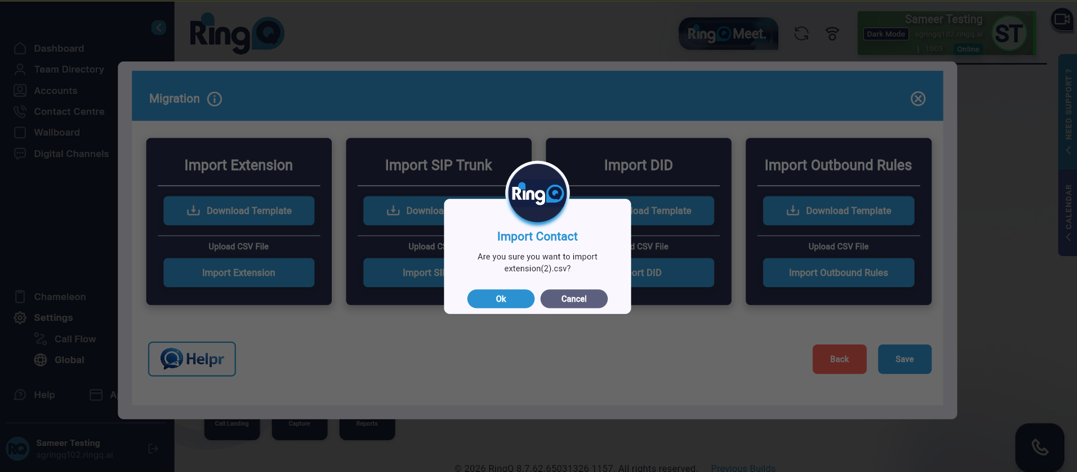 1. When a ZIP/CSV file is imported, a confirmation popup will appear.
2. Click “OK” for the file to upload.
3. Here you can upload separate files in each tab and save them in a single step.
Multiple File Upload
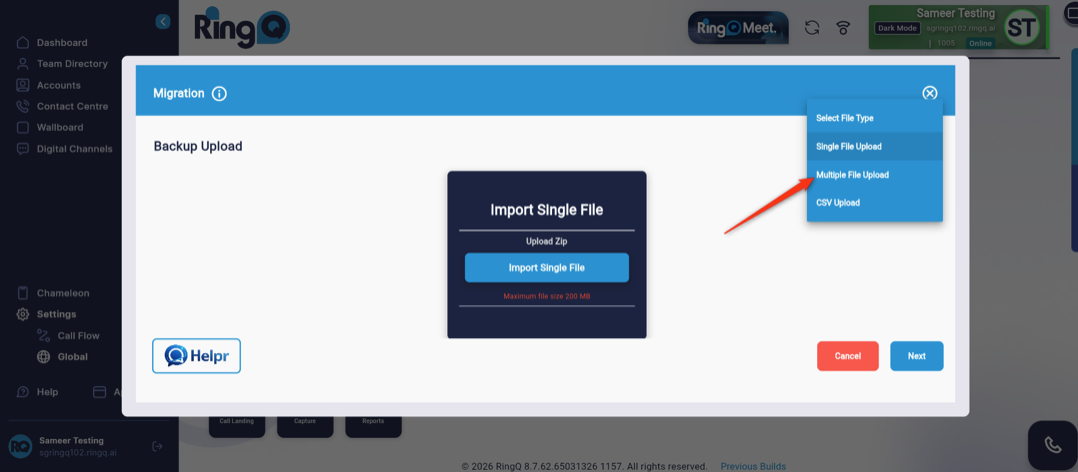
1. Click on “Multiple File Upload”.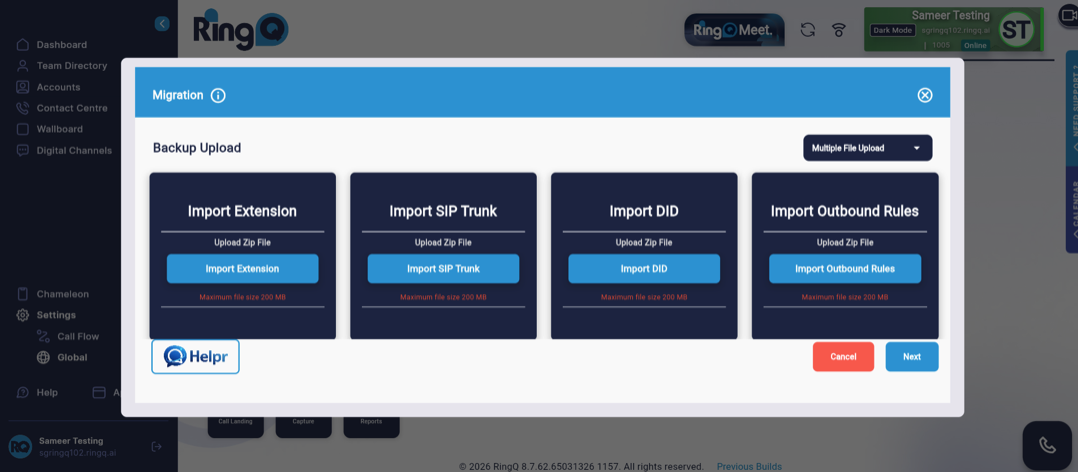
2. Click on “Import Extension”.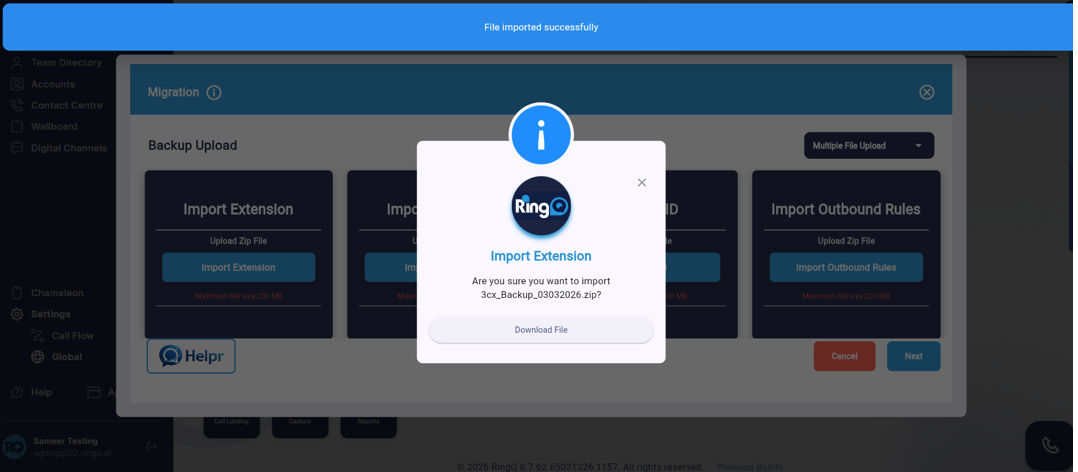
3. After importing the file the page will be displayed as shown above.
4. Click on the Download File button.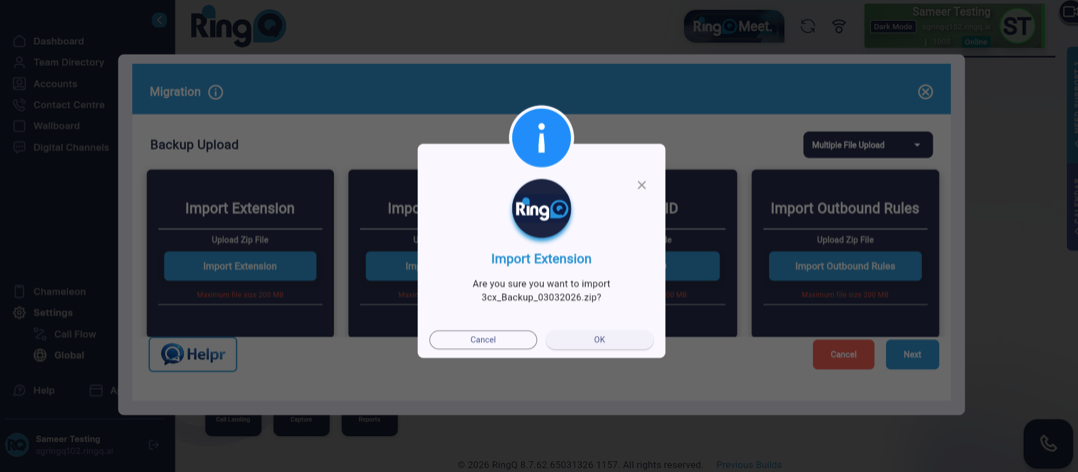
5. The above screen will appear.Click “OK” to download the file.
6. From here you can download the CSV file format, add or edit details, and upload/import files. Alternatively, the user can upload/import previously downloaded files.
7. All tabs/boxes have “Download Template” and “Import” buttons.
You can download any CSV template, edit the file, and import it again.
8. When the file is imported and the Save button is clicked, it returns to the General Settings page.
CSV File Upload
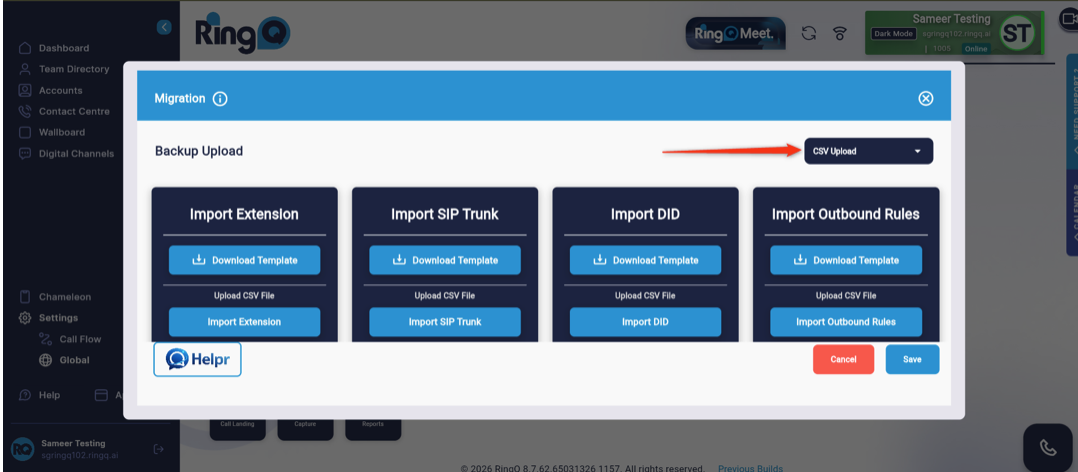
1. Click on the CSV file upload option.
2. This page also has 4 Tabs/Boxes; Import Extension, Import SIP Trunk, Import DID, Import Outbound Rules.
3. When the mouse is hovered over an Import button, a tooltip is displayed as “Backup Upload”. Above the button, it is mentioned as “Upload CSV file”.
4. From here you can download the CSV file format, add or edit details, and upload/import files. Alternatively, the user can upload/import previously downloaded files.
5. All tabs/boxes have “Download Template” and “Import” buttons.
You can download any CSV template, edit the file, and import it again.
6. When the file is imported and the Save button is clicked, it returns to the General Settings page.
Download Extension/ SIP Trunk/ DID/ Outbound Rules
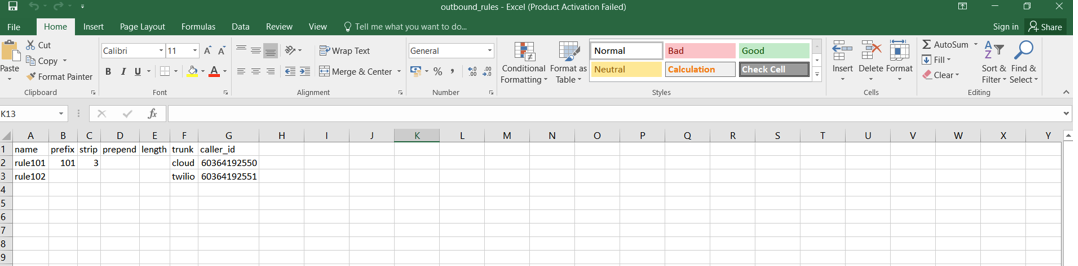
Outbound rules, extensions, SIP Trunks and DIDs are downloaded in Excel format and are displayed as shown above.