
Introduction
This guide explains how to install and set up the RingQ App on macOS. It includes downloading and installing the app, allowing required permissions, and signing in using your RingQ account details.
Install the Application
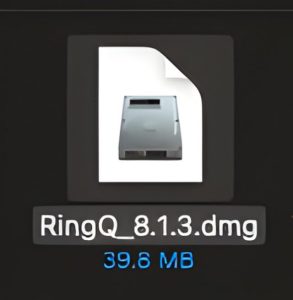
1. Double-click the Mac Desktop App installer to open it.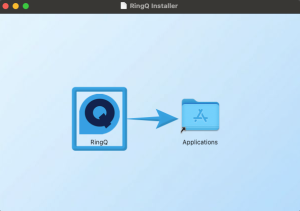
2. Drag and drop the app into the Applications folder.
3. Once installed, the RingQ Desktop App for Mac will appear on your desktopor
in your Applications list.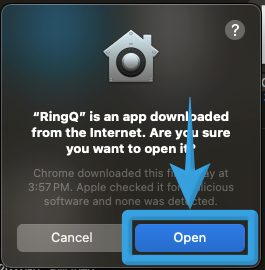
4. Open the RingQ Desktop App from your Applications folder. If the app was downloaded from an unknown source, macOS will prompt for confirmation.Click Open to proceed.
5. When prompted, allow the following permission: “RingQ” wants access to control “System Events”. Click Allow to grant access.This enables the app to interact with system functions and perform necessary actions.
Sign into your Account
1. After launching the app and granting permissions, enter your login details:
a. Host: Enter your RingQ system URL. Example: multi.flowersconradplc.ringq.cloud
b. Username: Go to Accounts → Extensions → Summary in the RingQ Web Admin. Copy the Email Address registered in your extensiomn and paste it into the Username field.
c. Password: Use the Web Password from the same section. Unhide (if necessary), then copy and paste it into the Password field.
2. Click Sign In to access your account.
Your RingQ Mac Desktop App is now ready for use, so you can start making and receiving calls.