
Introduction
This guide explains how to create a full Instance Backup using the Time Machine feature in RingQ. An instance backup captures the complete system state required for restoration.
Prerequisites
- Admin access to the RingQ Web Portal
- Backup storage configured (Local Disk, S3, FTP, or SFTP)
- Sufficient storage space available
Taking a Backup
1. Login to RingQ using your Admin credentials.
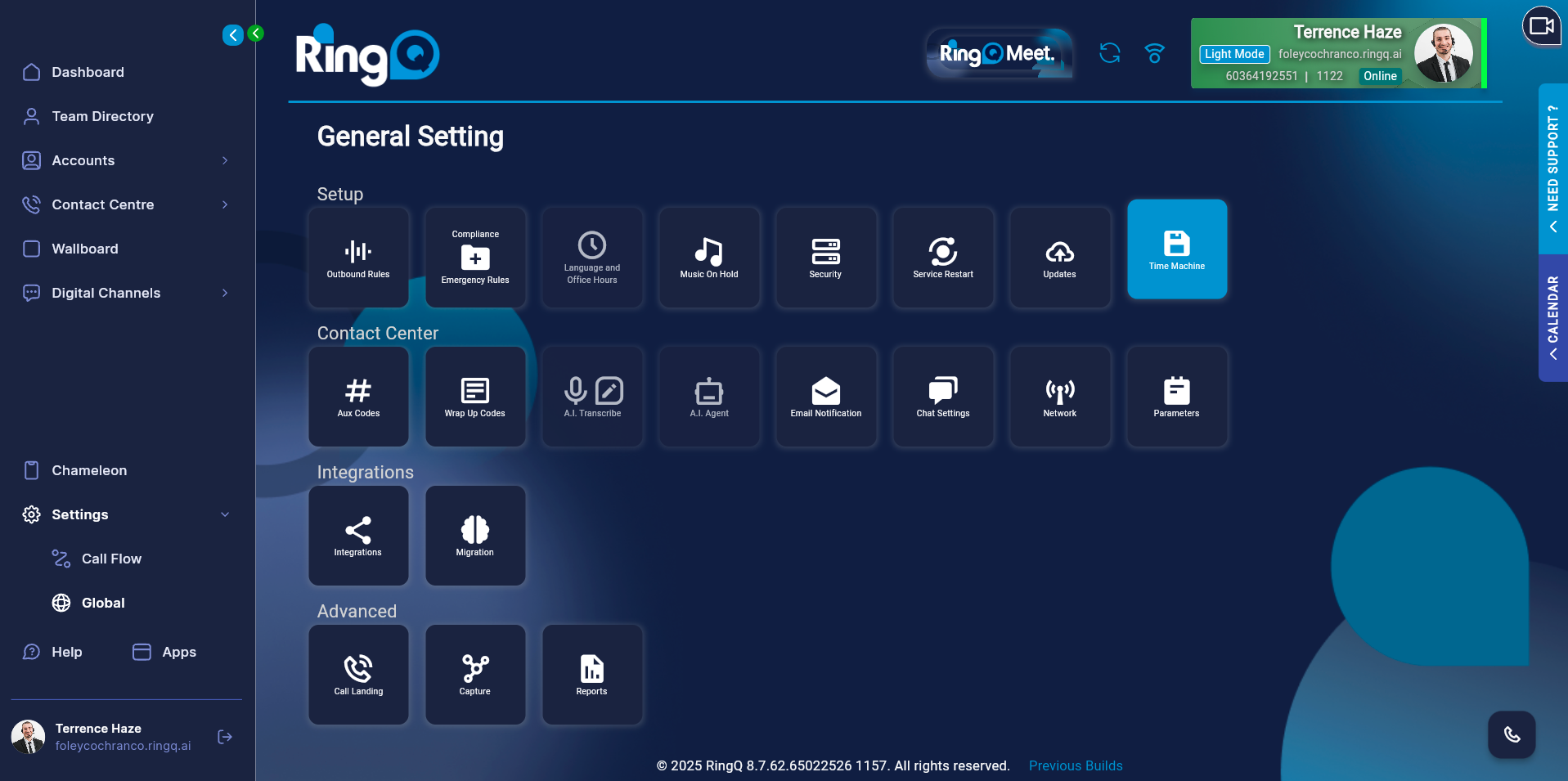
2. Go to: Settings → Global → Time Machine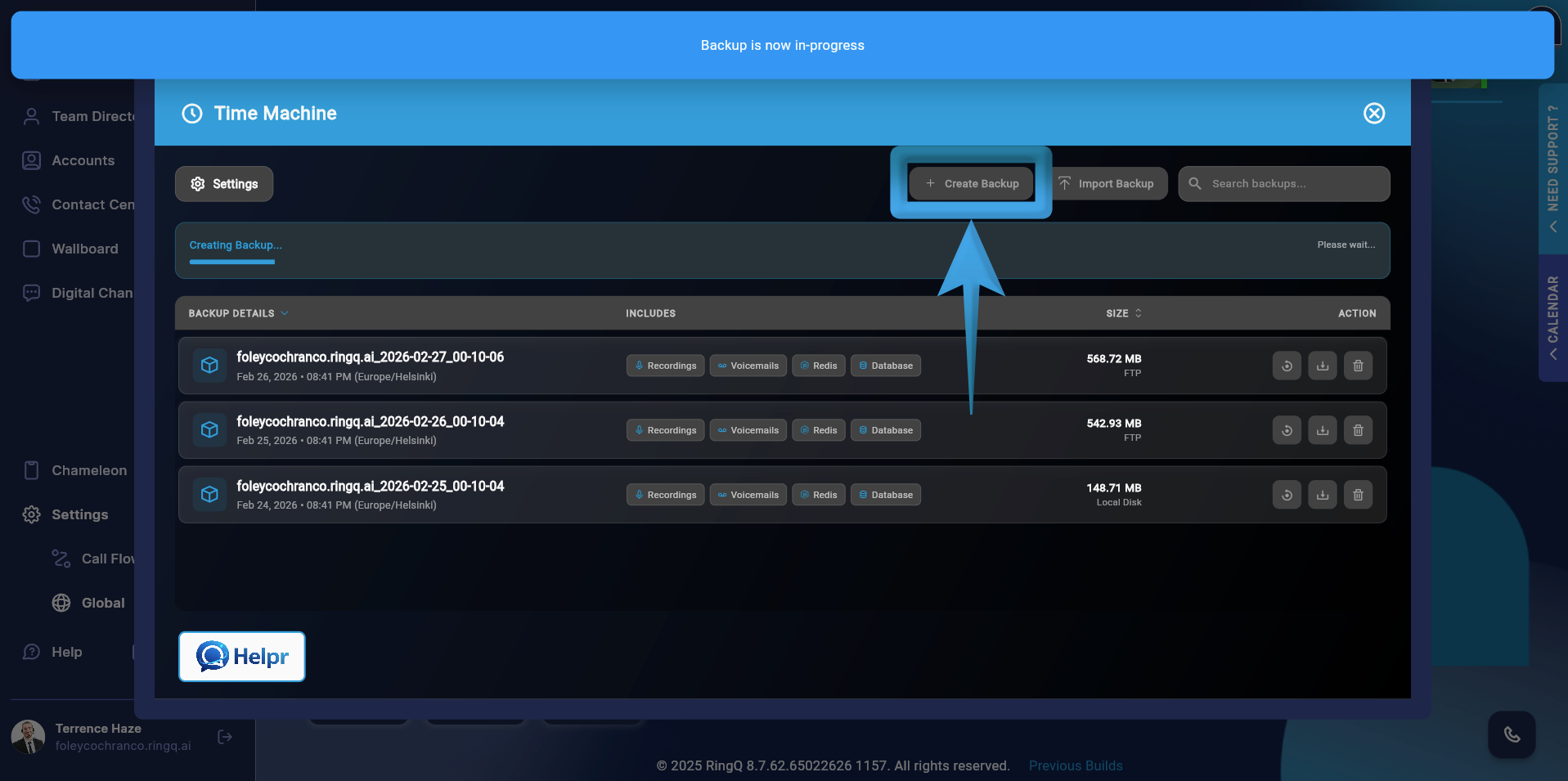
3. Click the Create Backup button. You will be prompted to enter a backup name (recommended format: instance-backup-YYYYMMDD) and to add a short description (optional).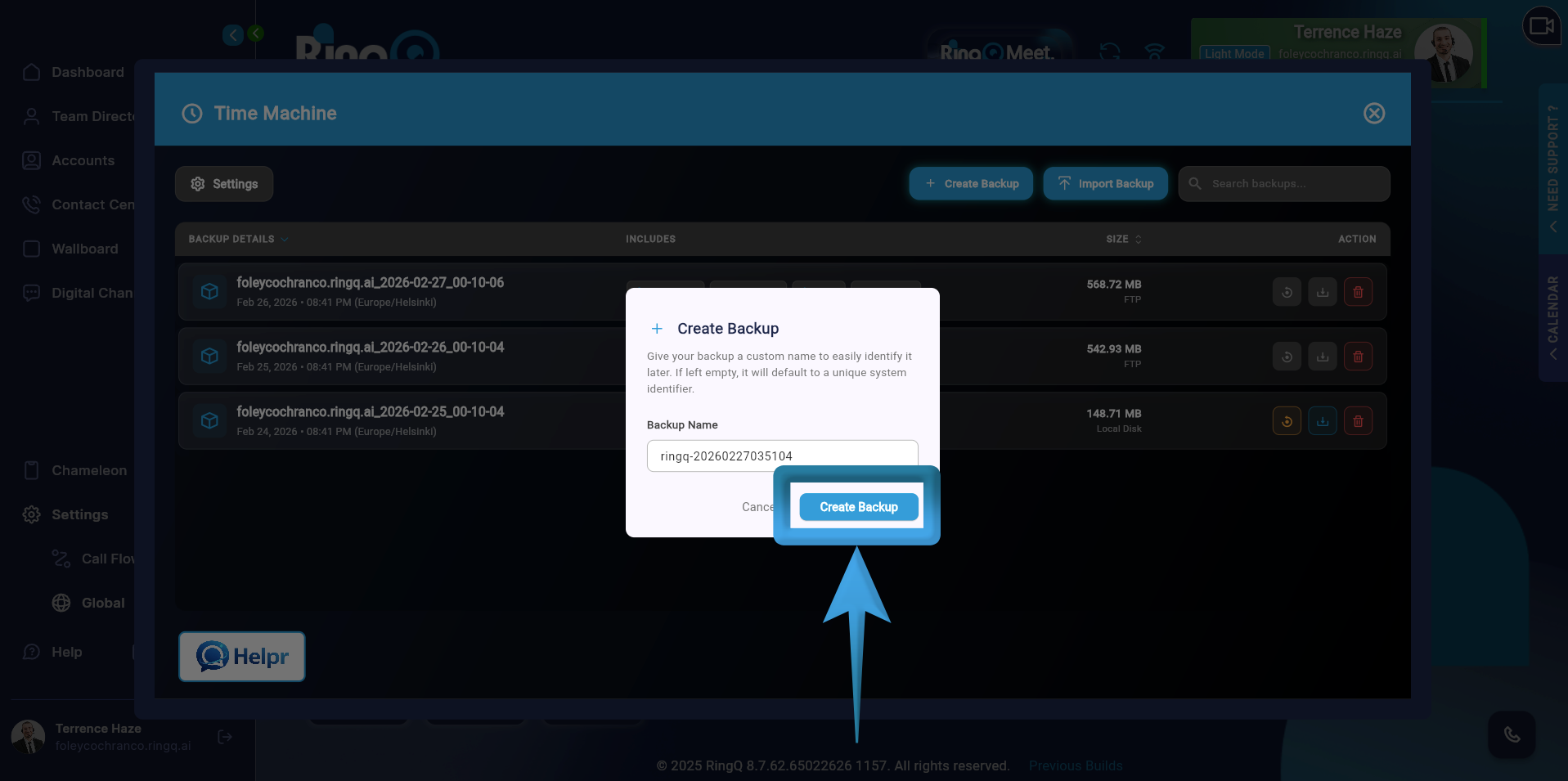
4. Click Create Backup. The system will:
- Dump the database
- Capture Redis state (if enabled)
- Compress configuration files
- Generate a backup archive
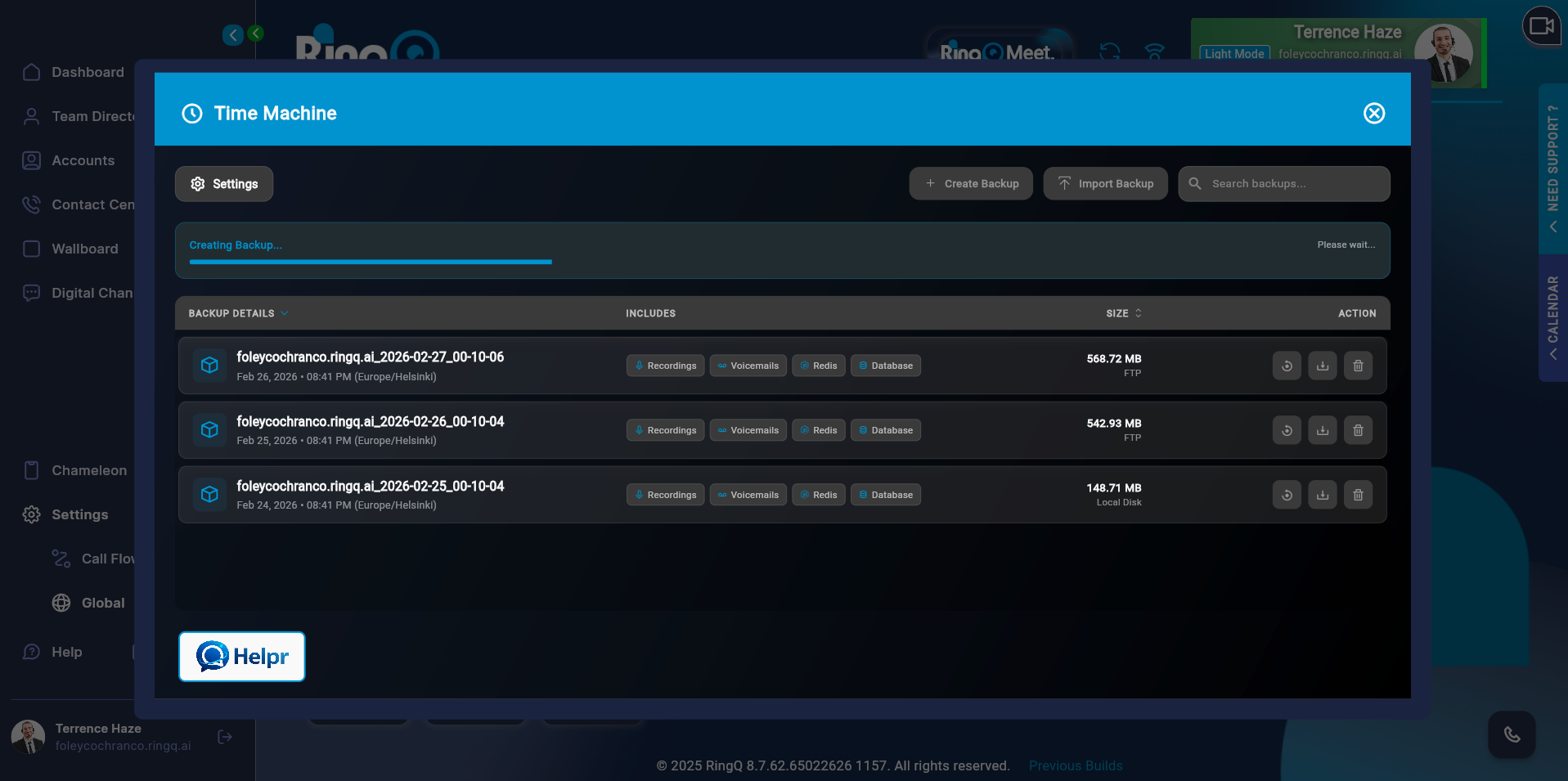
5. Monitor your Backup status and Wait for the status to change to “Completed”. Do not refresh or close the browser while the backup is running (unless auto-refresh logic is implemented in your current RingQ version).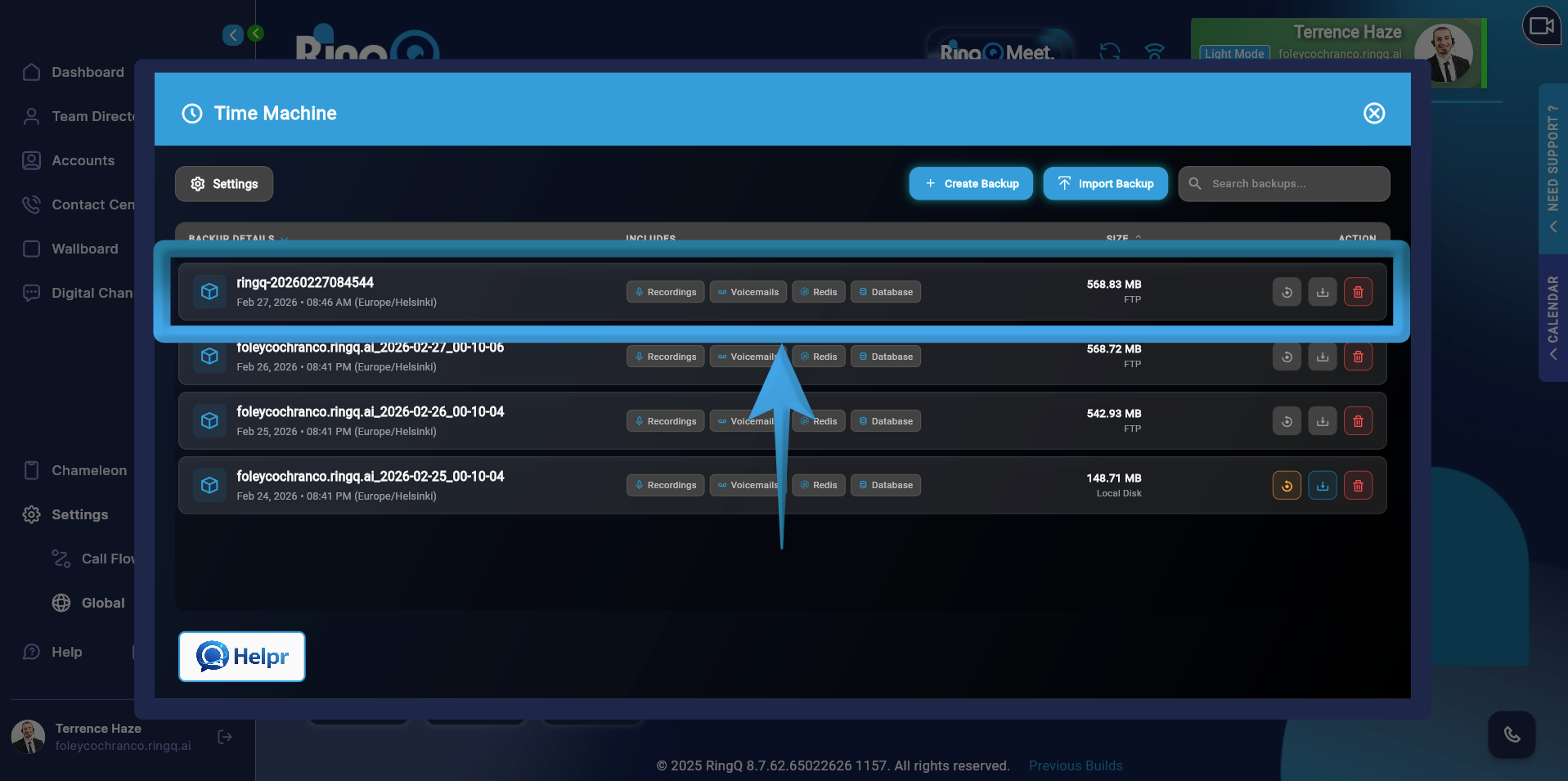
6. Once the process is completed, the newly created backup will be displayed in the backup list on the Time Machine page.
Configuration-Based Backup
The backup content depends on what components are enabled in the Time Machine settings. Available Components:
- Database – System configurations, users, call flows, queues, SIP trunks, settings, and CDRs
- Redis – Active sessions, real-time presence, queue runtime states, cached data
- Recordings – Call recordings stored in the system
- Voicemails – Saved voicemail messages and related audio files
Storage Destination – Determines Where files are saved. The generated backup will be stored in the selected storage option:
- Local Disk – Stored directly on the server
- AWS S3 – Stored in configured Amazon S3 bucket
- FTP – Stored on a remote FTP server
- SFTP – Stored securely on a remote SFTP server
Important Note: The system will only back up the components that are enabled in the Time Machine configuration, and the files will be saved in the chosen storage destination.
What an Instance Backup Contains
A full instance backup typically includes:
- Extensions & users
- Call flows & IVR
- Queues
- DID & outbound rules
- SIP trunks
- Chat & AI configurations
- System settings
- CDR records
- Redis runtime data