
Introduction
This guide explains how to configure AWS S3 backup storage inside the RingQ Time Machine feature for automated and secure cloud backups.
Create an S3 Bucket in Amazon Web Services
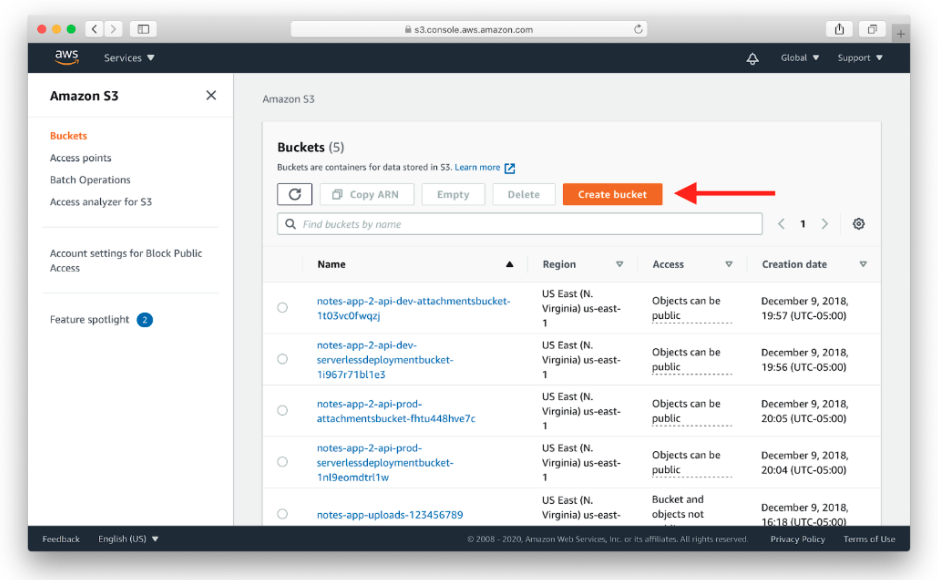
1. Log in to your AWS Console.
2. Navigate to Amazon S3.
3. Click Create bucket.
4. Configure:
a. Bucket Name: e.g., ringq-backup-prod
b. Region: Choose the region closest to your RingQ server (important for latency).
5. Enable Bucket Versioning (Recommended)
6. Enable Server-Side Encryption (SSE-S3 or SSE-KMS) (Recommended)
7. Click Create bucket.
Create IAM User for RingQ Backup Access
Important: Do NOT use root credentials.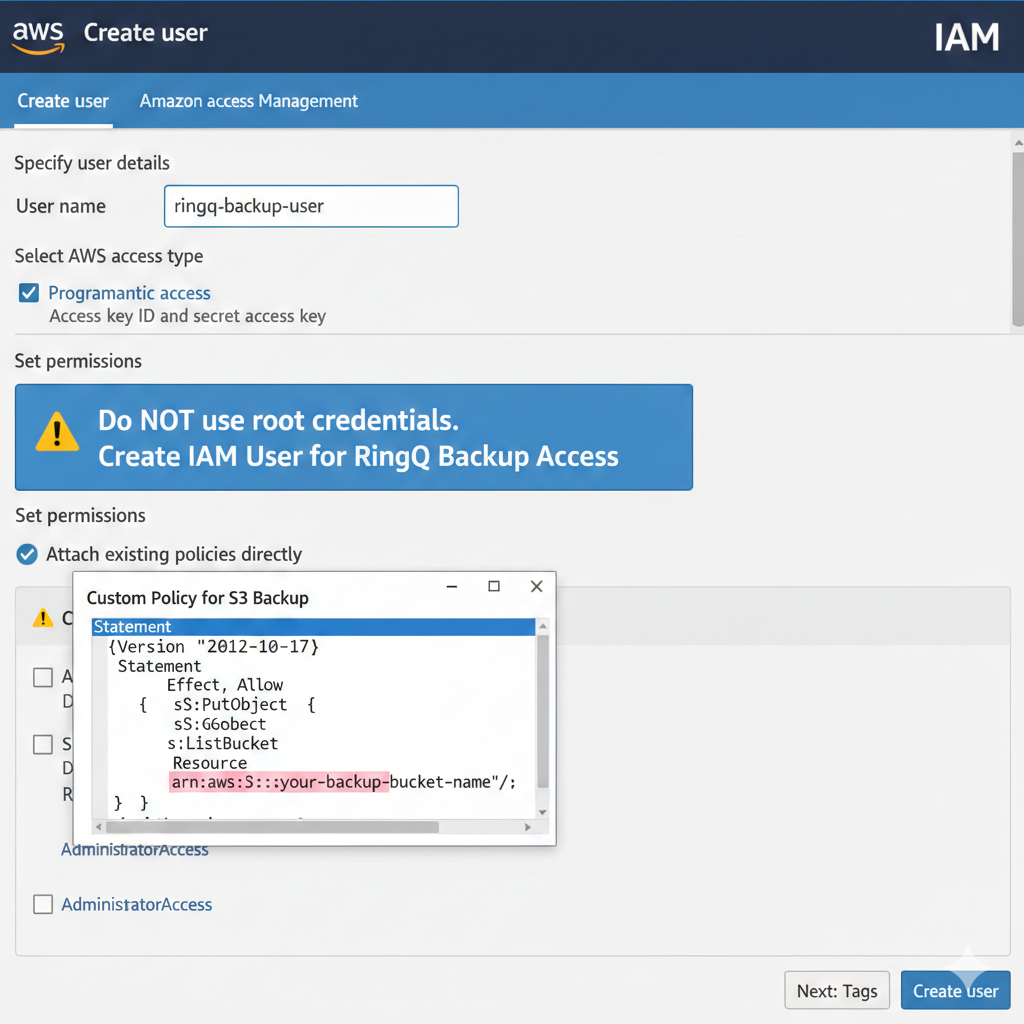
1. Go to IAM → Users → Create user
2. Username: ringq-backup-user
3. Enable Programmatic Access (Access Key)
4. Attach permission. Recommended: Custom policy limited to your S3 bucket
5. Create user
6. Save the Access Key ID and the Secret Access Key
Access your RingQ Time Machine Settings
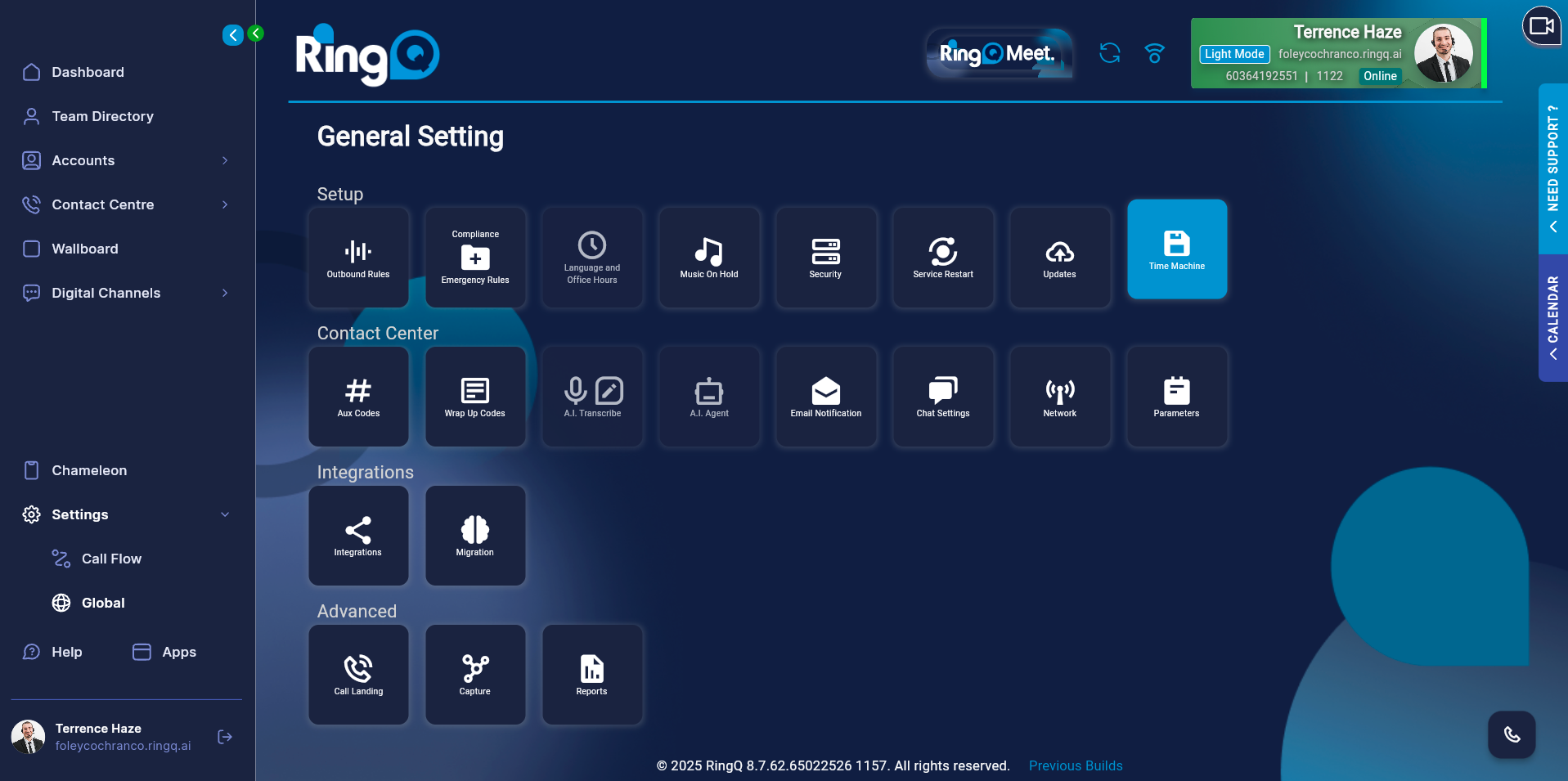
1. Log in to your RingQ Admin Dashboard
2. Navigate to:
Settings → Global → Time Machine
3. Go to Settings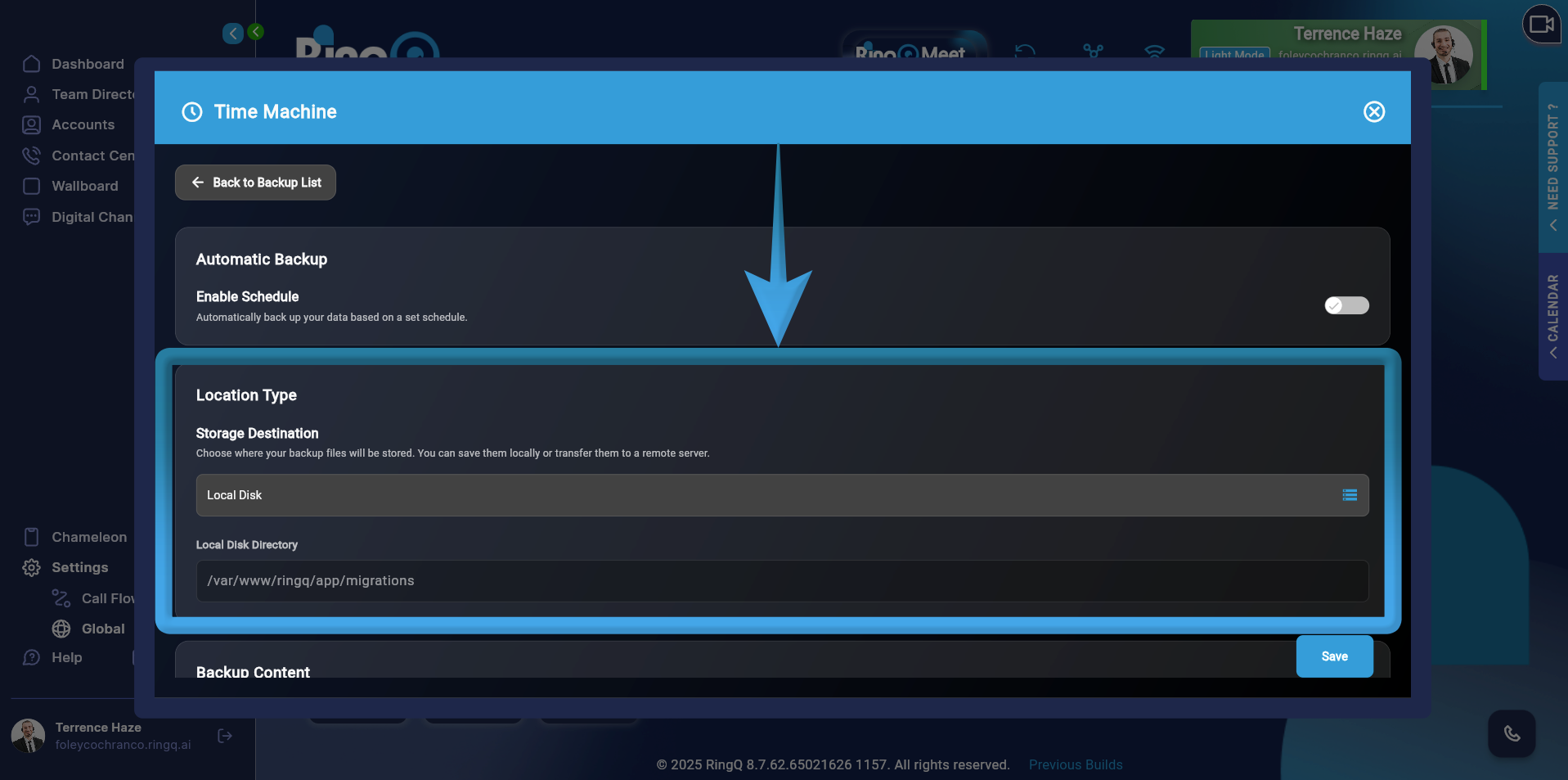
4. Scroll down to Location Type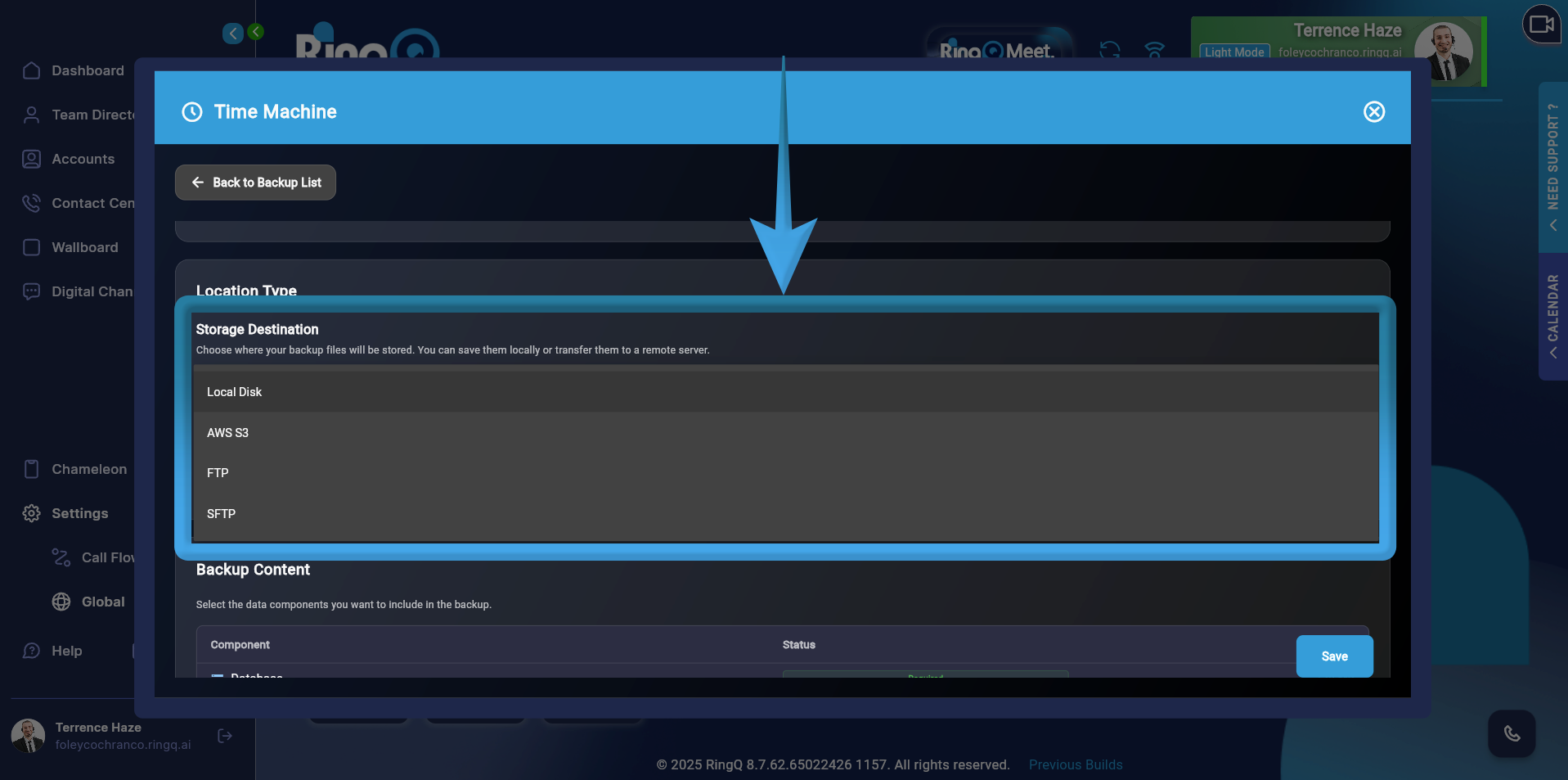
5. Click the Storage Destination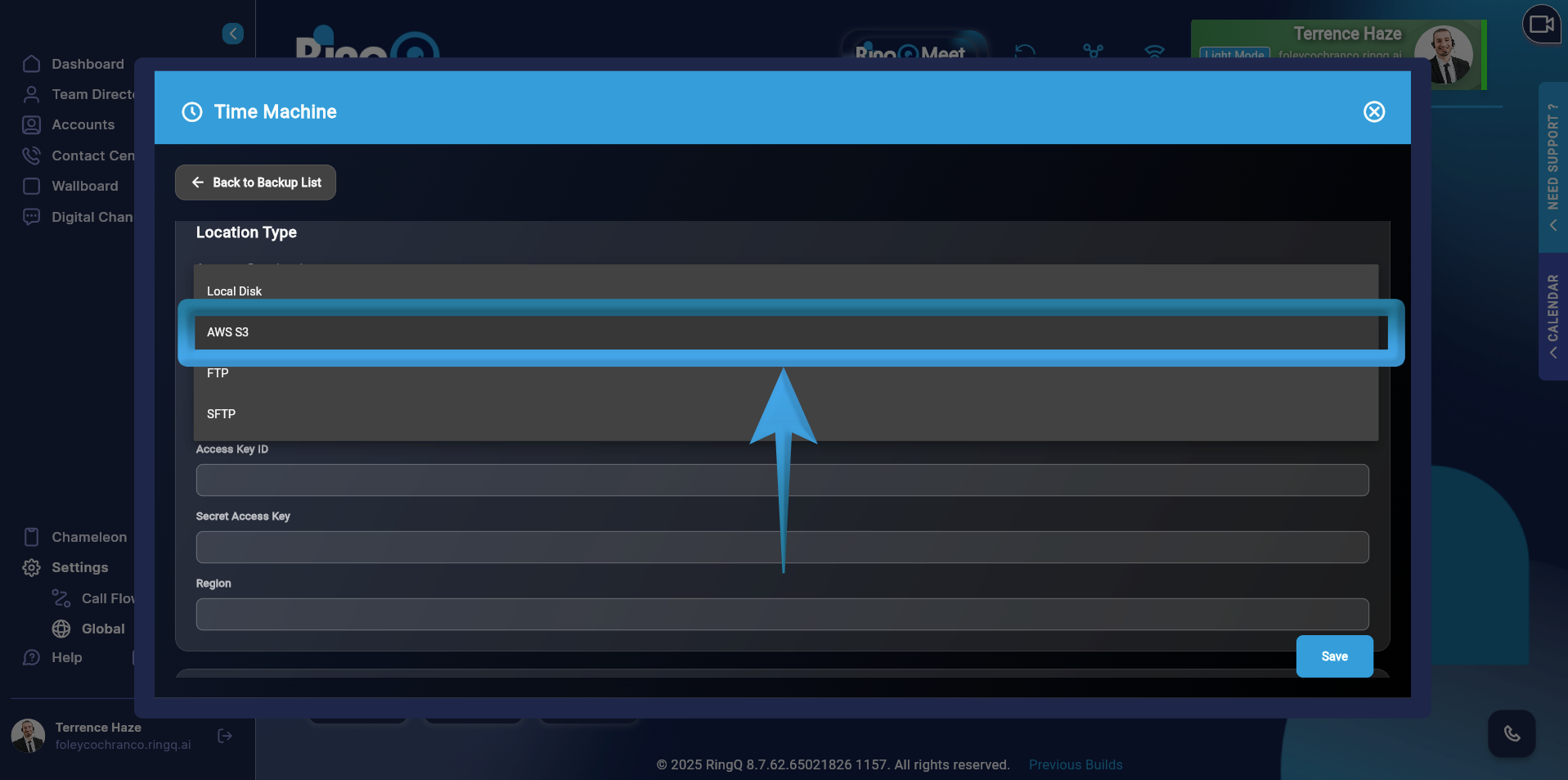
6. Select AWS S3
Configure AWS S3 as Backup Destination
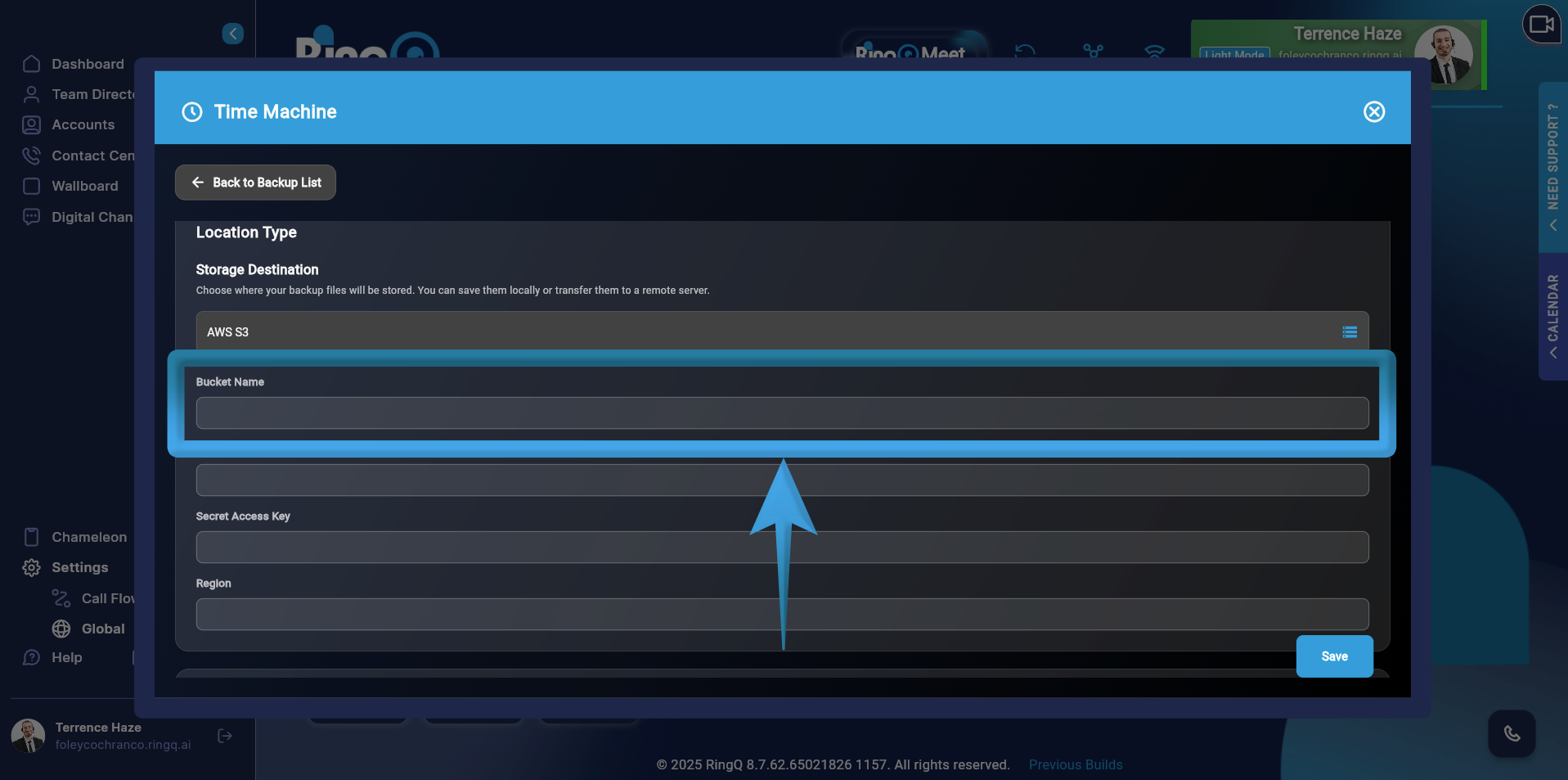
Fill in the following fields:
- Bucket Name – Enter the exact name of your created S3 bucket.The bucket must already exist in your AWS account.
- Access Key ID – Enter the Access Key generated from your IAM user (e.g., ringq-backup-user). This key allows RingQ to authenticate to AWS.
- Secret Access Key – Enter the Secret Key paired with the Access Key ID. Keep this confidential. Do NOT use root account credentials.
- Region – Select the AWS region where your S3 bucket is hosted. The region must match the bucket’s configured region.
Click Save to apply and store the configuration.