
Introduction
This guide provides quick steps to configure the Web Chat WordPress Plugin in RingQ, allowing you to integrate live chat into your website and enable agents to handle conversations directly from the platform.
Create a WebChat (WordPress Plugin)
1. Log in to your RingQ Admin Dashboard.
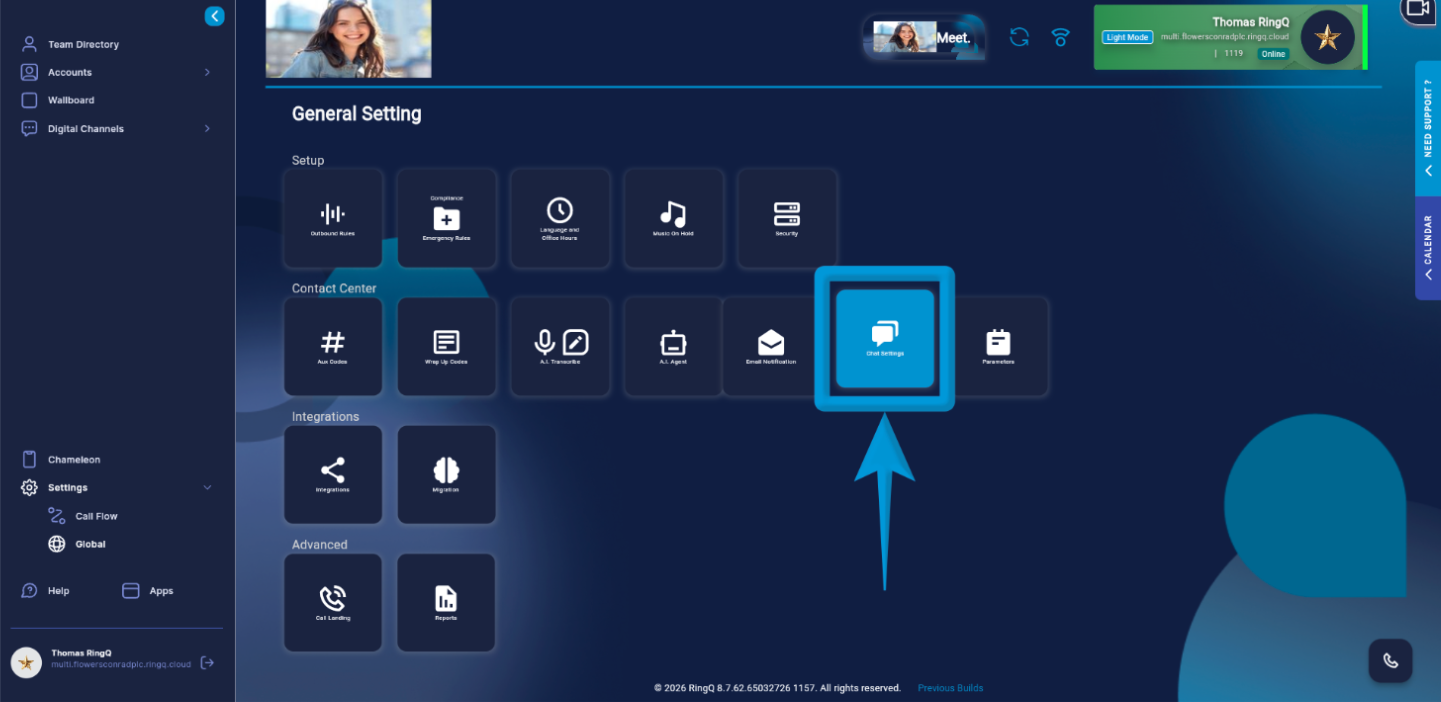 2. Go to “Settings”>”Global” and select “Chat Settings”.
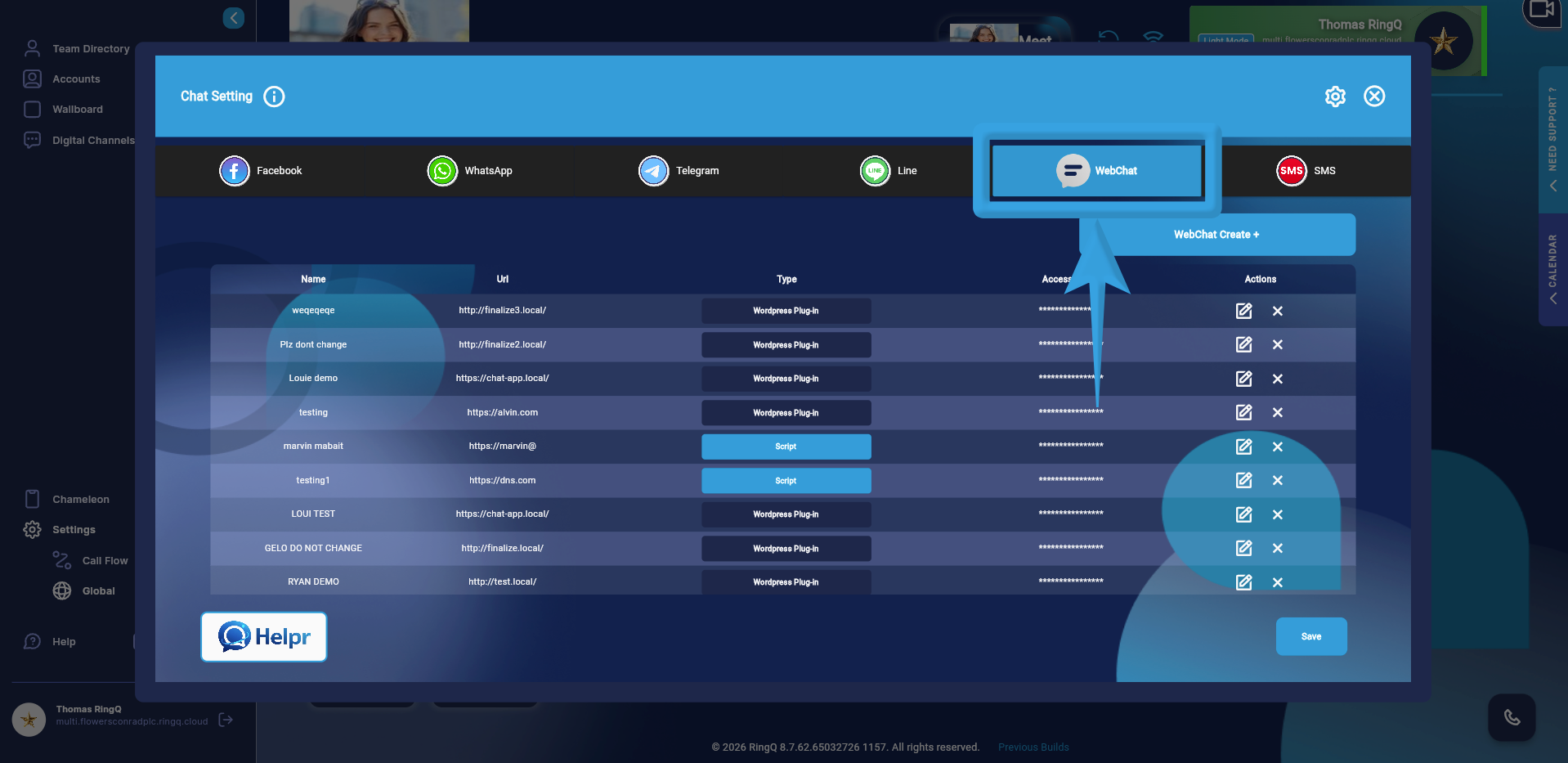 3. Open the WebChat tab.
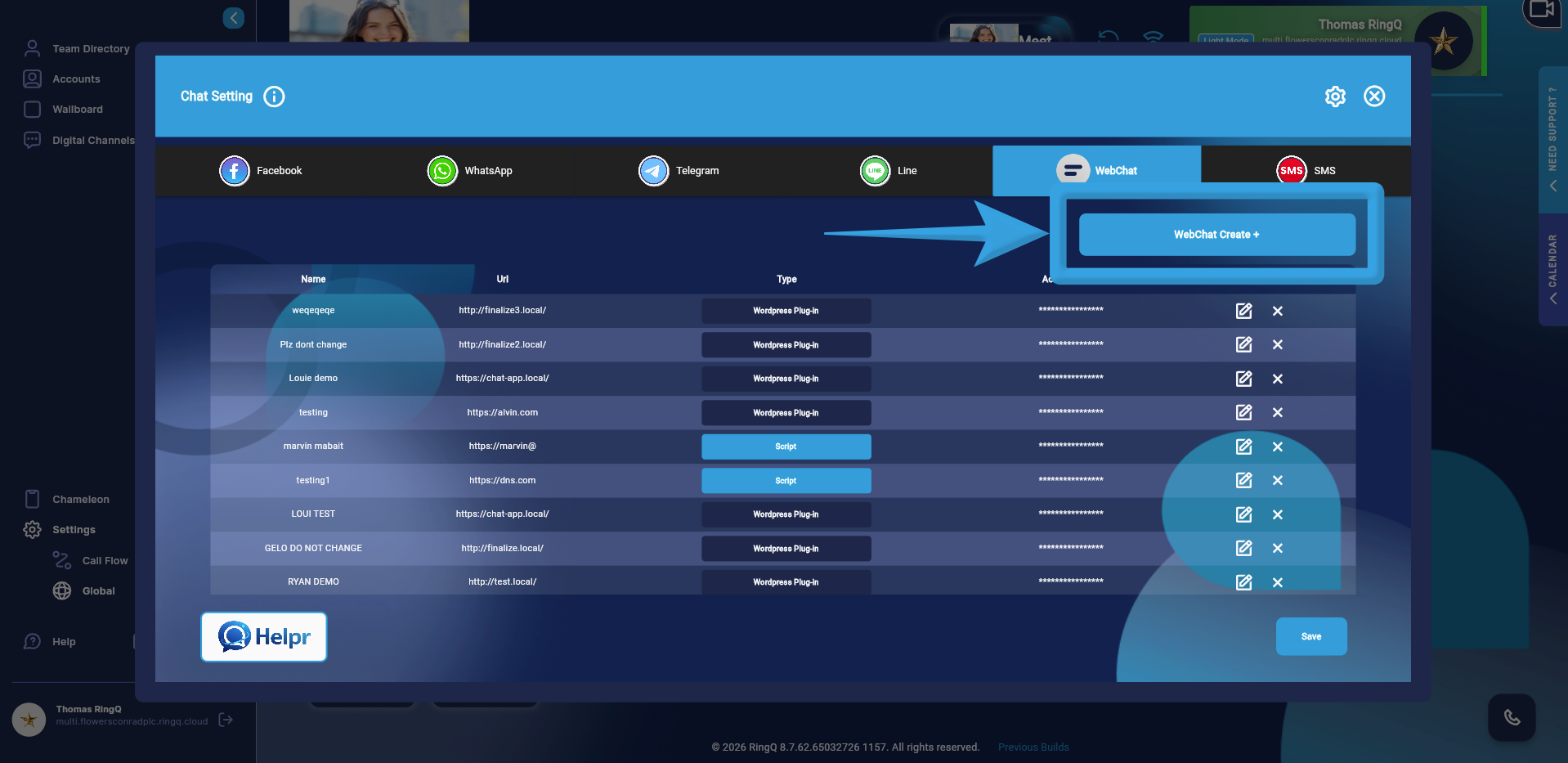 4. Click on “Create WebChat”.
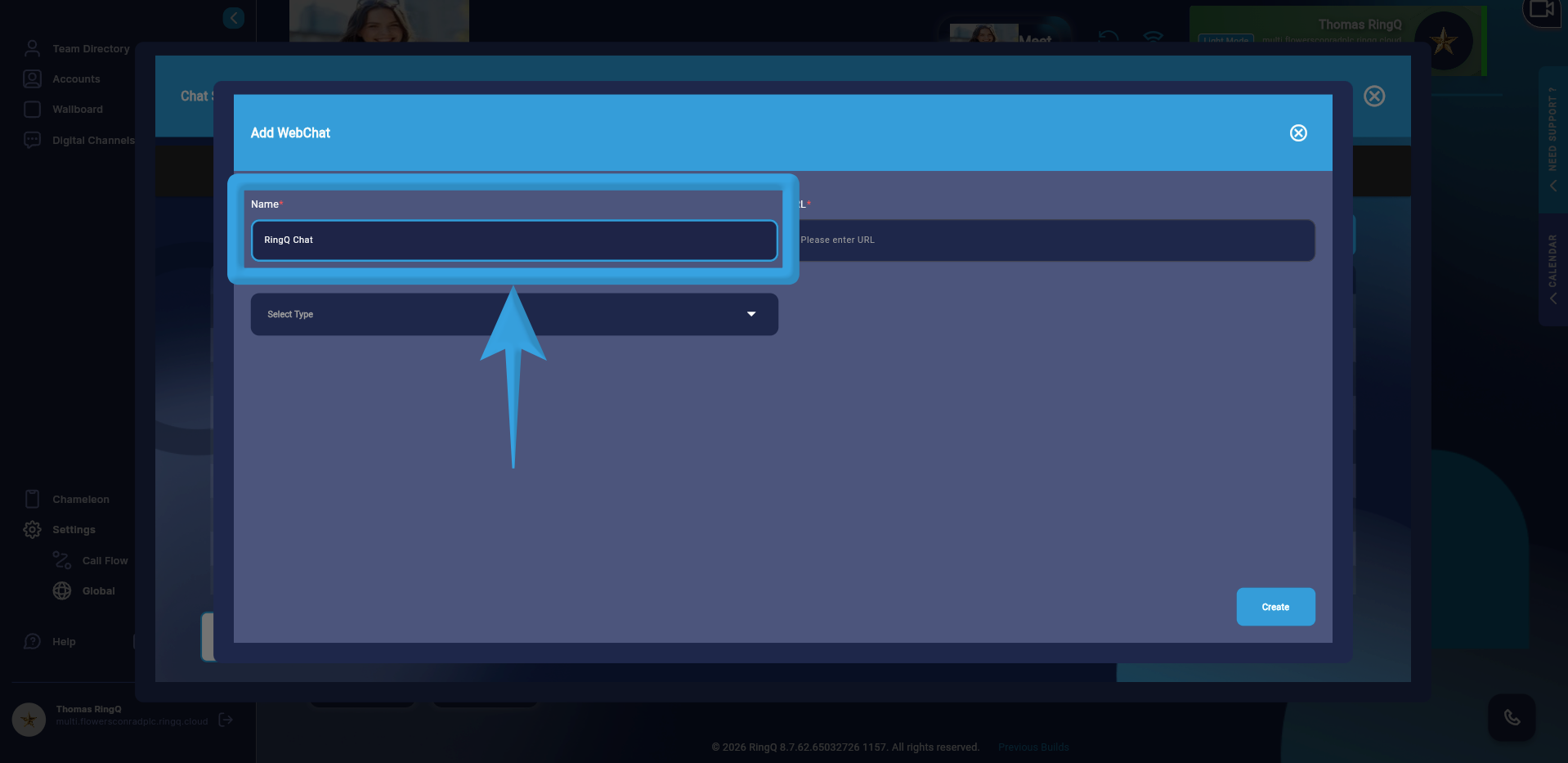 5. Enter the WebChat name.
6. From the Type dropdown, select WordPress Plug-in.
7. In the “Website” field enter the Website URL where the chat will be deployed.
8. Click “Create”.
5. Enter the WebChat name.
6. From the Type dropdown, select WordPress Plug-in.
7. In the “Website” field enter the Website URL where the chat will be deployed.
8. Click “Create”.
Retrieve the Access Token
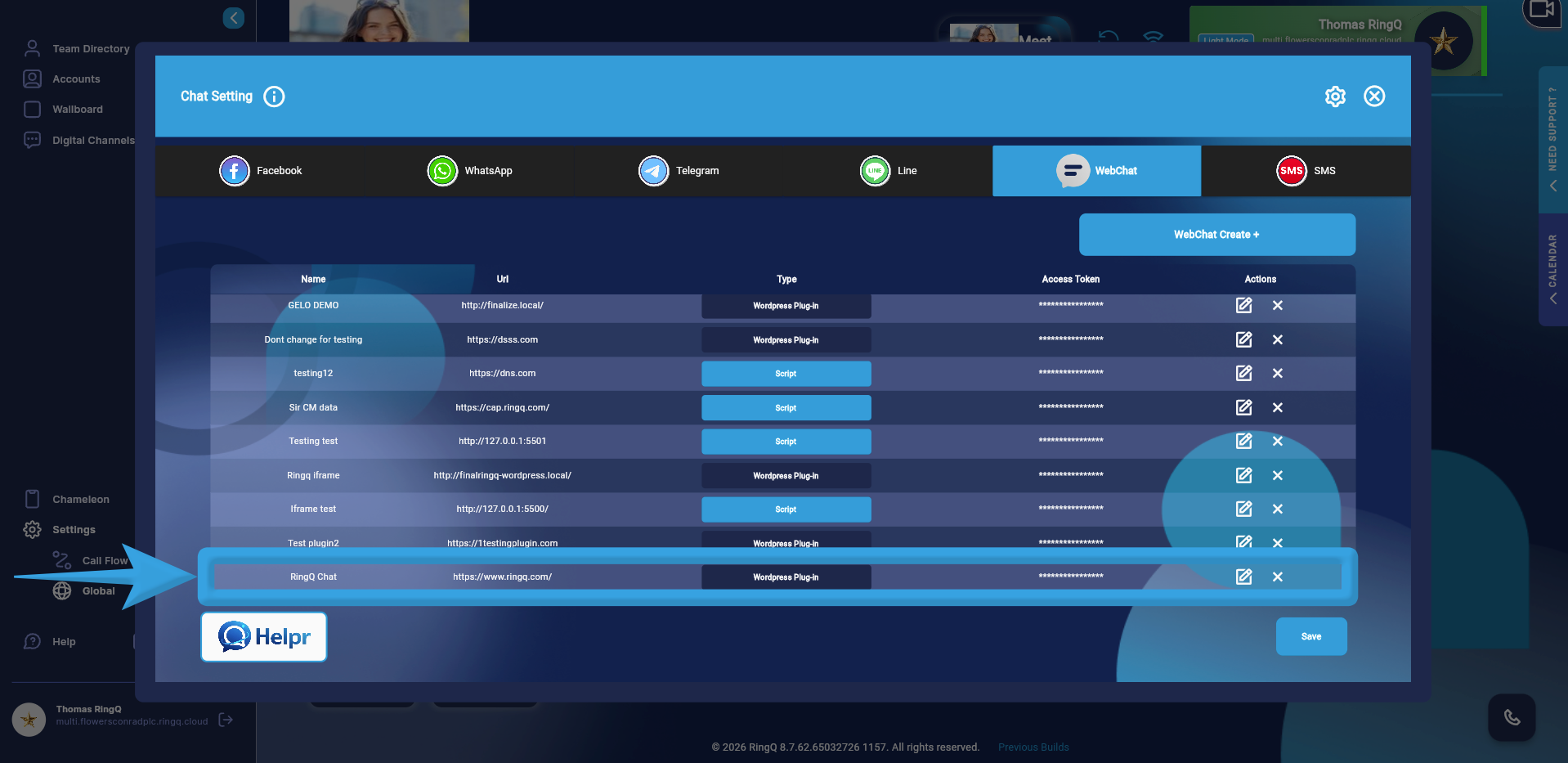 1. Locate the WebChat you just created in the list.
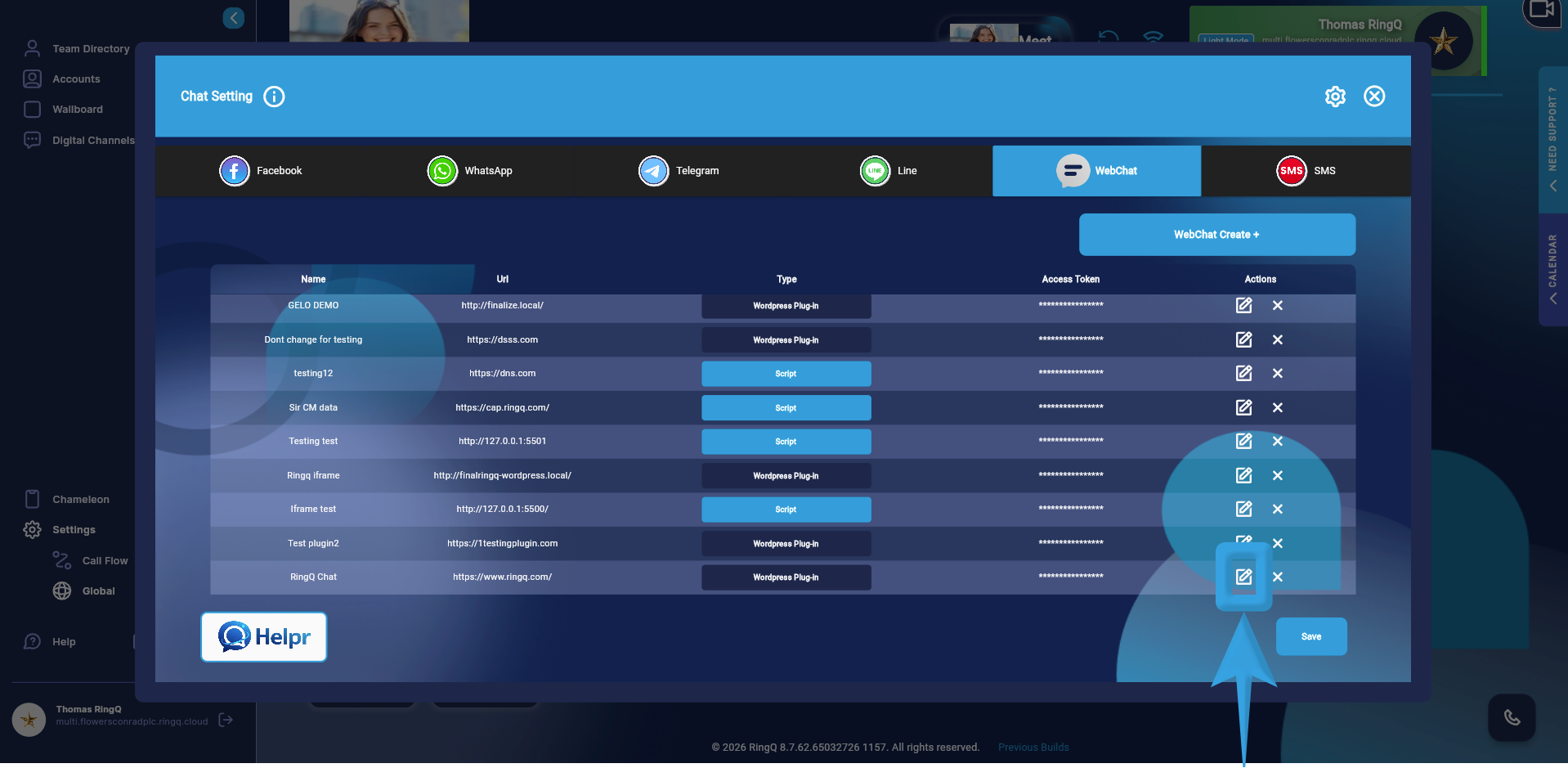 2. Click the Edit icon under the Actions column.
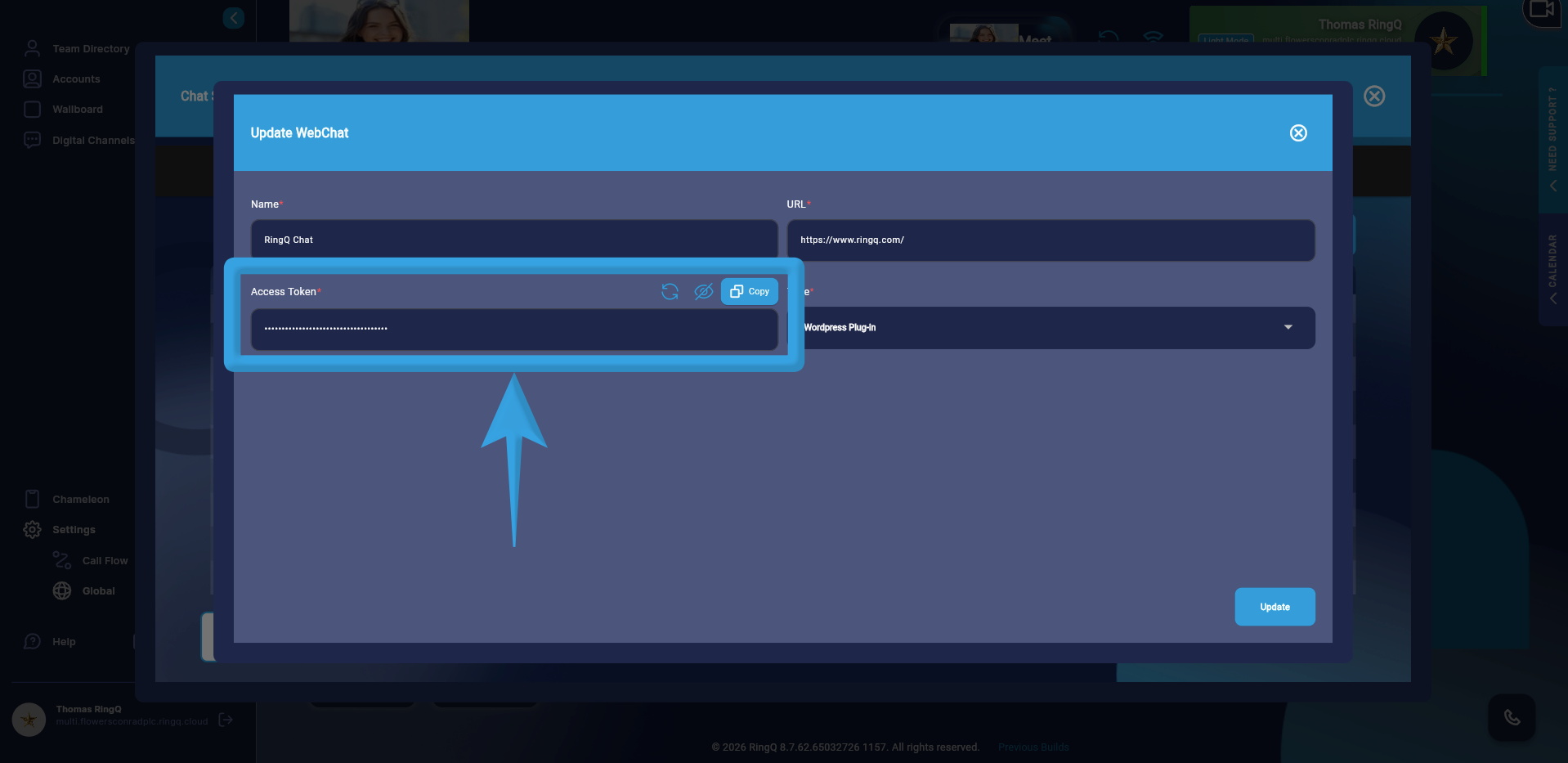 3. Copy the Access Token for use in your WordPress plug-in configuration.
Your WebChat WordPress Plug-in is now configured and ready for integration with your website.
3. Copy the Access Token for use in your WordPress plug-in configuration.
Your WebChat WordPress Plug-in is now configured and ready for integration with your website.
See Also
- How To Add The WordPress Plugin For The Chat Widget
- Adding the Chat Widget Script to a Website
- Configuring the Chat Widget in RingQ Chat Settings
- How to Add and Manage Multiple Web Chats
- Configuring Chat Queues and assign agents
- Opening Web Chats and Replying to Messages
- Retrieving the Chat Widget from RingQ