Introduction
This guide shows you how to retrieve the Chat Widget Script from the RingQ WebChat settings. You’ll need this script to embed the RingQ chat widget on your website and enable real-time conversations with visitors.
This guide covers script retrieval only. Website implementation is explained in a separate guide.
Prerequisites
- Administrator access to your RingQ account.
- A WebChat configuration with “Widget” as the selected type has been created.
Retrieving the Chat Widget
1. Log in to the RingQ Admin Dashboard with your administrator credentials. 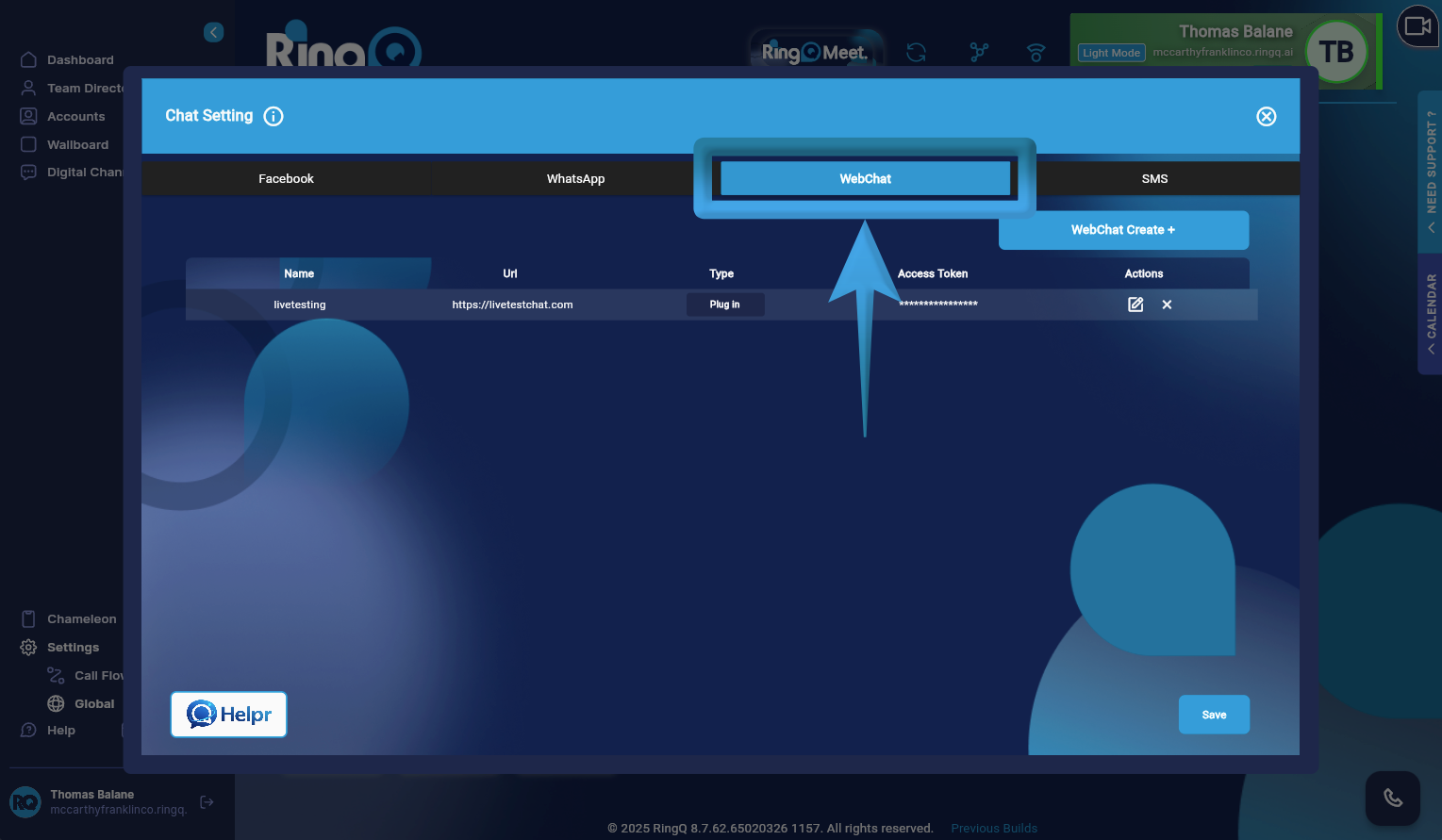
2. Navigate to WebChat Settings. Go to: Settings → Global → Chat Settings → WebChat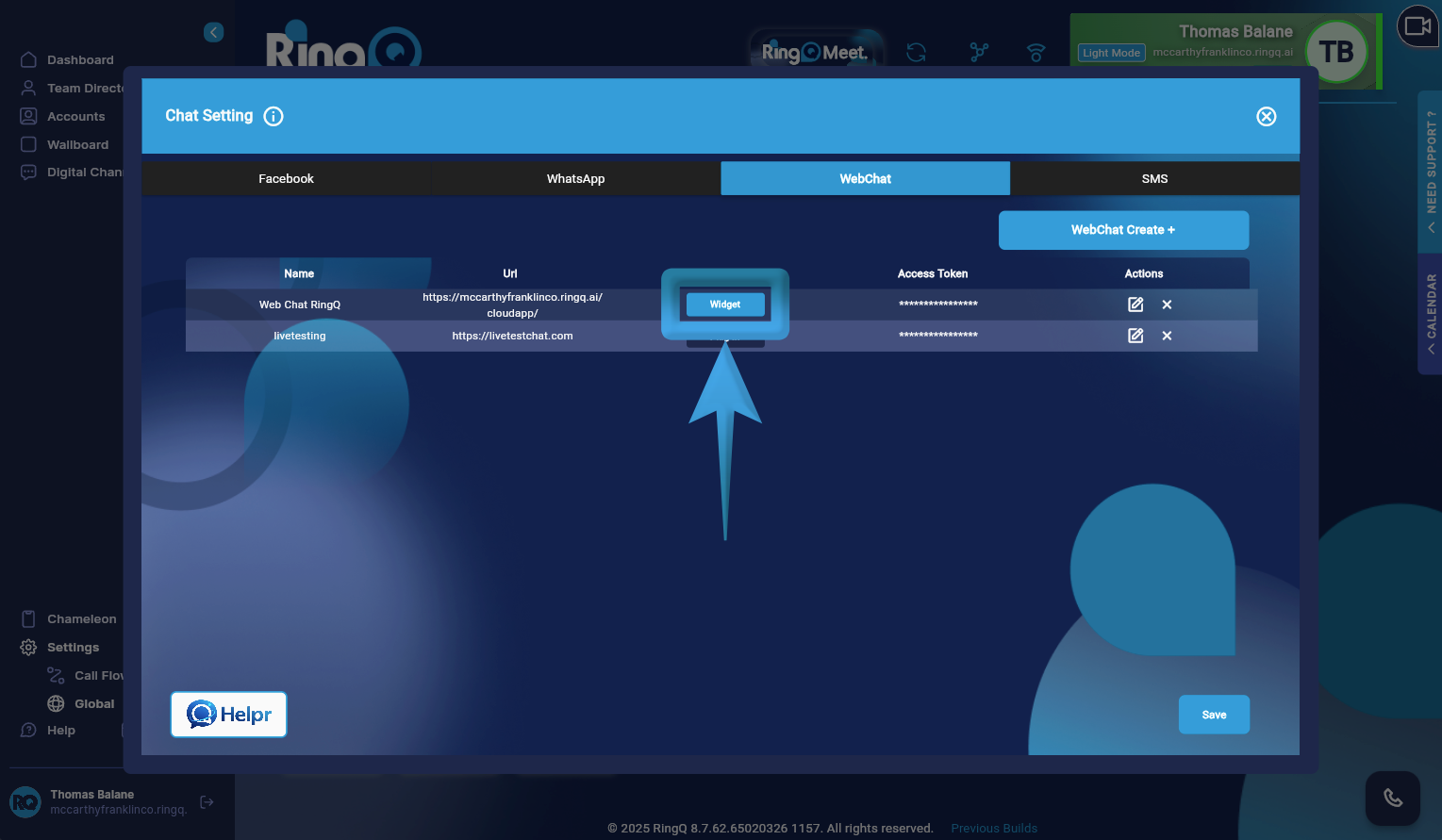
3. From the list of created WebChats, identify the WebChat configured with the Widget type.
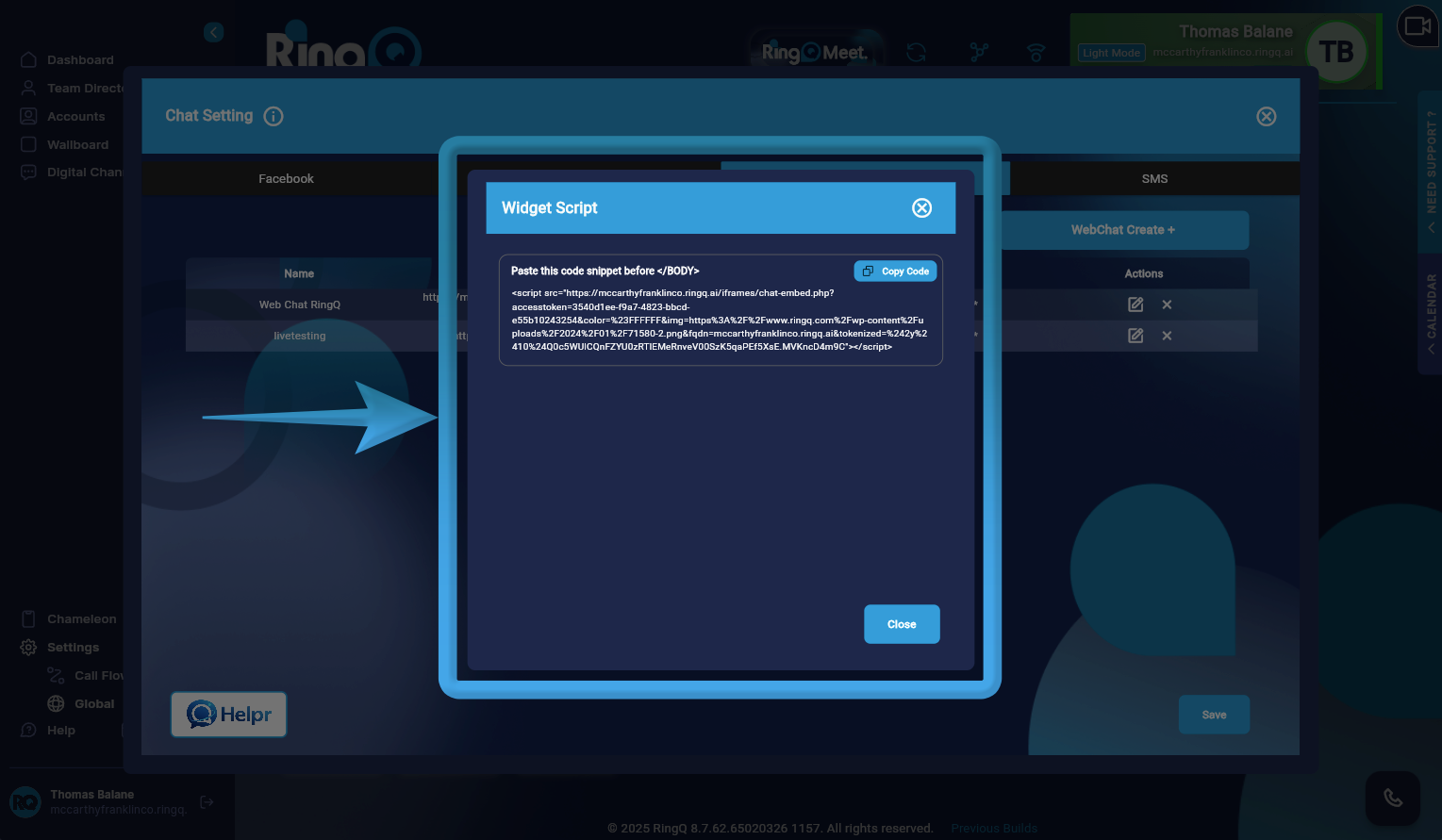
4. Click the Widget button corresponding to the selected WebChat. A Widget Script window will appear displaying the embed code.
5. Click “Copy Code” to copy the complete Chat Widget Script to your clipboard.
Adding the Script to your Website
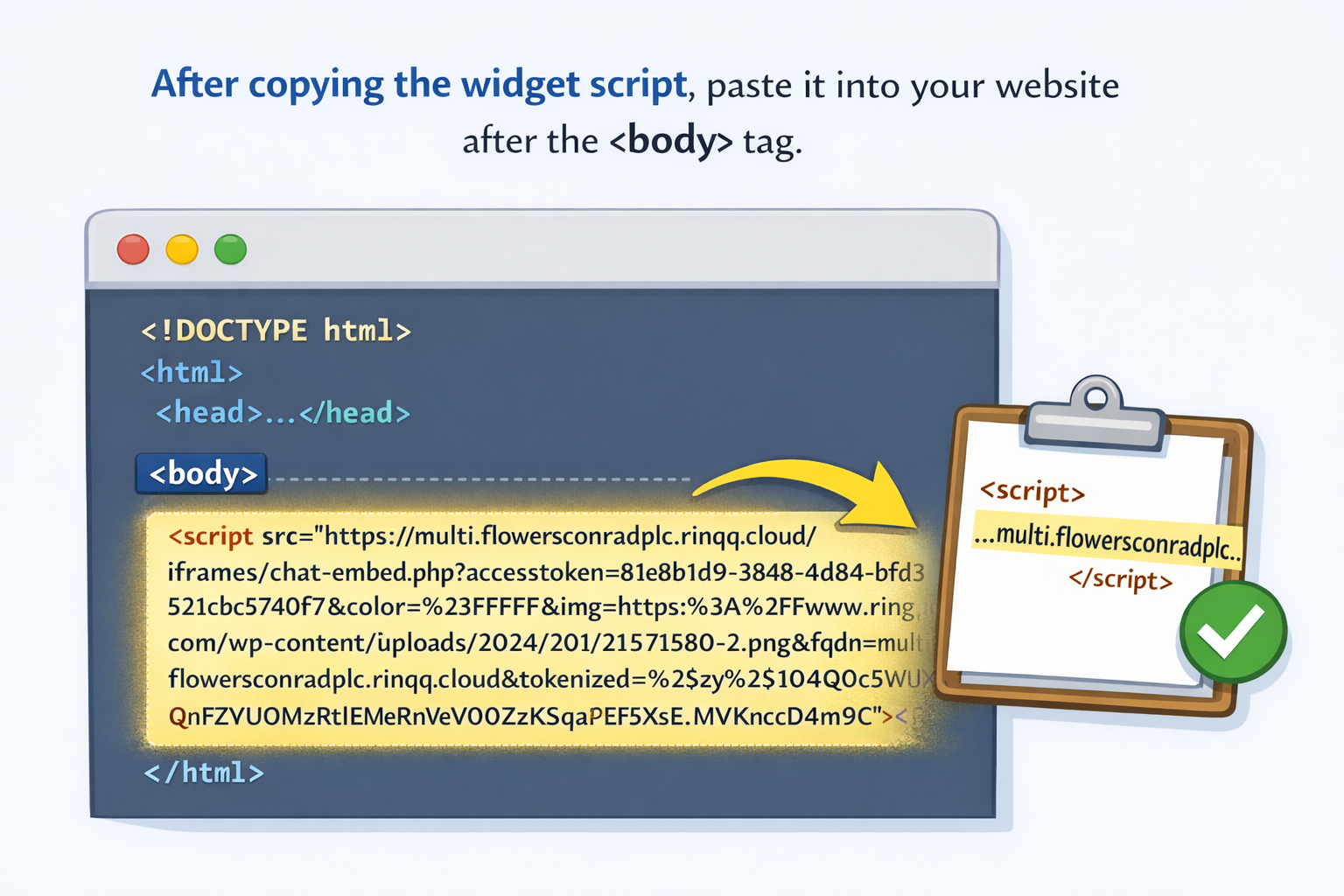
Paste the script after the body tag in your website’s code.