
Introduction
This guide walks you through the steps to configure WhatsApp Chat in the RingQ Web App. By following the instructions below, you’ll be able to connect your WhatsApp channel, manage conversations from a single interface, and ensure your team can respond to messages efficiently and consistently.
Prerequisites
- Administrator access to the RingQ Web App.
- Access to a Meta for Developers account.
- Your Meta account has access to WhatsApp Business Platform assets, including:
- WhatsApp Business Account (WABA)
- At least one approved WhatsApp phone number
- Your Facebook/Meta account can complete security or identity verification, if prompted (approval notification or verification code via email/SMS).
Set WhatsApp as the Chat Channel
1. Sign into your RingQ web app with your admin credentials.
2. Navigate to the Chat Channel Settings.
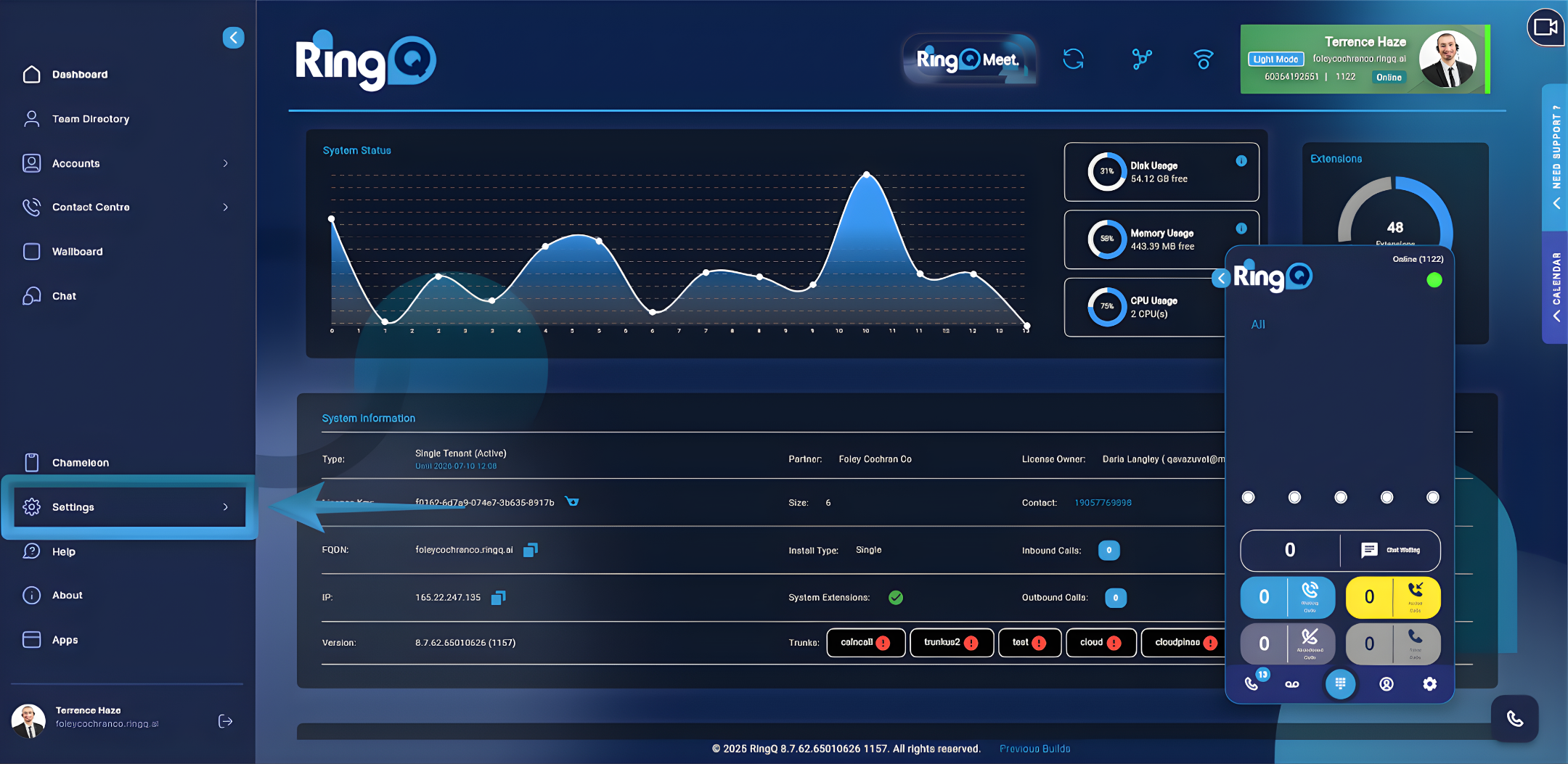
3. From the main menu, go to Settings.
4. Select Global Settings.
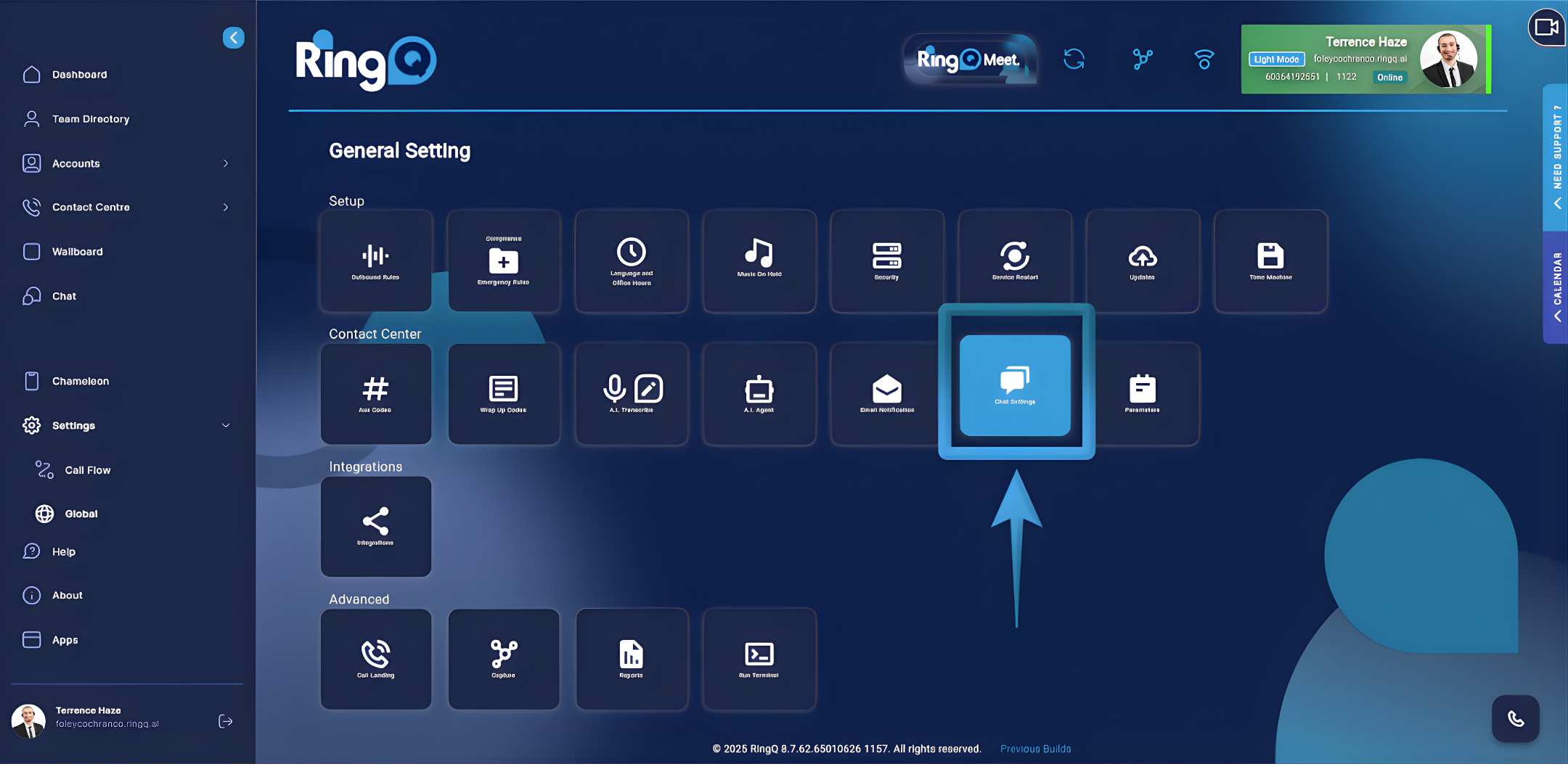
5. Click Chat Settings.
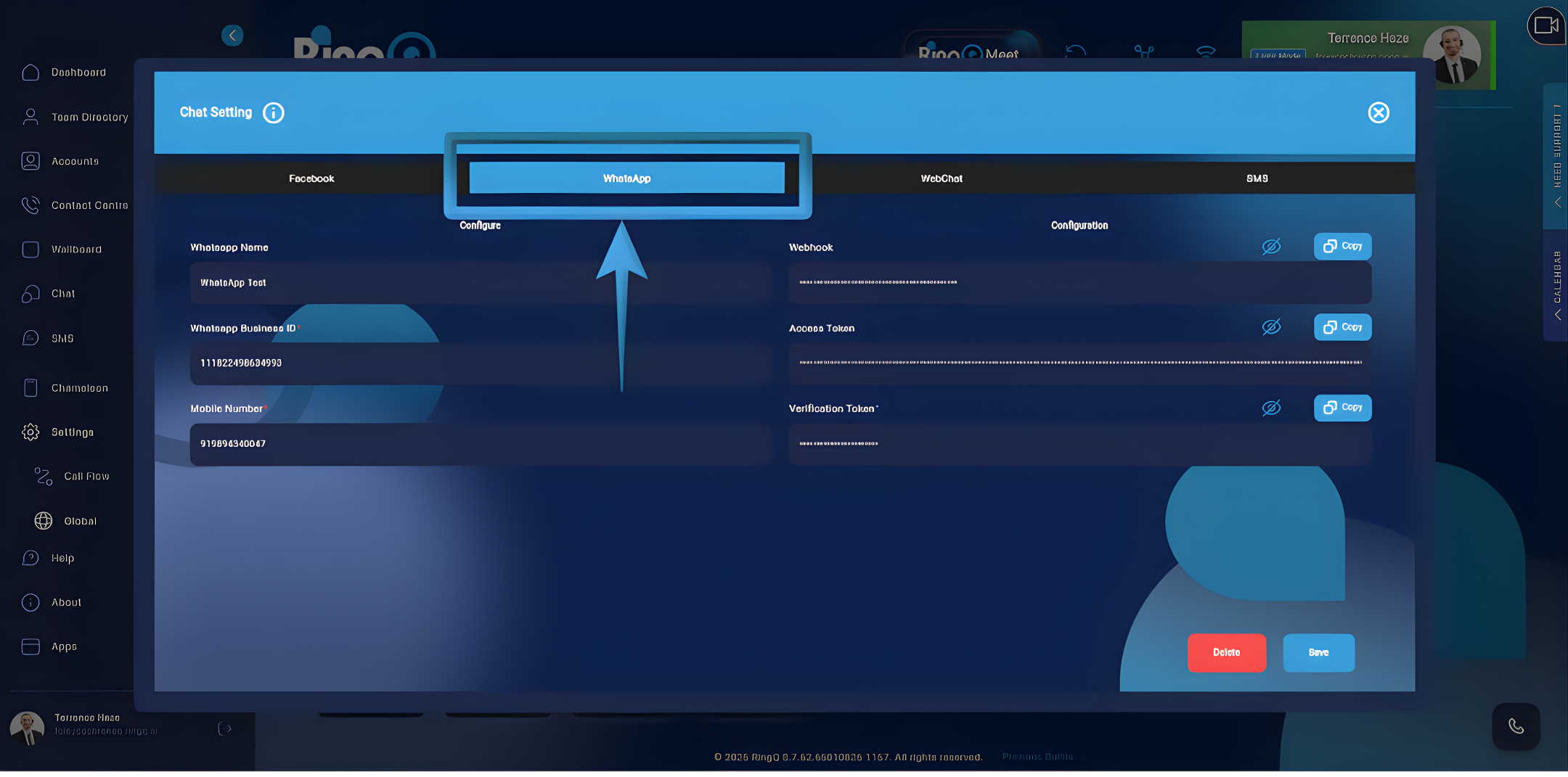
6. In the Chat Settings page, locate the list of available chat channels. Select WhatsApp to begin the configuration process.
Configuring WhatsApp
To make the configuration easier, we suggest you gather all required details beforehand and note them down.
Recommended list to prepare in your notes:
- WABA ID
- Phone Number ID
- Webhook (Callback URL)
- Access Token
- Verification Token
Follow the Meta for Developers Login guide on how to obtain the above information from your account.
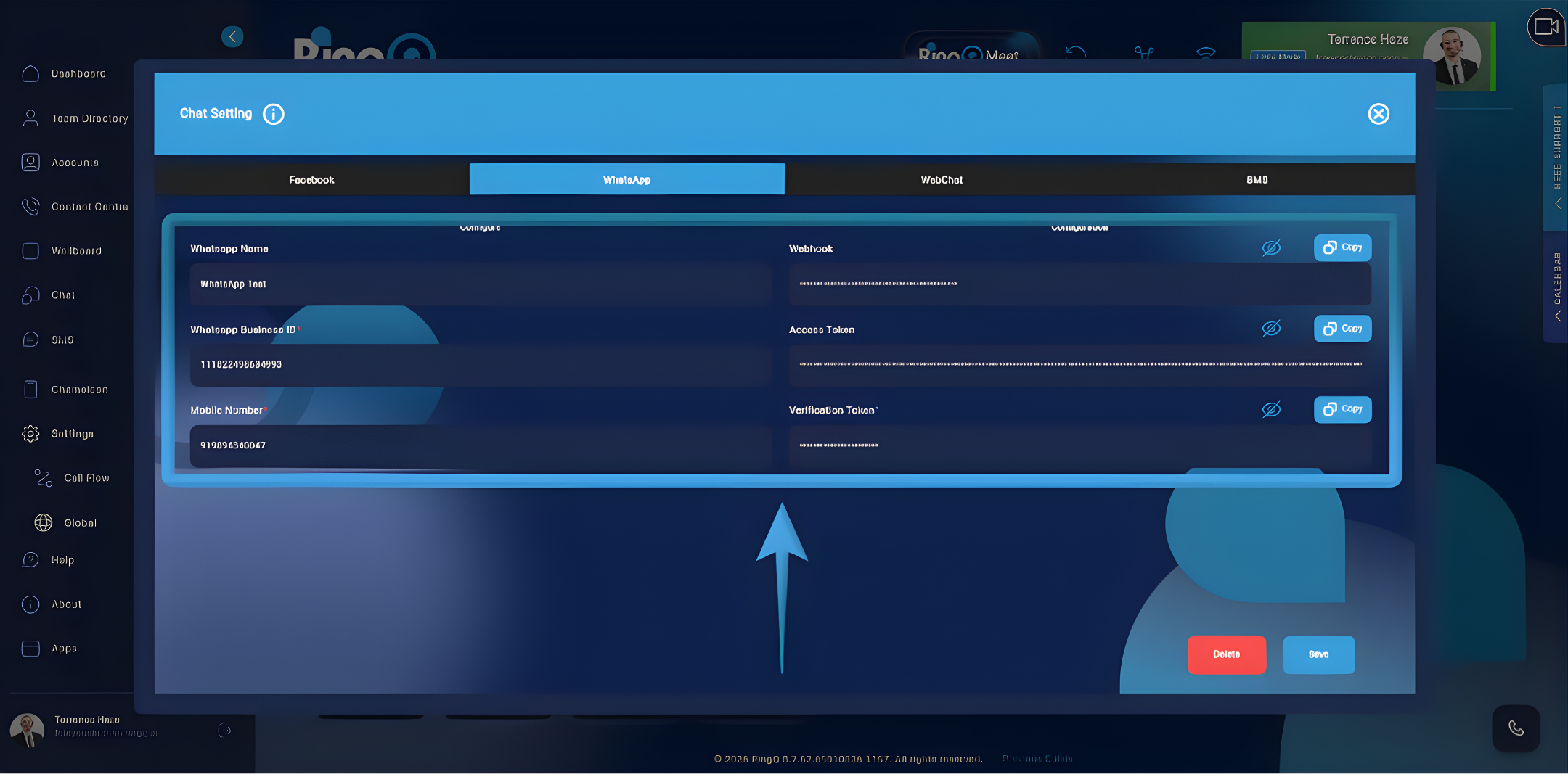
1. After collecting all required information, copy and paste each into its corresponding field in RingQ.
- WhatsApp name – Enter the WhatsApp Name you want to use for this configuration. This name will appear in RingQ as the display label, helping you easily identify the connected WhatsApp Business Account or phone number associated with this chat integration.
- WhatsApp Business Account (WABA) – This uniquely identifies the WhatsApp Business Account that owns and manages the WhatsApp phone numbers used for messaging.
- Phone Number ID – This identifies the specific WhatsApp phone number within your WABA that RingQ will use to send and receive messages.
- Webhook (Callback URL) – The webhook enables Meta to deliver real-time WhatsApp message events (incoming messages, delivery statuses, etc.) to RingQ for processing and display.
- Access Token – The access token authorizes RingQ to securely connect to the WhatsApp Business Platform APIs for the selected WABA/Phone Number.
- Verification Token – This token is used during webhook verification to confirm that webhook setup requests are valid and intended for your integration.
2. Click Save.
Once saved, WhatsApp Chat will be successfully configured in RingQ, establishing a secure connection that enables real-time messaging between your WhatsApp Business number and the RingQ Web App.
